18
Display
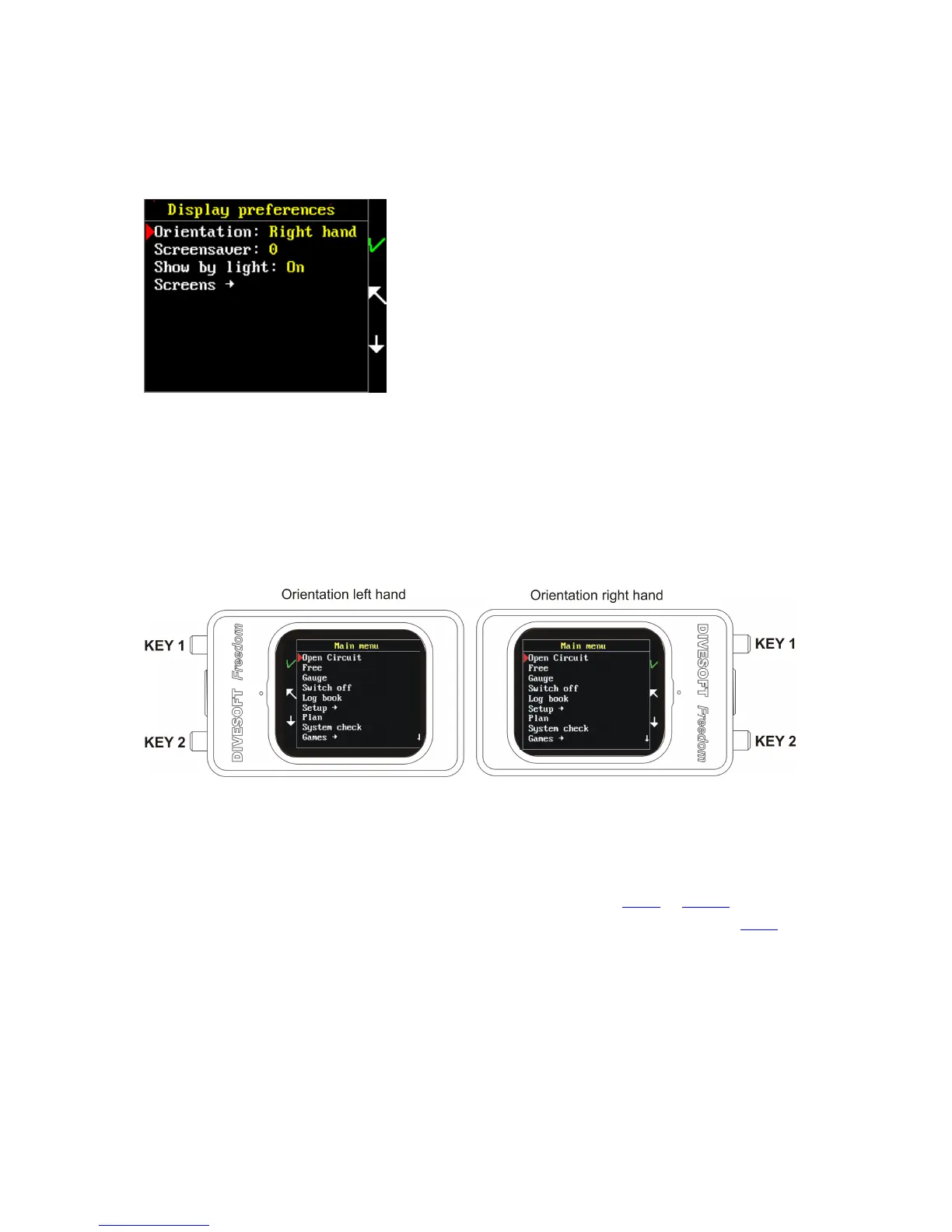
Orientation
Main menu > Setup > Preferences > Display > Orientation
Orientation allows changing the orientation of the computer from left-hand orientation to right-hand
orientation so that you can use your FREEDOM on either hand without changing the direction of the
buttons. If you set AUTO orientation, the display is automatically set after start.
Keep in mind: if you change the orientation, the functions of the buttons also change so that KEY 1 is
always at the top.
Press KEY 1 for change orientation.
Screensaver
Main menu > Setup > Preferences > Display > Screensaver
Select the screensaver delay in seconds from 0 (off) to 120 seconds. Use tilting or clicking (depending
on the setting) to enter the value. Instructions on how to use the screensaver are available here.
Show by light
In the screensaver mode, it is possible to reactivate the display either by pressing a key, shaking the
device or by shining a diving light on the display. This option can be set up in the menu (Main menu >
Setup > Preferences > Display preferences > Show by light).


 To Next Page