Horizon Compact Release 1.01.00 Wireless Ethernet Product User Manual – Volume 2
4.5.5 Home Screen
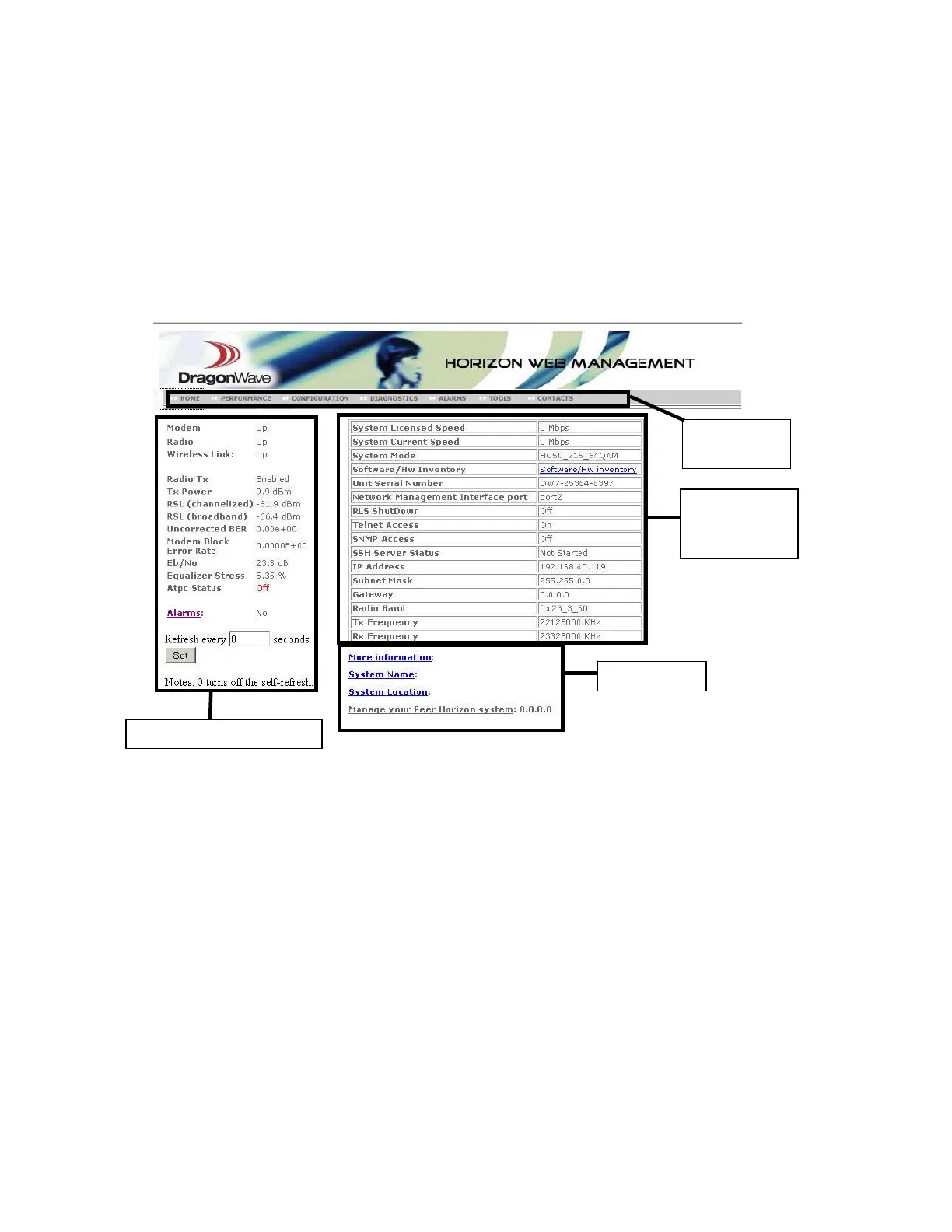
The Horizon Compact Web interface runs in a standard browser. The Home Screen (window) is divided
into three sections (panes). The navigation bar displays six menu options. The status pane on the left is
used to monitor the system health and link performance. The system information pane on the right
displays system parameters and links to more information.
Figure 4-2 Web Interface - Home Screen
Navigation Bar
Click on the navigation bar across the top of the page to navigate to different screens. Each menu option
displays a single screen.
System Status Pane
The main screen displays system status in the left hand pane. The information can be continually
refreshed. The default is no self-refresh (set to 0 seconds). Click on the “Set” button to manually refresh.
The maximum refresh rate is 99999 seconds. The minimum refresh rate is 3 seconds. Setting the self-
refresh rate also causes the Performance and Alarms screens to be refreshed at that rate.
System Information Pane
The system information pane contains information on the Horizon Compact type, management settings,
IP address information, and frequency settings. This pane is not updated automatically. The user must
refresh the screen either by using the browser's refresh button or by clicking on the Home button within
the navigation bar in order to update the system information pane.
S
stem Status Pane
System
Information
Pane
Sub-menu
Navigation
Bar


 To Next Page