36
VAPOR-LOGIC
®
VERSION 6 INSTALLATION AND OPERATION MANUAL
Using menus and screens
VAPOR-LOGIC DISPLAY HAS THE FOLLOWING MENUS AND SCREENS:
• Home screen
• Submenus:
• Status
• Help
• Alerts
• Settings
The items on the Web interface Diagnostics screen have been moved on
the touchscreen. Go to Settings to access test functions, see humidifier
configuration info and do a settings backup. Go to Status to Download Data.
Use the Alerts icon to view messages.
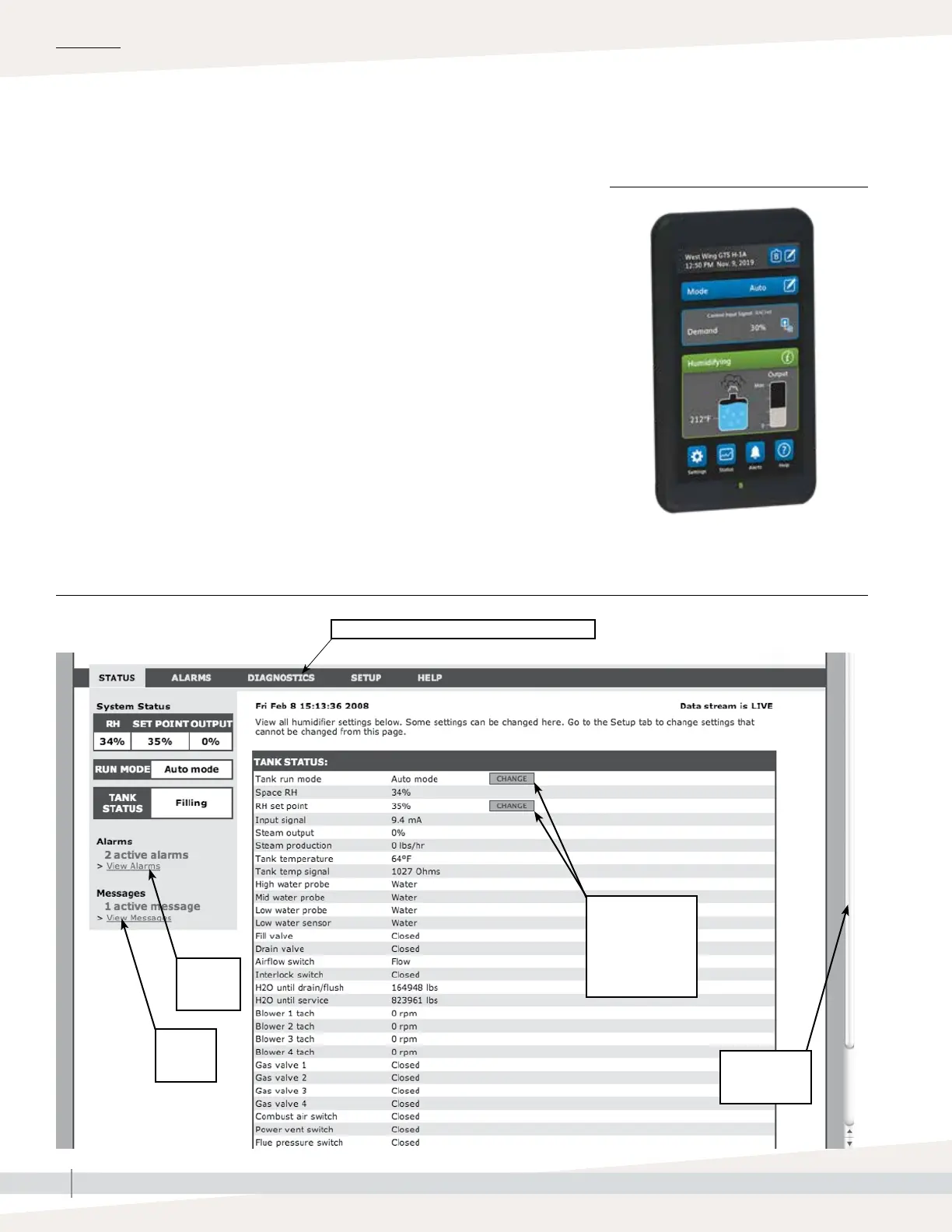
Vapor-logic Web interface has the following screens:
• Status
• Diagnostics
• Alarms
• Setup
• Help
Click on a tab label to move to another screen
Click here
to view
alarms
Click here
to view
messages
Click on CHANGE
to change value.
Note that most
system parameters
are changed in the
Settings menu.
OPERATION
Drag scroll bar
to view more
of the window
FIGURE 36-1:
TOUCHSCREEN DISPLAY HOME SCREEN
FIGURE 36-2: USING THE VAPOR-LOGIC WEB INTERFACE (STATUS SCREEN SHOWN)



 To Next Page