42
VAPOR-LOGIC
®
VERSION 6 INSTALLATION AND OPERATION MANUAL
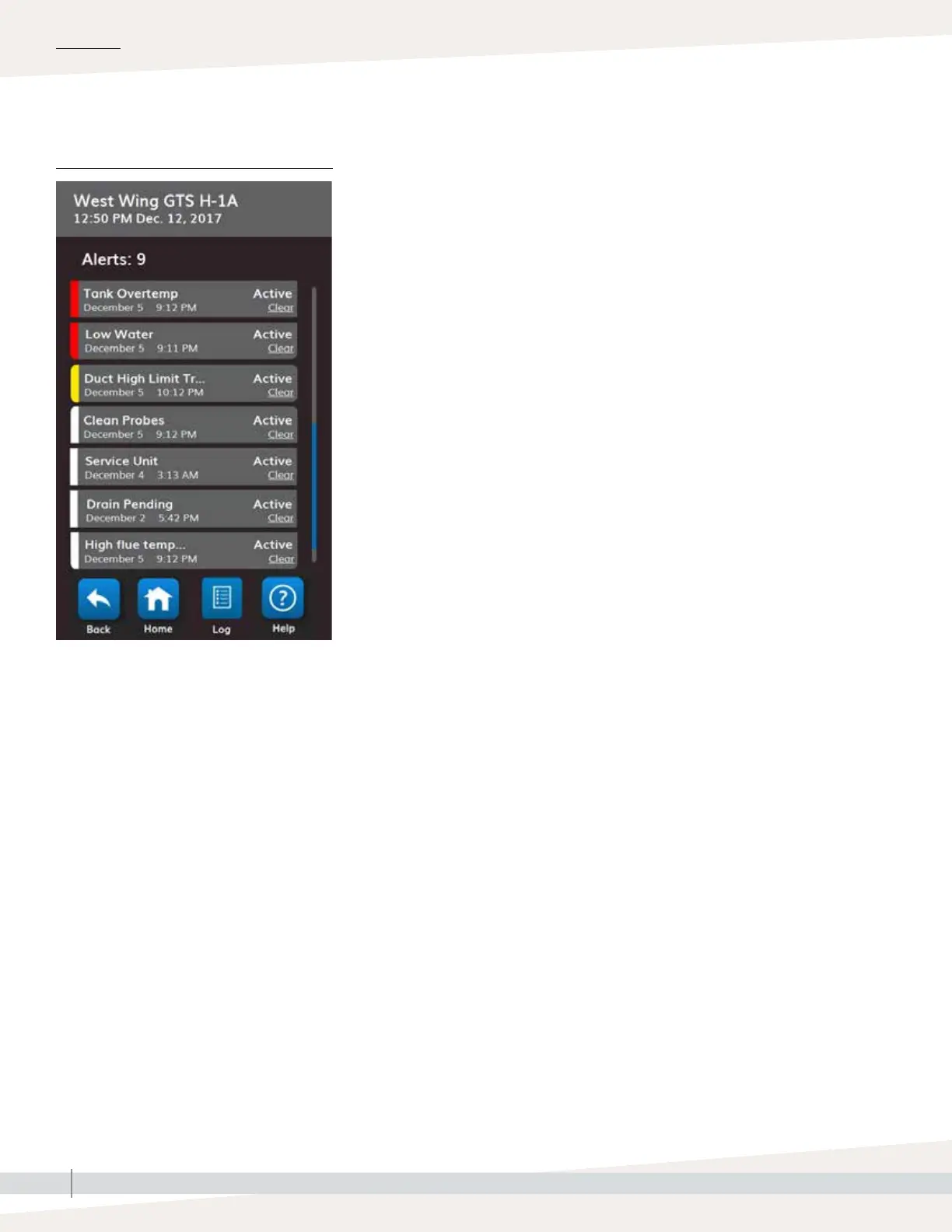
The active Alerts menu displays active system alarms and messages as Red,
Yellow and White alerts. Using the touchscreen, go to the Alerts menu by
pressing the Alerts icon, or by pressing the Home icon and then the Alerts
icon. The Alerts menu displays the alert name, date and time of occurrence
and the word Clear. To get troubleshooting information about the alert
touch the name of the alert on the alert bar. Touch the word Clear to request
Vapor-logic to manually clear the alert when you are sure that the condition
that caused the alert has abated. When the alert status changes to cleared,
the alert will move from the active Alerts menu to the Alert Log. Using the
Web interface, click on the View Alarms link in the upper left corner of any
screen to show all alerts, both active and historical.
The Alerts Log displays the alerts name, date and time of occurrence, plus
whether the alarm is active, has been cleared by an operator, or auto-
cleared by Vapor-logic. The Alerts Log lists active alerts at the top of the list,
followed by cleared alerts in chronological order. The Alerts Log holds 60
alerts. As alerts are cleared, they move down the list below active alerts.
When the Alarms list reaches 60 alerts, new alerts add to the top of the list
and the oldest, cleared alerts leave the list. Alert information is retained in
nonvolatile memory if the Vapor-logic board loses power.
The color of an alert indicates severity. In the active Alerts screen the alerts
are ordered Red, Yellow, White. The alert icon will be the color of the
highest level of active alert.
• Red: faults requiring immediate attention
• Yellow: environmental conditions preventing unit operation
• White: diagnostic or service messages; events that will or have occurred
that do not prevent unit operation
See Table 44-1 for alarms and their descriptions.
Alert causes and recommended actions are listed in the troubleshooting
section in this manual.
System alerts
OPERATION
FIGURE 42-1: TOUCHSCREEN



 To Next Page