64
VAPOR-LOGIC
®
VERSION 6 INSTALLATION AND OPERATION MANUAL
Firmware updates
WARNING
Electric shock hazard
All circuits must be energized for this
firmware update procedure. Contact
with energized circuits can cause
severe personal injury or death as a
result of electric shock.
To prevent shock when grounding
to the electrical subpanel, touch the
subpanel along its edge, away from
wires and components.
INSTALLING FIRMWARE UPDATES
1. Place the humidifier system in Standby mode.
2. IMPORTANT: To prevent static damage to the USB flash drive and
controller, ground yourself by briefly touching the humidifier’s electrical
subpanel before touching any part of the controller board or doing Step 3.
See the Warning.
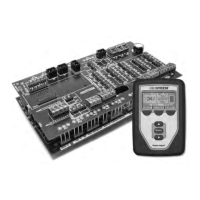
3. With the board powered, insert the USB flash drive loaded with the
unzipped firmware update folder into the Vapor-logic board USB port.
CAUTION
Do not remove USB flash drive or cycle power early
During Steps 4 and 5, do not remove the USB flash drive or cycle the power until
the signal occurs as explained in Step 5.
4. The update process begins immediately and takes up to 1 minute. Wait
for the relay on the Vapor-logic board to begin clicking continuously. The
water probe LEDs on the board will blink occasionally during the update
process.
5. When the relay on the Vapor-logic board begins to click continuously,
remove the USB flash drive from the Vapor-logic board USB port.
When the USB flash drive is removed, the Vapor-logic controller and
display reboot with the updated firmware.
6. Verify the update by checking the Vapor-logic firmware version as follows:
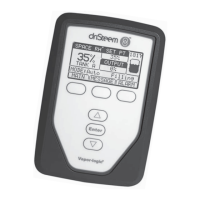
a. Select Settings in the touchscreen display Main menu.
b. Select Humidifier info.
c. Scroll down to Firmware version.
The firmware version displayed should match the version number of the
vl6_update xx.xx.xx folder on the USB flash drive (where x represents the
version number).
7. With the board still powered:
a. Insert the USB stick with the unzipped firmware into the touchscreen
display. The display will reboot.
b. Go to Settings/Display/Humidifier Info and verify that the display
firmware version has been updated.
8. Verify humidifier operation, and return it to service.
Not all USB drives perform equally. If a USB flash drive fails to update the
Vapor-logic firmware, perform the procedure with a different USB flash
drive.
OPERATION



 To Next Page