Drobo 8D User Guide 111
1.7.5 Checking the Current Version of Drobo
Dashboard
To check the current version of Dobo Dashboard installed, follow these steps:
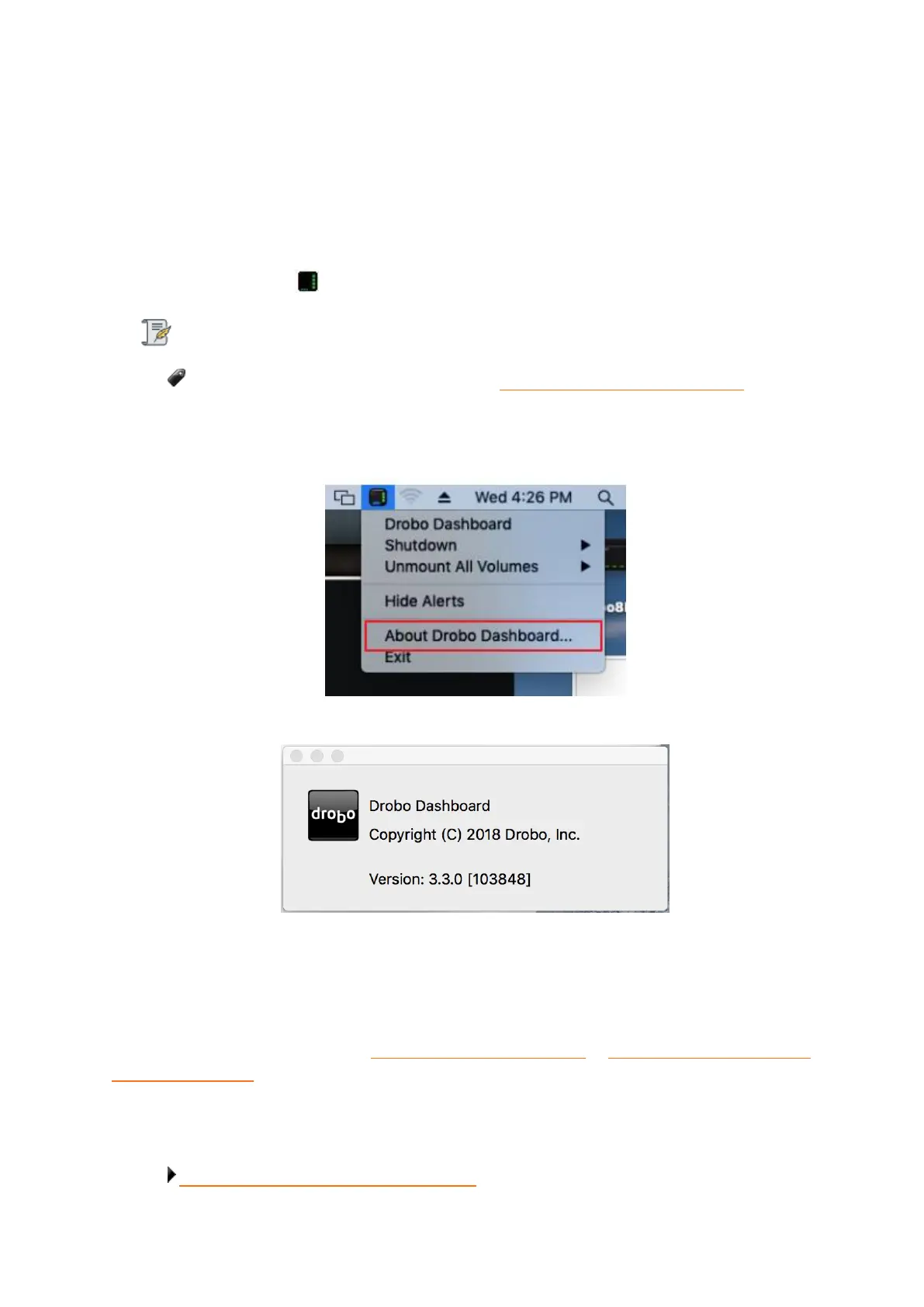
1. Locate the Drobo icon in the menu bar.
Note:
You may need to enable your menu bar, see Enabling or Disabling the Menu Bar
2. Click on the icon and a shortcut menu will appear.
3. Select About Drobo Dashboard from the shortcut menu.
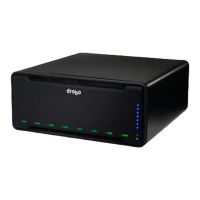
4. A message box opens, showing the Drobo Dashboard version number.
5. Click the OK button to close the message box.
To ensure optimal performance, we highly recommend that you set the Drobo device to
automatically check for software updates. This feature keeps both the Drobo Dashboard and the
firmware of your device up to date.
To update your firmware version see Checking for Software Updates or Manually Updating Firmware
from Drobo Website.
Related topics:
Checking the Drobo 8D's Firmware Version


 To Next Page