Drobo 8D User Guide 85
1.4.7 Enabling or Disabling Menu Bar
By default, the Drobo icon appears in your menu bar. When you right-click the Drobo icon, a short-
cut menu opens, enabling you to:
● Launch Drobo Dashboard.
● Find out the version of Drobo Dashboard.
● Hide or show alerts for the Drobo device.
You can choose to disable the Drobo shortcut in the menu bar and later enable it at any time.
To enable/disable the menu bar:
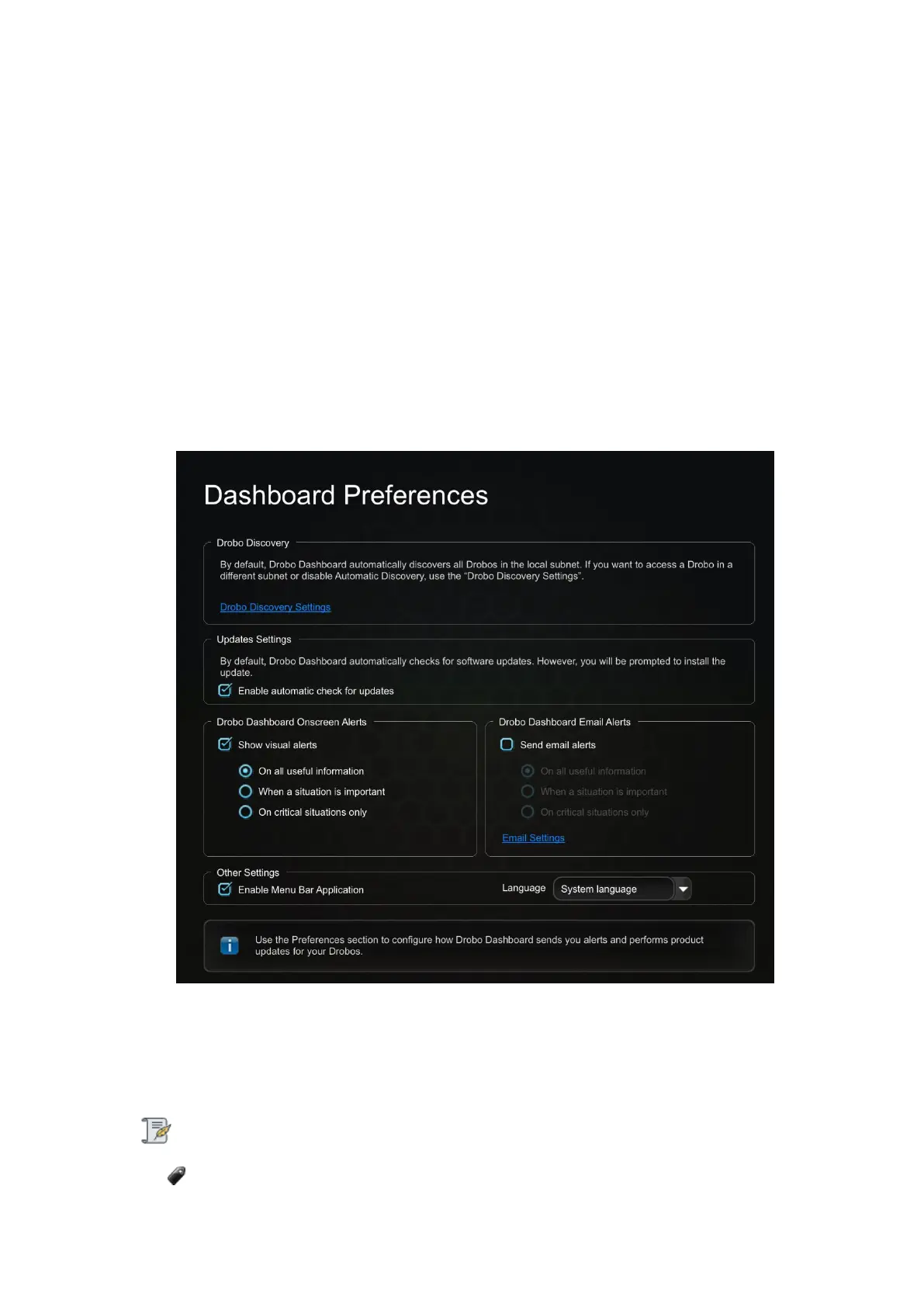
1. Open the Drobo Dashboard and click the Dashboard Preferences option on the Navigation
menu. The Dashboard Preferences page opens.
2. If the feature is already enabled, then you will see a tick mark in the Enable Menu Bar
Application check box. If the tick is not present, then you can enable the feature by selecting the
Enable Menu Bar Application check box.
3. If you want to disable the feature, then clear the Enable Menu Bar Application check box.
Note:
If the menu bar option is disabled, on-screen alerts will not be displayed.


 To Next Page