Drobo 8D User Guide 97
1.6.4 Inserting a back slot SSD
You can install a back slot SSD into the Drobo 8D.
Doing so provides accelerated performance when reading data from the Drobo 8D. For more
information on drive requirements, see Selecting Drives.
The back slot SSD is not part of the Drobo device disk pack, so you can add or remove it at any time.
Important Notes:
It is important to ground yourself before installing the back slot SSD in order to discharge
static electricity. To do so, touch a grounded metal object just before installation.
Back slot SSD supports maximum of 5 volts (5v).
Warning:
If there is any pre-existing data on the back slot SSD, it will be erased. If you wish to keep
the data, copy it to another drive or medium before using with the Drobo device.
To install a back slot SSD, perform these steps:
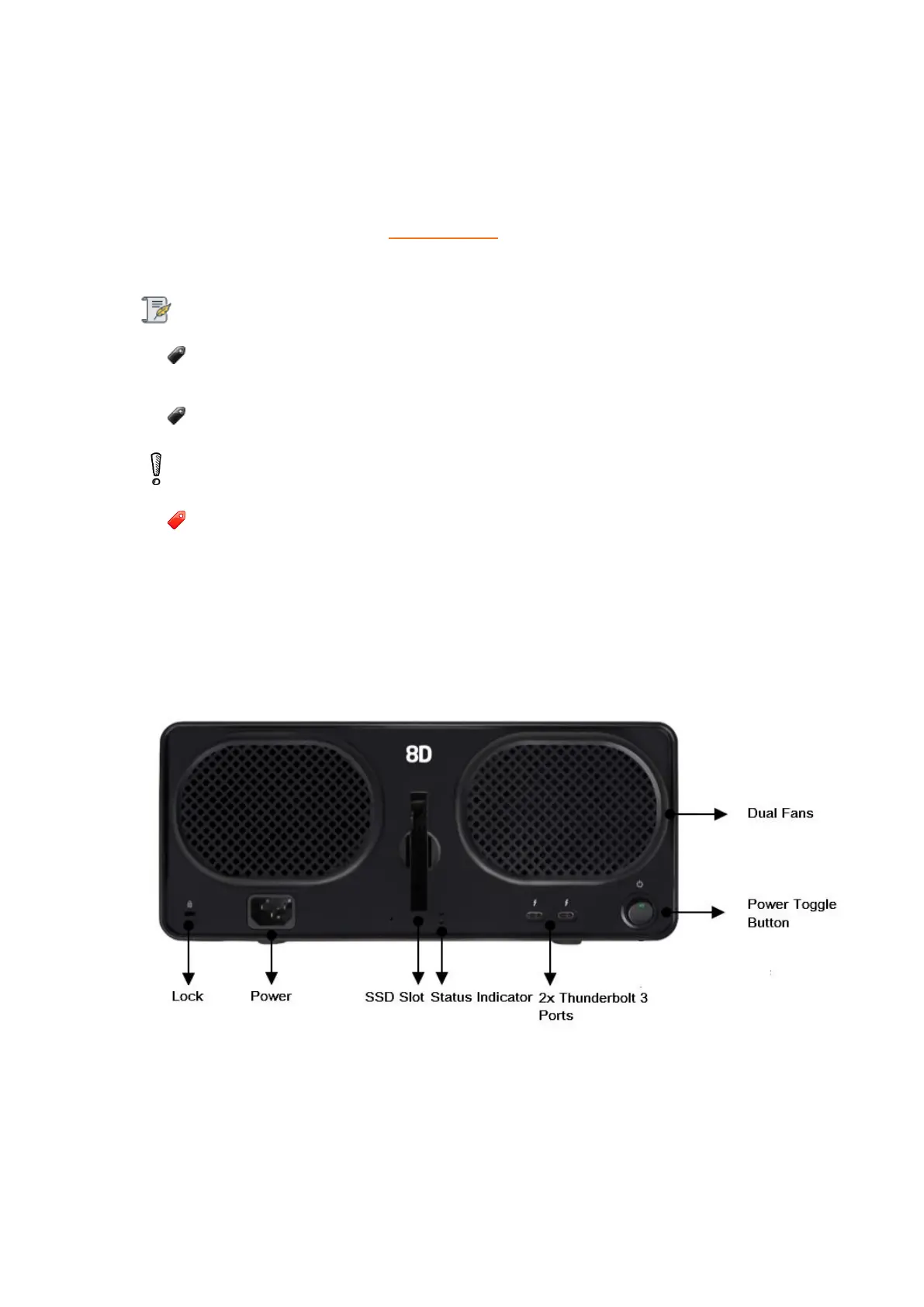
1. Gently turn the Drobo 8D to access the rear side of the Drobo 8D. In the rear side, you can find a
slot to insert SDD, as depicted in the image below
2. Slide the SSD into the back slot and gently push it down to lock in place.
3. When finished, return the Drobo 8D to its normal position.
4. In the Dashboard, you can see the status of SSD as shown in the figure below.
● Green: Indicates SSD is Good or Healthy.


 To Next Page