Drobo 8D User Guide 74
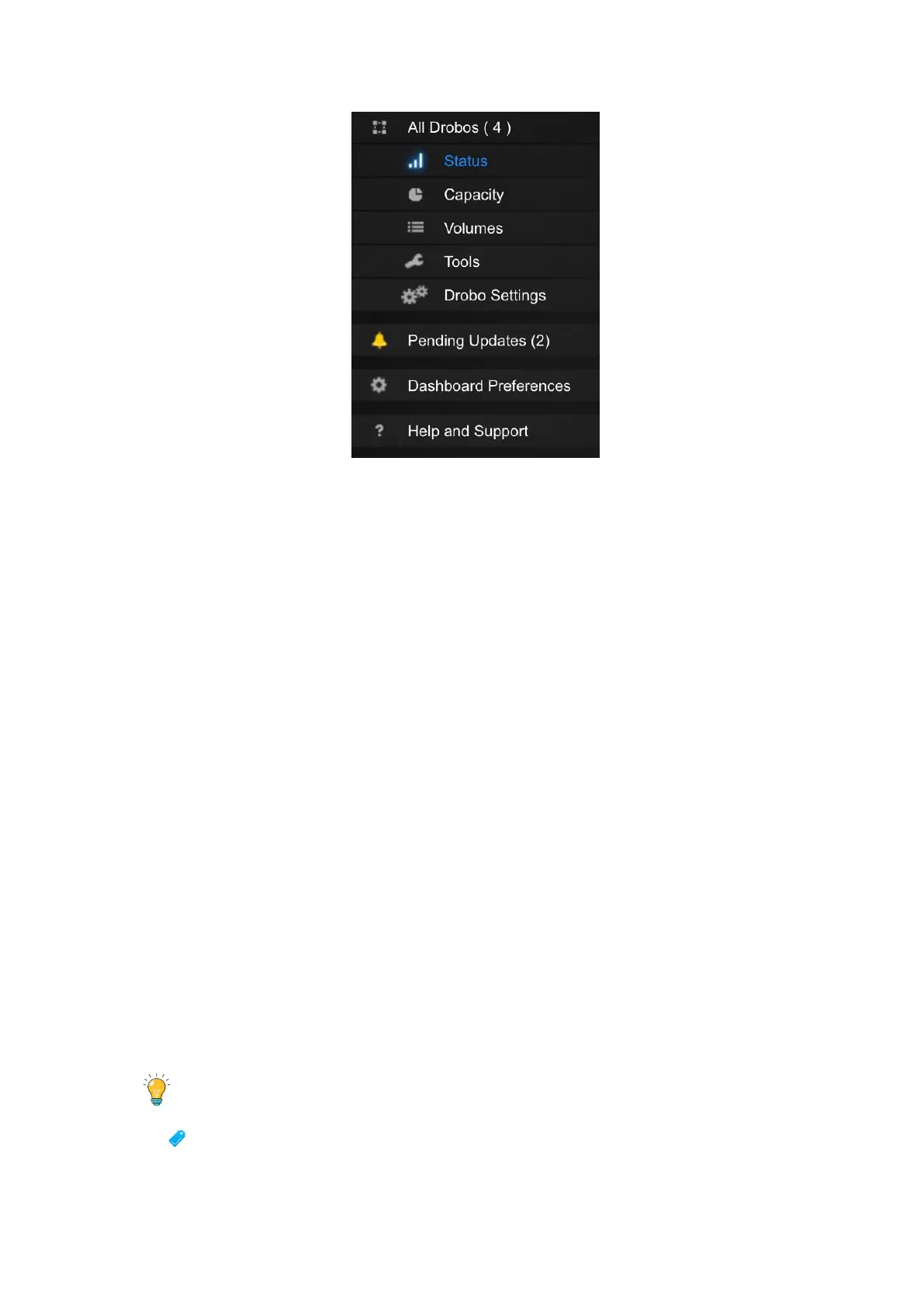
Menu options include the following:
● All Drobos (#), where # is the number of Drobo devices you have connected – Opens the All
Drobos page.
● Status – Opens the Status page, where you can view a variety of status information for the
selected Drobo device, such as drive information, device serial number and more.
● Capacity – Opens the Capacity page, where you can view how the storage capacity of the Drobo
device is being used.
● Volumes – Opens the Volumes page, which enables you to view and manage volumes for the
Drobo device.
● Tools – Opens the Tools page, which provides access to special tools, such as those to restart
the Drobo device or check for software updates.
● Drobo Settings – Opens a sub-menu with the option to modify various types of settings, such as
General, Admin and Network.
● Pending Updates – Opens the Pending Updates page, which will display all the pending Drobo
Dashboard and/or Firmware updates, if any.
This option will be available only if there are any pending updates.
● Dashboard Preferences – Opens the Dashboard Preferences page, which enables you to modify
Dashboard settings, such as those for automatic software updates and e-mail settings. (E-mail
settings enable you to receive e-mail alerts on the status of the Drobo devices).
● Help and Support – Opens the Help and Support page, which provides access to various forms of
help, including the Online User Guide and the Drobo knowledge base.
Tip:
For Status, Capacity, Volumes and Tools pages, you can view the same information for
other connected Drobo devices (if applicable) by clicking the up or down arrow key that


 To Next Page