Set date
This function allows the date, in the example
shown here the date format is year/month/day.
- Use the joystick
to select menu"
from the Interactive Menu and press ENTER.
- Select the Date and time item and press ENTER.
- Select the Set date item and press ENTER.
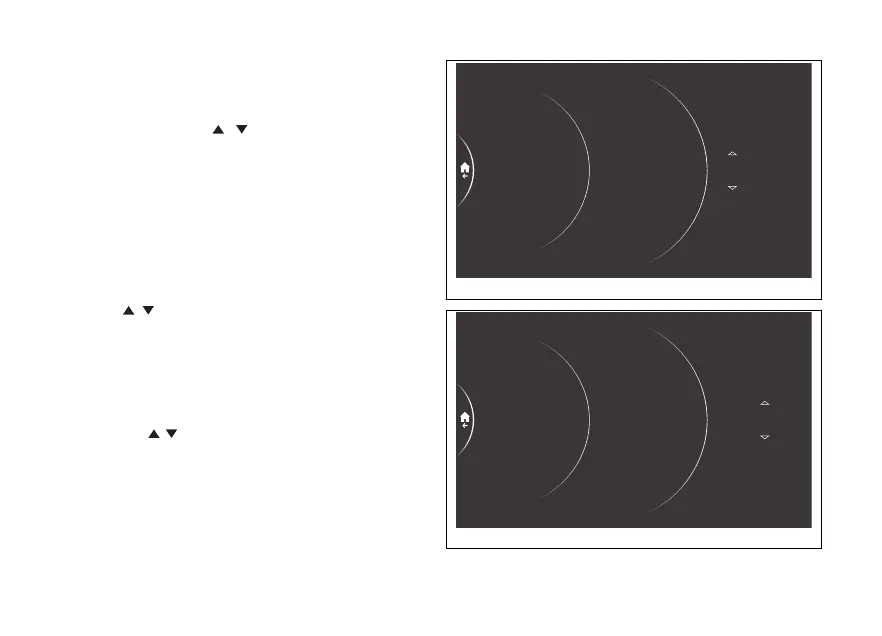
The first parameter of the date
(- the year in the example - Fig 206)becomes
selectable and is displayed with two arrows placed
above and below it; the available values for the
displayed parameter are also displayed. Using the
joystick
it is possible to scroll and select the
desired value. Press ENTER to confirm and move on
to the following parameter.
The arrows and available values appear for the
second parameter, which is the
(month in the example shown here, Fig 207). Using
the joystick
it is possible to scroll and select the
desired value. Press ENTER to confirm and move on
to the following parameter.
06/ /2020 01
2019
2021
2018
2022
Set time
Date format
Set date
Antitheft
Service
Date and time
Blind Spot…
Lap
Fig 206
06
/ /2021 01
/ /
12
11
03
02
Set time
Date format
Set date
Antitheft
Service
Date and time
Blind Spot…
Lap
Fig 207
230











 To Next Page