Firmware Update
Click the Upgrade Now button: “ ”.
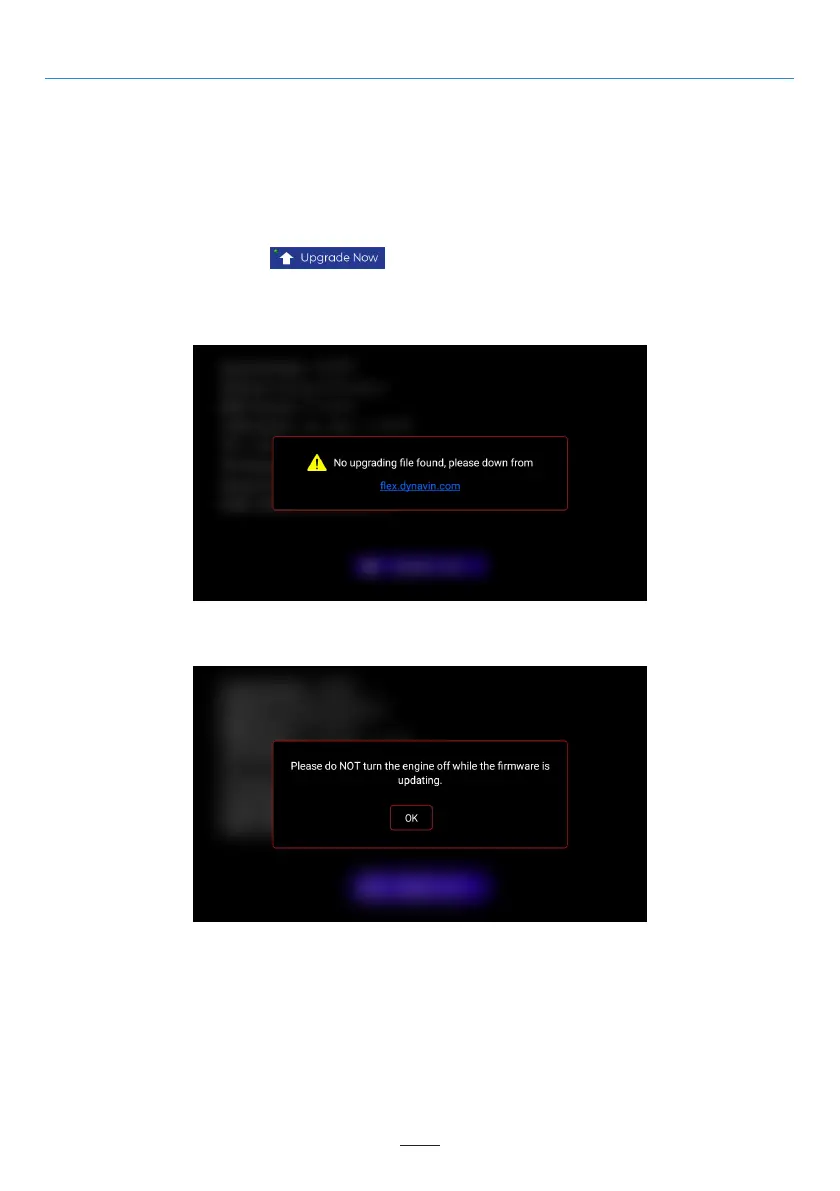
If there is no update software on the USB drive or you did not first extract the files before copying them to the
USB drive, you will get a message as pictured below.
Only when the system finds the correct files on the USB stick will the update process begin.
Once the system update software is detected, the small light in the top left corner of the “Upgrade Now” button
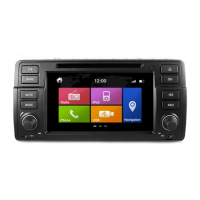
will turn green. Once the button is pressed, the Dynavin will begin downloading the firmware (do not remove
the USB drive). Once it has finished downloading, the unit will restart and install the update automatically. It is
possible that you will see a black screen for a brief time. The whole process will take about 3-5 minutes. You can
remove the USB drive after downloading has finished and the Dynavin has fully booted up.
02 03 04 05 06 07 08 09 10 11 12
13 14 15 16 17 18 19 20 21 22 23 24
25 26 27 28 29 30 31 32 33 34 35 36
37 38 39 40 41 42
44 45 46
On the Dynavin homepage, follow the instructions for downloading the firmware.
Download the available update firmware for your Dynavin onto a USB 2.0 drive. (Please make sure to begin
with a blank USB drive.)
You must extract the files and place them individually in the root directory of the USB drive
(not in a folder).
Connect the USB drive to the USB-MEDIA extension cable.
40


 To Next Page