Main Menu
02 03 04 05 06 07 08 09 10
08
12
13 14 15 16 17 18 19 20 21 22 23 24
25 26 27 28 29 30 31 32 33 34 35 36
37 38 39 40 41 42 43 44 45 46
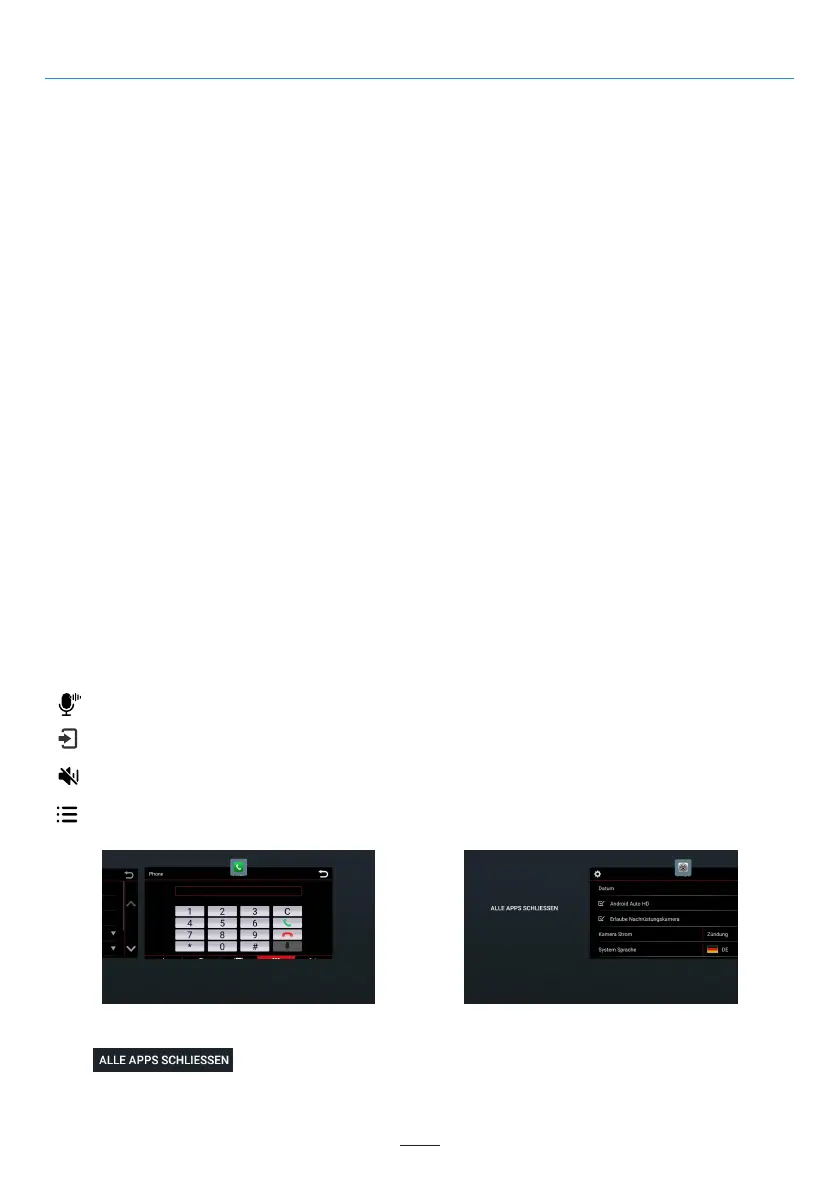
You can switch between the pages in the main menu as follows:
1. by pressing on the page navigation lines (in the lower middle area of the main menu)
2. by swiping with your finger (to the left or right)
*The red line indicates which page you are currently on. In the picture above it is on the main menu page
2.*
You can change the position of the function icons on the main menu:
Long press the icon and drag it to where you want to place it, and release your finger when the two icons
overlap.
(Note: Radio icon, Z-Link icon and Apps icon cannot be moved.)
Pressing one of these functions takes you to the respective menu:
Radio
Media
Z-Link
Phone
Navigation
Sound
Vehicle
Apps
Camera
File
Info
System
WiFi
System Reset
GPS Test
Map updates
Speedcam Alert
Head-up Display
Click to show all open applications in the background of the device.
= Radio menu access
= Media Menu (USB or BT) access
= Access compatible CarPlay/Android Apps apps via the device
= Phone menu access
= Navigation starting
= Sound settings / Tone settings
= Display vehicle-related data
= Access application service menu
= Switches the camera on (optional)
= File menu access
= Firmware update
= System Settings
= WiFi Settings
= Reset radio system
= Test GPS signal
= Update navigation map
= Speedcam Alert settings
= Head-up Display settings
= Activates the voice assistant on your smartphone (e.g.
Siri or Google Assistant
= Quick access to the media menu being played
= Mute device sound
You can swipe up to clear the application.If you want to clear all applications , swipe right on the screen and click
the “ ” button on the left.


 To Next Page