Wireless Apple CarPlay
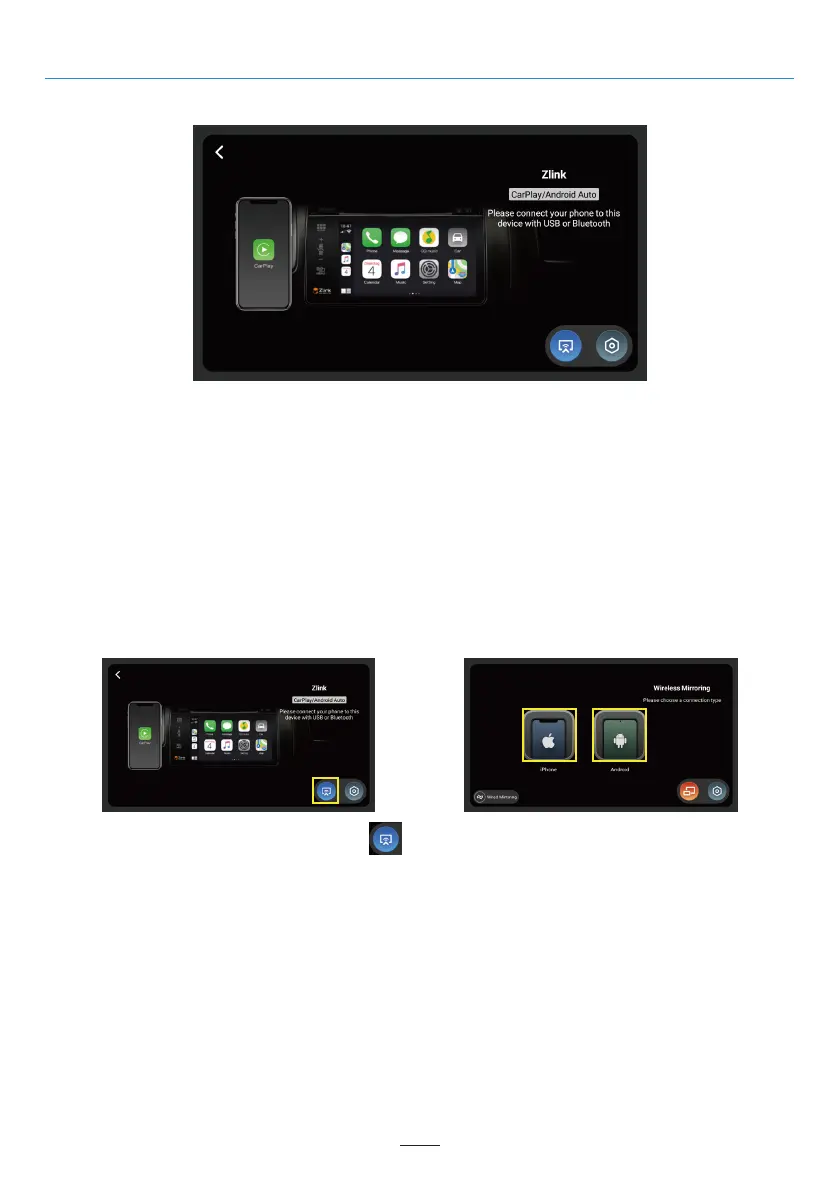
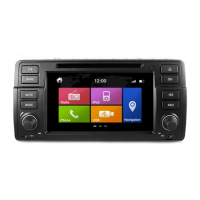
Click “Z-Link” on the main menu and click the “ ” icon on the CarPlay / Android Auto menu to access the
Wireless Mirroring menu. Then select your smartphone type.
02 03 04 05 06 07 08 09 10 11 12
13 14 15 16 17 18 19 20 21 22 23 24
25 26 27 28 29 30 31 32 33 34
36
37 38 39 40 41 42 43 44 45 46
Z-Link (Car-smartphone connectivity)
Before using wireless Apple CarPlay, turn on the BT function on your smartphone device
Connect your smartphone to Dynavin unit via Bluetooth (Operation see page 14).
After successful pairing, the device will automatically access the Apple CarPlay. Then you can control the
smartphone via the Dynavin unit.
Android Auto
Connect your smartphone to the Dynavin unit via USB and click the “Z-Link” icon on the main menu to
access the Android Auto menu.
Wireless Mirroring
You can display your smartphone’s screen on the Dynavin’s screen using the Wireless Mirroring function.
33


 To Next Page