5 Configuring System
ED-HMI2120-101C User Manual 5-13
The storage device to be mounted has been connected to the corresponding port on the
ED-HMI2120-101C device.
Steps:
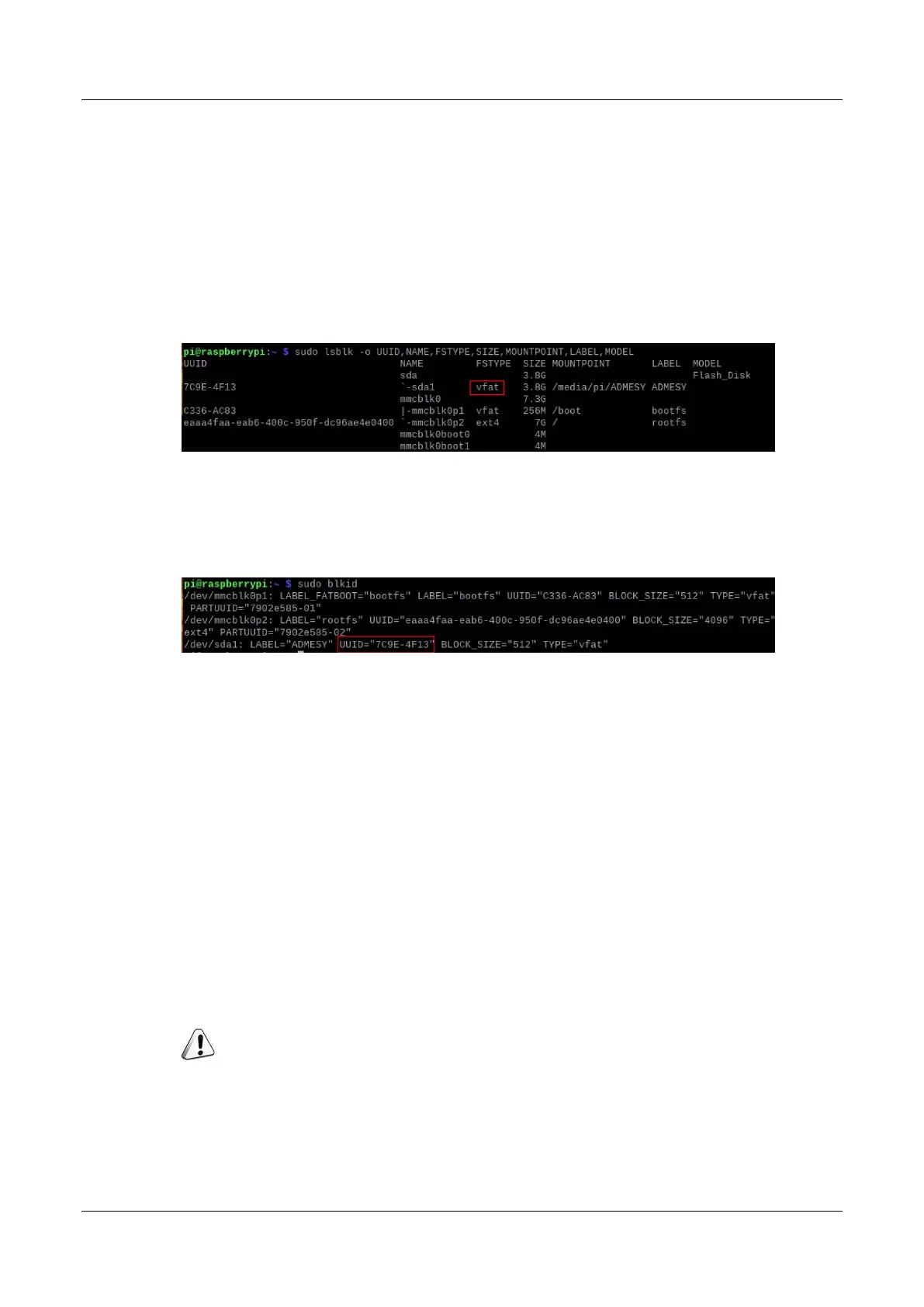
1. Execute the following command to view all disk partitions on the ED-HMI2120-101C and get
the file system type of the storage device to be mounted, as “vfat” shown in the figure below.
sudo lsblk -o UUID,NAME,FSTYPE,SIZE,MOUNTPOINT,LABEL,MODEL
2. Execute the following command to obtain the UUID of the storage device to be mounted, such
as "7C9E-4F13" in the figure below.
sudo blkid
3. Execute the following command to open the fstab file.
sudo nano /etc/fstab
4. Add the following to the fstab file.
UUID=7C9E-4F13 /mnt/mydisk vfat defaults,auto,users,rw,nofail 0 0
The value of UUID is the value found in Step 2 above.
"/mnt" is the directory to be mounted, and mydisk is the name of the mount point.
Vfat is the file system type queried in step 1.
If the type of file system is FAT or NTFS, the added content is "UUID = 7C9E-4F13
/mnt/mydisk vfat defaults,auto,users,rw,no fail umask = 000 0 0", which will allow all
users to "read/write" access to each file on the storage device.
NOTE:
More information about the fstab command can be viewed by executing the man fstab command.
5. Use Ctrl+X to save the file and exit edit mode.



 To Next Page