5 Configuring System
ED-HMI2120-101C User Manual 5-10
5.3 Configuring Storage Devices
You can connect your external hard disk, SSD, SD card or USB stick to the corresponding port on the
ED-HMI2120-101C, and mount the file system to access the data stored on it. When the ED-HMI2120-
101C is turned off, it is necessary to unmount the storage device so that it can be safely pulled out.
The connectable storage devices of ED-HMI2120-101C include USB storage devices and SD cards.
This chapter introduces how to configure the mounting and unmounting of storage devices.
5.3.1 Mounting a Storage Device
If the Lite version of the operating system is used (the Desktop version of the system supports
automatic mounting), after the storage device is connected to the corresponding port on the
ED-HMI2120-101C, it is necessary to mount the storage device in a specific folder location through
configuration, usually in the /mnt folder, such as /mnt/mydisk.
NOTE:
The "/mnt" folder must be empty.
Preparation:
The storage device is ready to be mounted.
Steps:
1. Connect the storage device to be mounted to the corresponding port on the
ED-HMI2120-101C (USB storage device is inserted into USB port and SD card is inserted
into SD card slot).
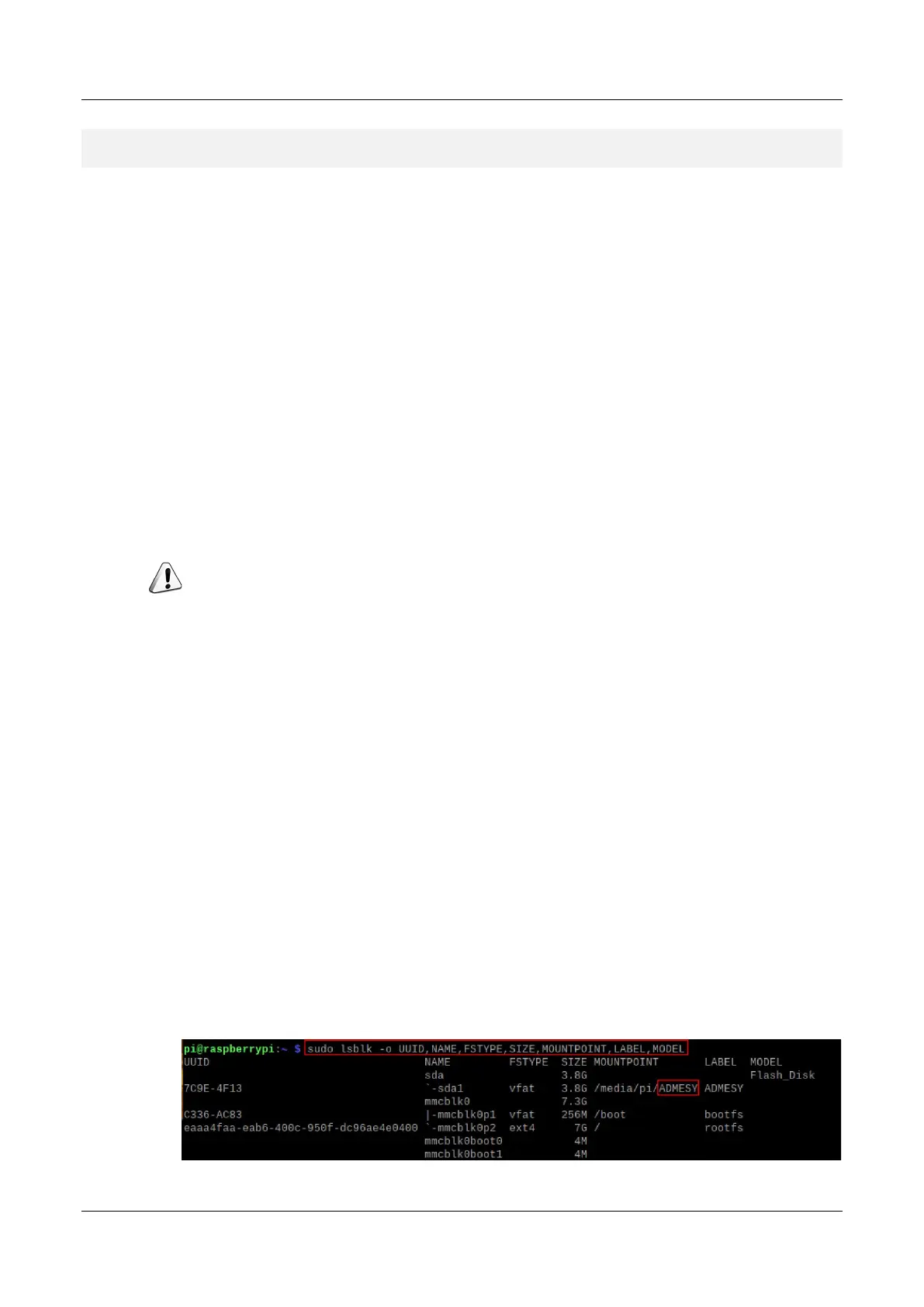
2. Run the following command to view all disk partitions on the ED-HMI2120-101C.
sudo lsblk -o UUID,NAME,FSTYPE,SIZE,MOUNTPOINT,LABEL,MODEL
After running the command, the information displayed is as follows:



 To Next Page