10
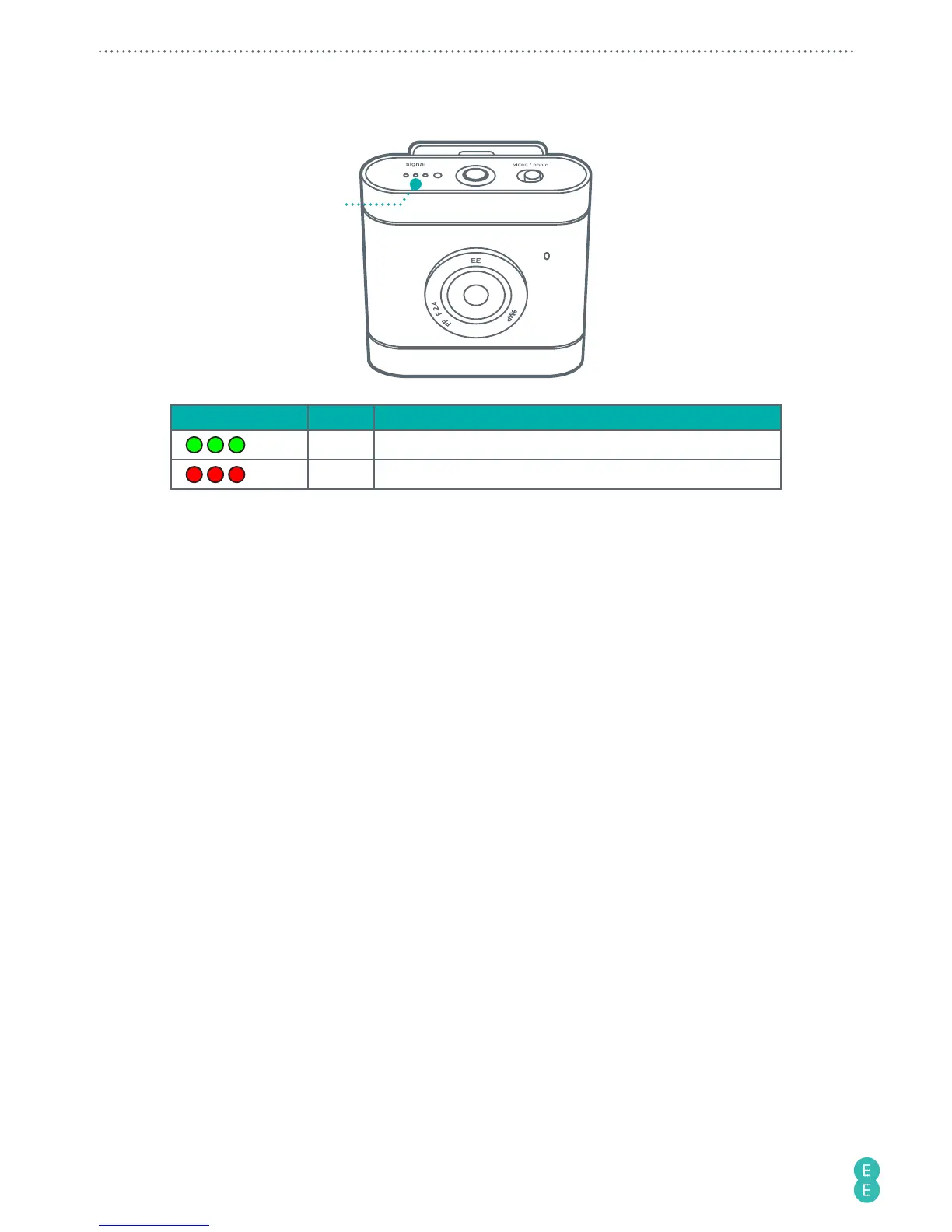
Checking the network signal status
Signal
indicator
Status light Colour Meaning
Green Indicates network signal strength.
Red No signal/No nano-SIM card/No network connection.
Selecting modes
Use the camera’s Toggle switch to select Photo or Record video/Live streaming modes.
• To take a photo, move the Toggle switch to
Photo
.
• To record a video or start a live stream, move the Toggle switch to
Video
.
Your camera is set to Record video mode by default. To use Live streaming mode, you will
need to pair your mobile phone with your camera, then use the 4GEE Action Cam app
(compatible with your 4GEE Capture Cam) installed on your phone for selection. For detailed
instructions, please refer to
“Your 4GEE Action Cam app (compatible with your 4GEE Capture
Cam)” on page 12
.
Taking photos
Note:
If you wish to have a preview of your photos before taking them, use the 4GEE Action
Cam app (compatible with your 4GEE Capture Cam) installed on your mobile phone. For
detailed instructions, please refer to
“Your 4GEE Action Cam app (compatible with your 4GEE
Capture Cam)” on page 12
.
Note:
To view the photos taken, use the 4GEE Action Cam app installed on your mobile phone
or transfer files to your computer. For detailed instructions, please refer to
“Managing photos
and videos” on page 26
and
“Transferring camera files to a computer” on page 33
.
Your camera allows you to take photos using the following photo shot modes:
• Normal: Take a single photo at a time. This is also the default photo mode.
• Burst: Quickly capture a number of consecutive shots.
• Timer: Take photos using the self-timer.



 To Next Page