16
No. Meaning
11 Photo mode
12 Record video mode
13
Shutter
Touch Shutter to take photos or start/stop recording or
live streaming videos.
14 Manage photos/videos captured
15
Settings
Set up your camera, manage your account or looking for help.
Note:
To read your messages, access your account or sync your camera to skeegle, a valid
nano-SIM card must be inserted in your camera (please refer to
“Setting up your camera” on
page 5
).
Note:
If your nano-SIM card cannot be detected, please refer to
“Troubleshooting” on
page 34
.
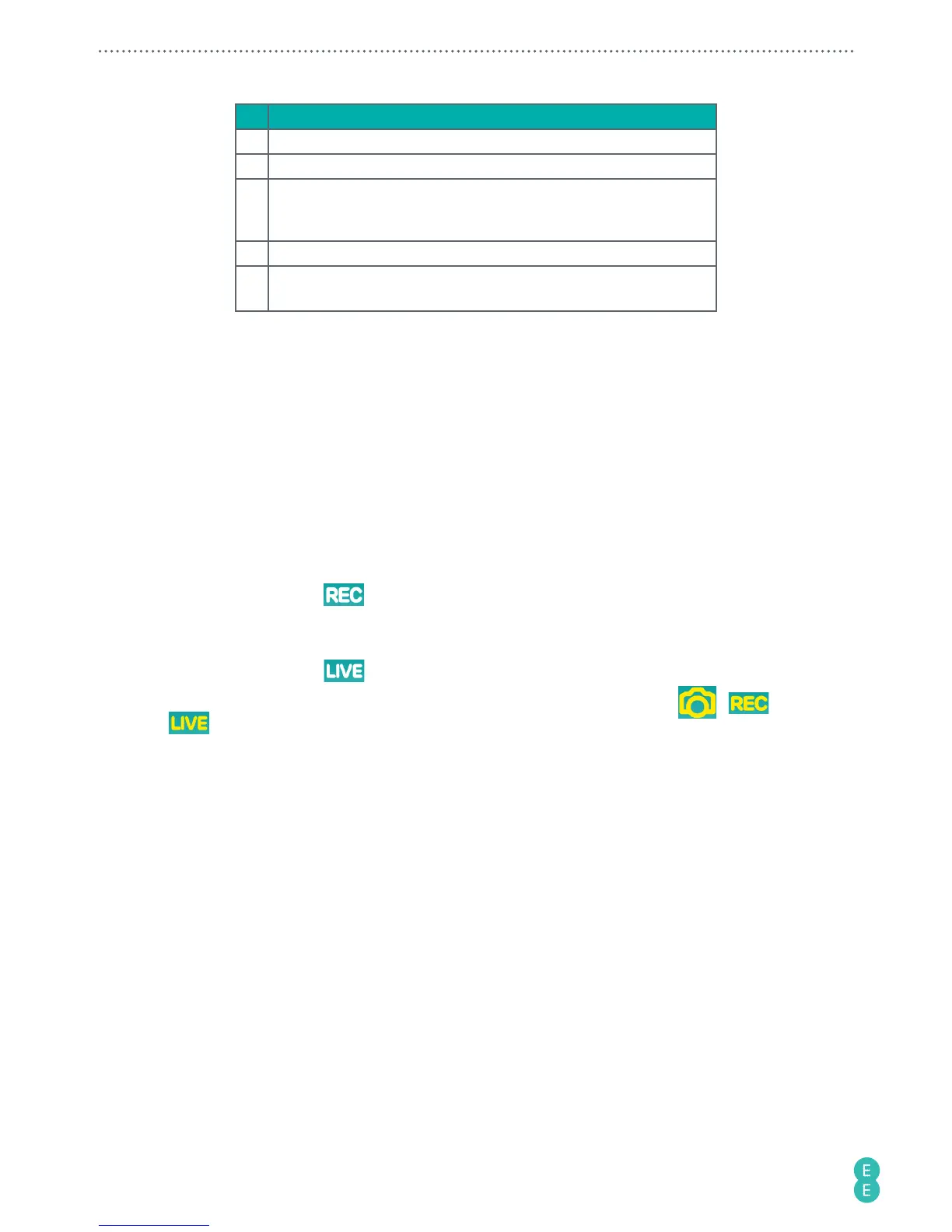
Selecting modes
• Photo mode: Move the Toggle switch to
Photo
on your camera.
• Record video mode:
a. Move the Toggle switch to
Video
on your camera.
b. In the app, touch
.
• Live streaming mode:
a. Move the Toggle switch to
Video
on your camera.
b. In the app, touch
.
Note:
The icon of the currently selected mode will be displayed in yellow:
/ /
.
Setting up your account to live stream to skeegle
Note:
Before setting up your live streaming account, make sure you have paired your phone to
your camera (refer to
“Setting up the app” on page 13
) and that your camera is connected to
the 3G/4G network.



 To Next Page