24
Recording videos
4
2
5, 6
3
1. On your camera, move the Toggle switch to
Video
.
2. In the main screen of the app, touch
to enter Record video mode.
3. Touch
>
CAMERA
.
• To record a video at normal speed (default), make sure
Timelapse
and
Video loop
are
turned off.
• To record a time-lapse video, touch
Timelapse
> desired time interval.
• To record videos on a loop, touch
Video loop
>
On
.
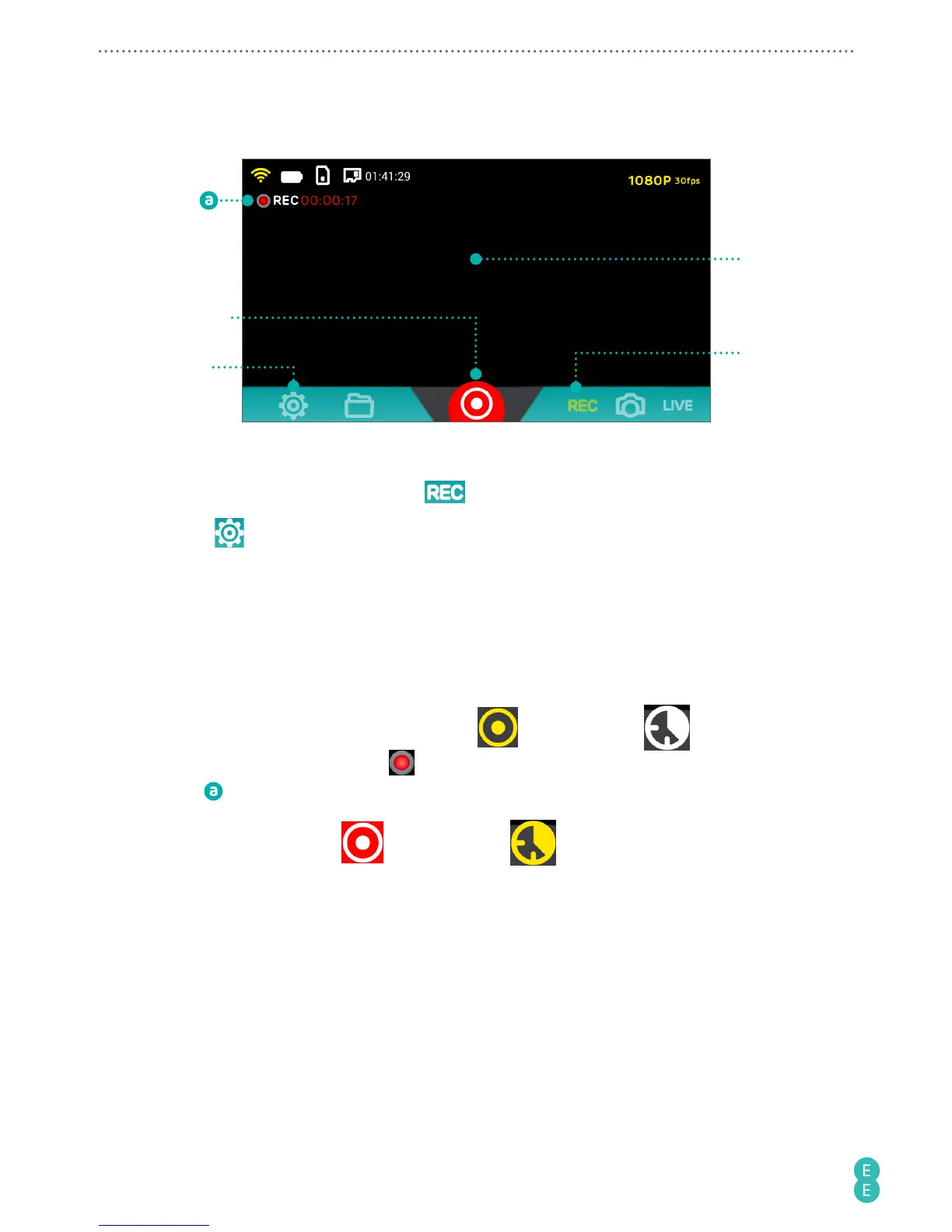
4. Aim your camera at your subject, which will be shown on the preview screen of your
phone.
5. Back in the app, start recording by touching
(normal or loop) / (time-lapse).
The Shutter icon turns red, and
displays at the upper left, indicating the elapsed
time
of the current recording.
6. To stop recording, touch
(normal or loop) / (time-lapse).
Starting a live stream from the app
Note:
If you are using this function for the first time, you have to set up and log into your live
streaming account first. For detailed instructions, please refer to
“Setting up your account to
live stream to skeegle” on page 16
.
Note:
Your camera does not support live streaming and charging at the same time.



 To Next Page