26
Managing photos and videos
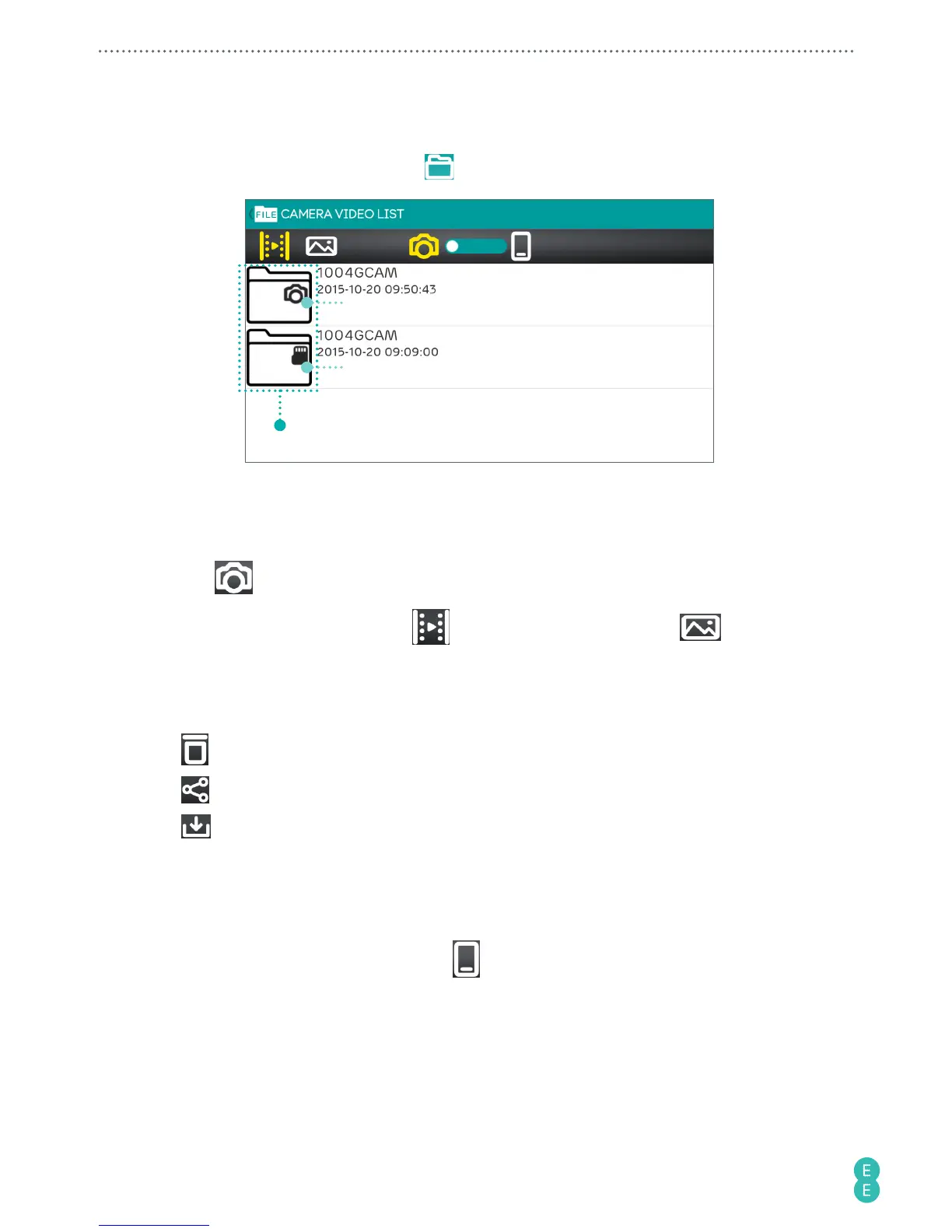
1. In the main screen of the app, touch to display the following screen.
Indicates files saved in the camera’s internal drive
Indicates files saved in the microSD card drive
Album list
Note:
If you have over 1000 photos or videos saved to 1004GCAM, the camera will
automatically create a new folder called 1014GCAM where new files will now be available
from.
2. Touch
to select your camera as the file source.
3. To view video files recorded, touch
; to view photo files taken, touch .
4. Touch an album from the album list, then scroll and touch a desired video or photo
thumbnail. The selected video or photo plays back or displays in full screen.
5. Touch these action icons to manage your video or photo:
•
: Delete the file.
•
: Share the file by available apps.
•
: Download the file to your phone’s internal memory.
Note:
To perform the same action to multiple files, touch
Select all
then touch unwanted
files to deselect them.
Note:
Downloading or playing back a 1080p may take some time. After downloading files
to your phone, you can play back these files on your phone without being paired to the
camera. To view downloaded files, touch
.
Note:
Playing back these videos on your phone using the VLC media player provides the
optimal playback performance.



 To Next Page