23
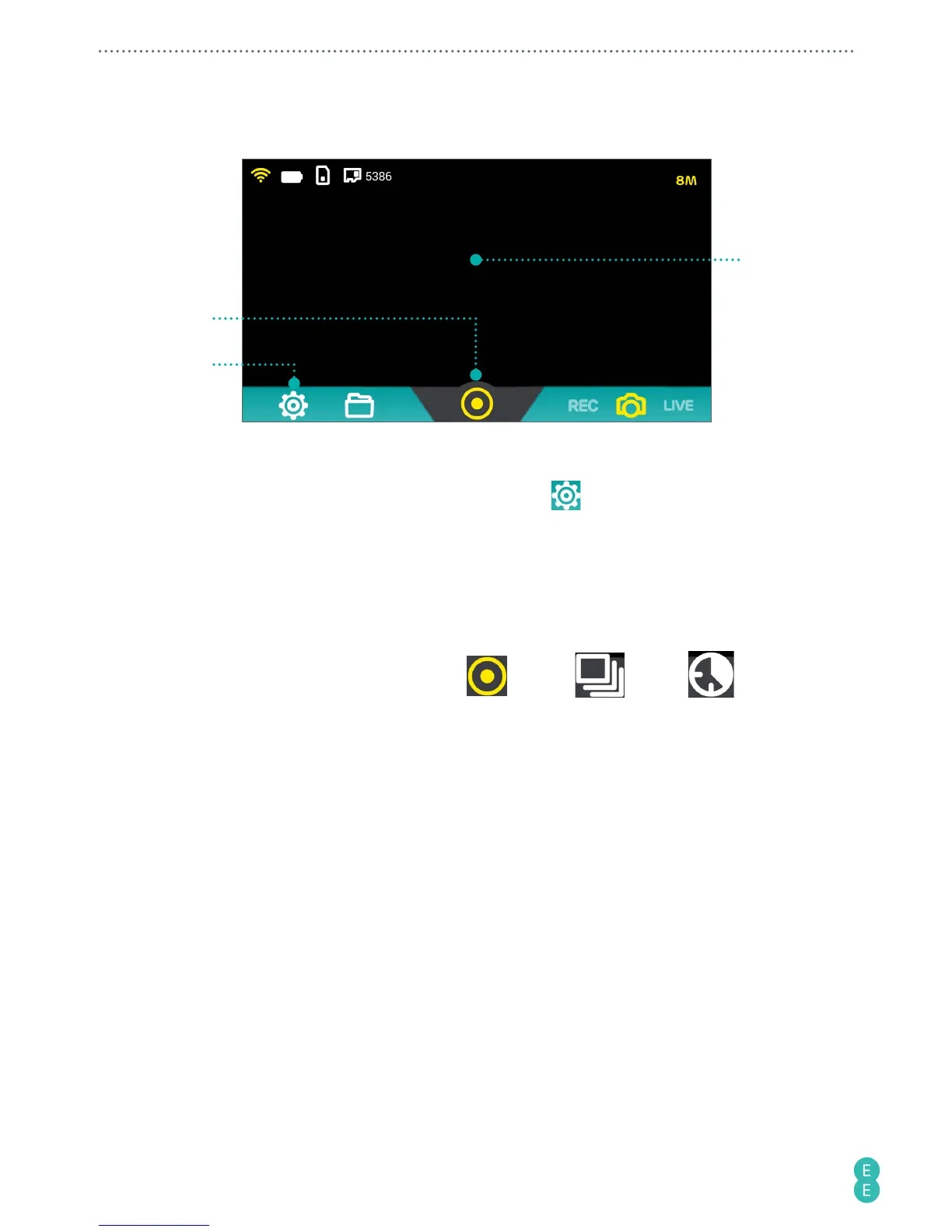
Taking photos
3
4
2
1. On your camera, move the Toggle switch to
Photo
.
2. In the main screen of the 4GEE Action Cam app, touch
>
CAMERA
>
Photo shot
mode
> select your desired photo shot mode:
• To take a single photo at a time (default), touch
Normal
.
• To take 20 photos continuously (burst mode), touch
Burst
.
• To take photos using the self-timer, touch
Timer 2S
/
Timer 10S
.
3. Aim your camera at your subject, which will be shown on the preview screen of your
phone.
4. Back in the app, take photo(s) by touching
(single) / (burst) / (self-
timer).



 To Next Page