15
4.2 Main MENU
Gauge configuration and measurement functions are
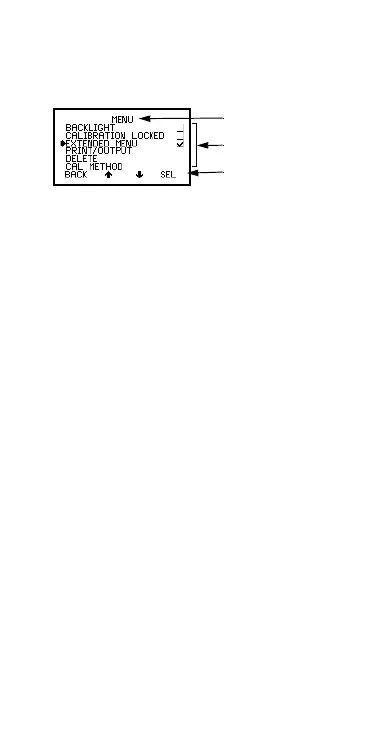
controlled using menus (Figure 12). The structure of the
menus is shown on page 18.
Figure 12. Typical Elcometer 456
2
menu
Some screens allow the status of a feature to be
changed e.g. on to off or select or deselect, etc. A tick
box indicates this type of feature. A tick against a
menu item indicates the function is activated or selected.
SEL softkey selects the option displayed and in some
cases toggles the status of a tick box off/on.
Up/Down softkeys K
L
move the cursor to the menu item
required. The menus scroll up/down and a line across
the screen indicates the start and end of the menu.
BACK softkey returns the gauge to a previous screen.
Holding this softkey down will rapidly exit from any menu
and return to the reading screen.
4.2.1 Simple and extended menus
The Elcometer 456
2
Basic Gauge has two menu
structures:
Extended menu off (simple menu mode): The gauge
is shipped from the Elcometer factory with EXTENDED
MENU turned off. In this simple menu mode the gauge
can be calibrated and used to take measurements. This
is the ideal setting for users who do not require access
to advanced features of the gauge.
Extended menu on (extended menu mode): Additional
items are automatically added to the MENU and the
STATS softkey is activated. These give access to more
advanced functions such as statistics, calibration
method, print/output, setup, etc.
Menu title
Menu contents
Softkey functions
Op_456_2_English.book Page 15 Friday, February 17, 2006 3:35 PM



 To Next Page