22 • iPro I/O Module Installation and Operation Manual 026-1741 Rev 0
3.7 Service Menu
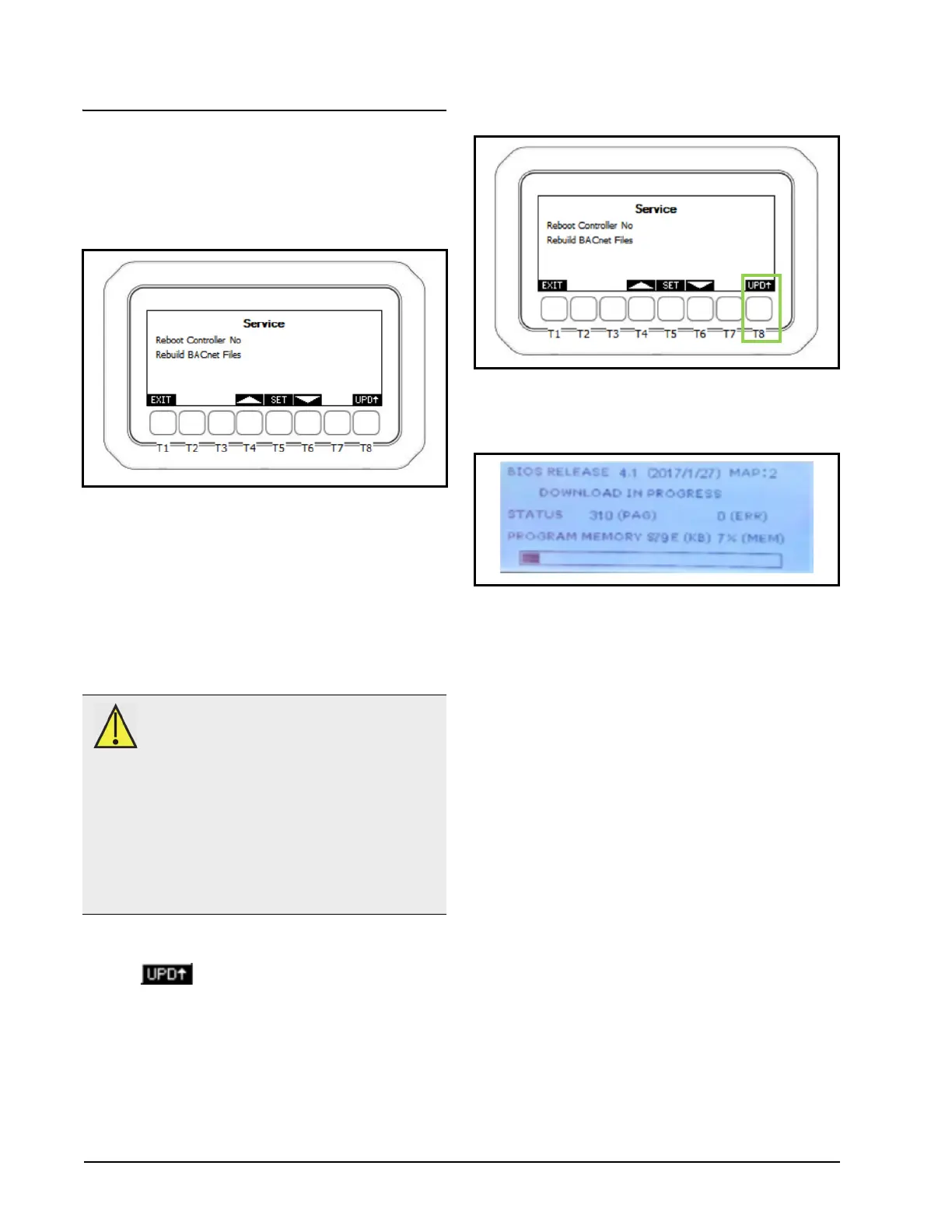
The Service Menu is used to reboot the controller,
re-initialize BACnet, and update the template.bin file for
the Visograph. From the Main Menu, use the T4/T6 keys
to select 5. Service and press T5 SET to enter the menu.
3.7.1 Updating Visograph
Template File
The Visograph display can receive software updates from
the I/O Module through the wiring connection. If a
firmware update is performed on the I/O Module, a
Visograph update procedure should be performed to make
sure the display version and controller version are aligned.
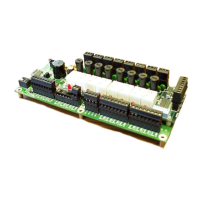
1. From the Service Menu, press and hold the T8
key for three (3) seconds to start the
update procedure.
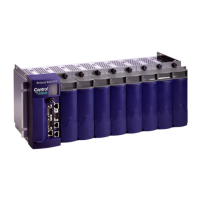
2. The update procedure will begin and the
Visograph will show an update status screen.
3. The update will progress and when complete the
display will reset and boot back up to the Analog
Inputs screen. Once the Analog Inputs screen is
reached after the screen reset, the update process
is complete.
3.7.2 Performing a Reboot
The I/O Module can be triggered to reset and reboot from
the Visograph Service Menu.
1. From the Service Menu, use the T4/T6 keys to
scroll to Reboot Controller - No.
2. Use the T5 SET key to enter edit mode and use
the T4/T6 arrow keys to change the value to Yes
and press T5 SET to save.
Figure 3-23 - Visograph Service Menu
CAUTION: The following actions must be
avoided during the Visograph update
procedure:
1. Interrupting the power supply to the case
controller.
2. Interrupting the wiring connection between the
I/O Module and Visograph display.
3. Performing a reboot of the I/O Module.
The update procedure could become compromised
resulting in an inoperable Visograph display.
Figure 3-24 - Visograph Service Menu - Update button
Figure 3-25 - Visograph - Update Status Screen


 To Next Page