Configuration and Use Manual 137
Troubleshooting
Measurement Performance DefaultsTroubleshootingCompensation
2. For mass flow:
a. Specify the type of simulation you want: fixed value, triangular wave, or sine wave.
b. Enter the required values.
• If you specified fixed value simulation, enter a fixed value.
• If you specified triangular wave or sine wave simulation, enter a minimum amplitude,
maximum amplitude, and period.
3. Repeat Step 2 for temperature and density.
To use simulation mode for problem location, enable simulation mode and check the signal at various
points between the transmitter and the receiving device.
11.11 Transmitter status LED
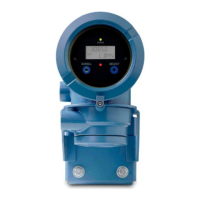
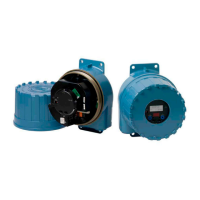
The user interface board includes a LED that indicates transmitter status. You may need to remove the
transmitter housing cover. See Table 11-3 for a list of possible status LED states.
If the status LED indicates an alarm condition:
1. View the alarm code using the procedures described in Section 7.4.
2. Identify the alarm (see Section 11.12).
3. Correct the condition.
4. If desired, acknowledge the alarm using the procedures described in Section 7.5.
11.12 Status alarms
Status alarm codes are reported on the LCD (for transmitters that have displays), and status alarms
can be viewed with ProLink II or the Communicator. A list of status alarms with the message
displayed, possible causes, and suggested remedies is provided in Table 11-4.
Note: Status alarms are not displayed for alarms with Alarm Severity = Ignore, even if the alarm
condition is active. See Section 8.9.1 for information on configuring status alarm severity.
Before troubleshooting status alarms, first acknowledge all alarms (see Section 7.5). This will remove
inactive alarms from the list so that you can focus troubleshooting efforts on active alarms.
Table 11-3 Transmitter status reported by the status LED
Status LED state Alarm priority
Green No alarm – normal operating mode
Yellow Low severity (informational) alarm
Flashing yellow Calibration in progress
Red High severity (fault) alarm



 To Next Page