Scanner
8-11
R4C428_V2
long.bk Rev_C
A5 size SCAN.FM
1/14/00 Pass 2
R
Proof Sign-off:
tantoname _______
leadername _______
editorname _______
Note:
Normally, you only need to perform this step the first time you use
the Stylus Scan with your application.
3. Click
TWAIN_32
on the File menu to open EPSON Stylus Scan
SF TWAIN.
Using EPSON TWAIN
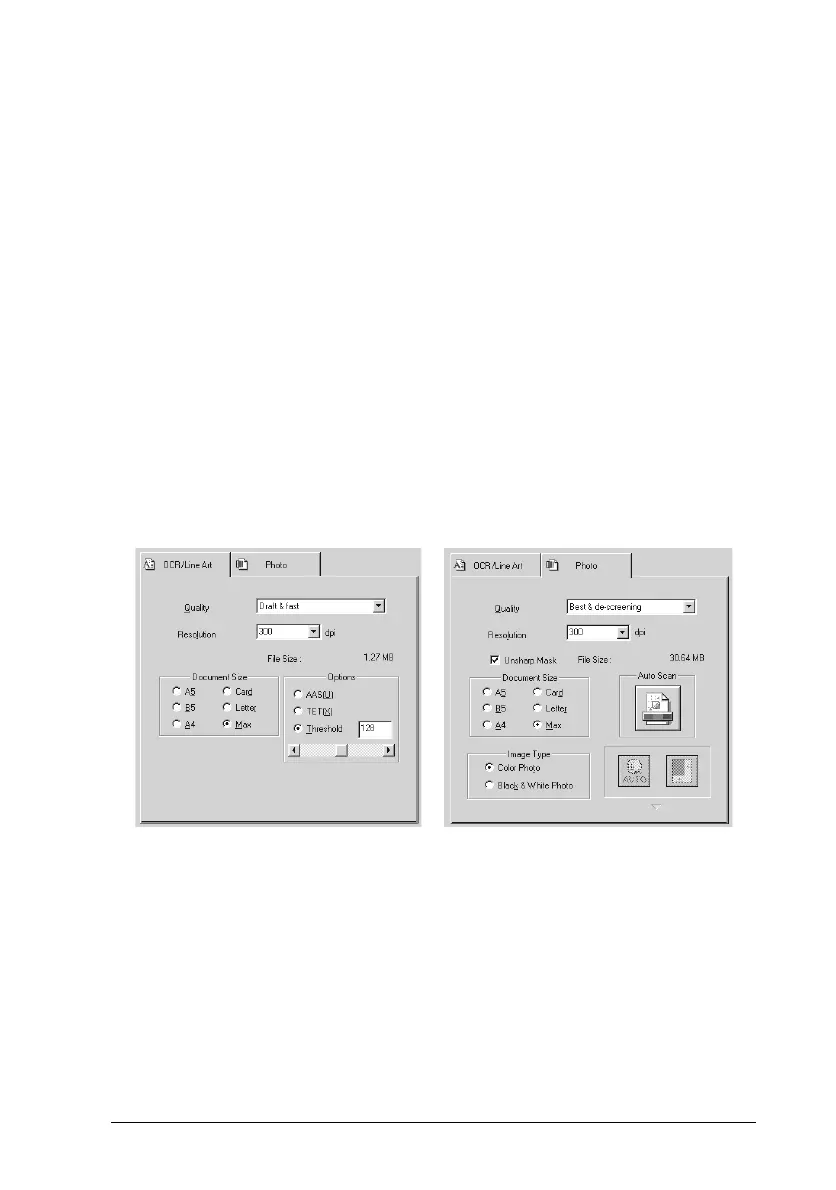
When using EPSON Stylus Scan SF TWAIN, you should access
one of two menus, depending on the type of document being
scanned.
OCR/Line Art: This is used when scanning documents for
OCR, and line art.
Photo: This is used when scanning photographs.
Follow these steps to use your EPSON Stylus Scan SF TWAIN
software.
1. Launch the EPSON Stylus Scan SF TWAIN software.
2. Click either the
OCR/Line Art
or
Photo
tab, depending on the
type of document you wish to scan.
OCR Photo



 To Next Page