Using the Printer Software for Windows
4-7
R4C428_V2
long.bk Rev_C
A5 size SOFTW.FM
1/14/00 Pass 2
R
Proof Sign-off:
tantoname _______
leadername _______
editorname _______
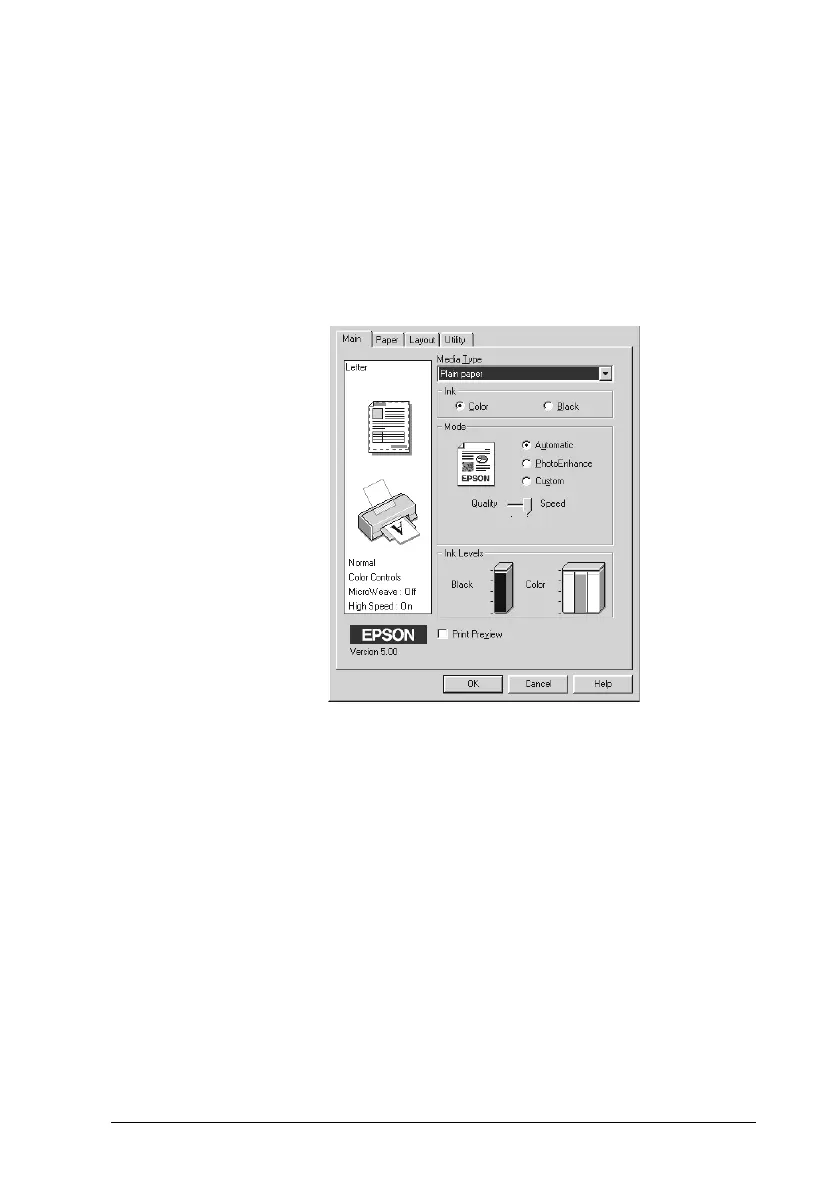
Using the Automatic setting
When
Automatic
is selected as the Mode setting on the Main
menu, the printer driver takes care of all of the detailed settings
based on the current Media Type and Ink settings. To make the
Ink setting, click
Color
to print in color, or
Black
to print in black-
and-white or grayscale. To make the Media Type setting, see
“Making the Media Type setting” on page 4-4.
Note:
❏
Depending on the media selected in the Media Type list (while
Automatic
is selected), a slider appears under the
Custom
radio
button that lets you choose
Quality
or
Speed
. Select
Quality
when print quality is more important than speed.
❏
Most Windows applications feature paper size and page layout
settings that override similar settings in the printer driver.
However, if your application does not have these settings, verify the
settings on the Paper menu of the printer driver.



 To Next Page