86
5. Select On and press Enter.
6. Press Esc to return to the previous menu.
7. Select the Select Color setting and choose one of the following:
• R to adjust the red color convergence.
• B to adjust the blue color convergence.
8. Select the Pattern Color setting and press Enter.
• Select R/G/B to display the grid in white.
• Select R/G to display the grid in yellow.
• Select G/B to display the grid in cyan.
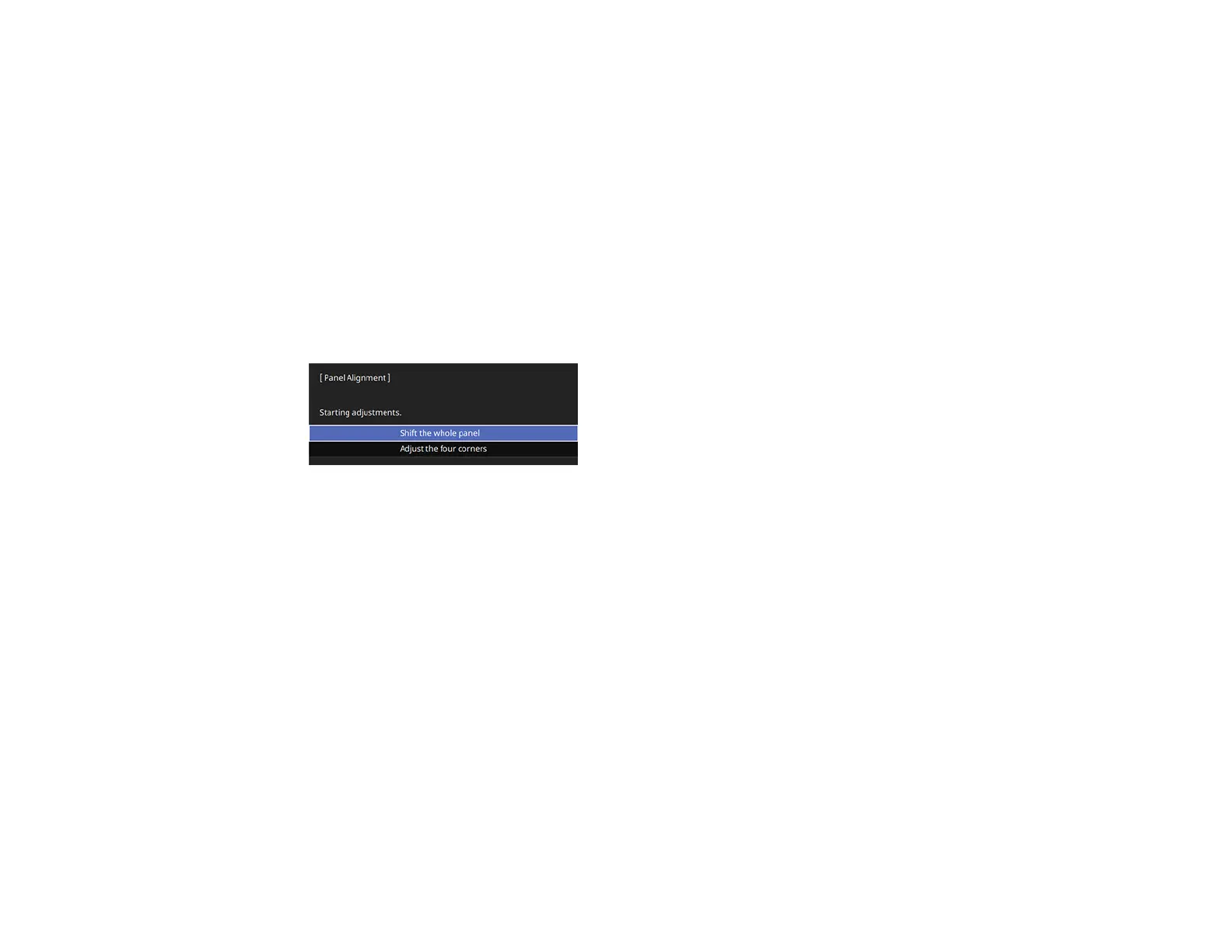
9. Select Start Adjustments and press Enter.
10. Select one of the following:
• Select Shift the whole panel to adjust the whole panel at the same time. (This is not
recommended, as usually only certain areas of the panel need to be adjusted.) Go to the next
step.
• Select Adjust the four corners to adjust the corners of the panel one at a time. (This is
recommended in most cases.) Skip to step 15.
11. Press Enter.



 To Next Page