1514
2.13 Shipping documents
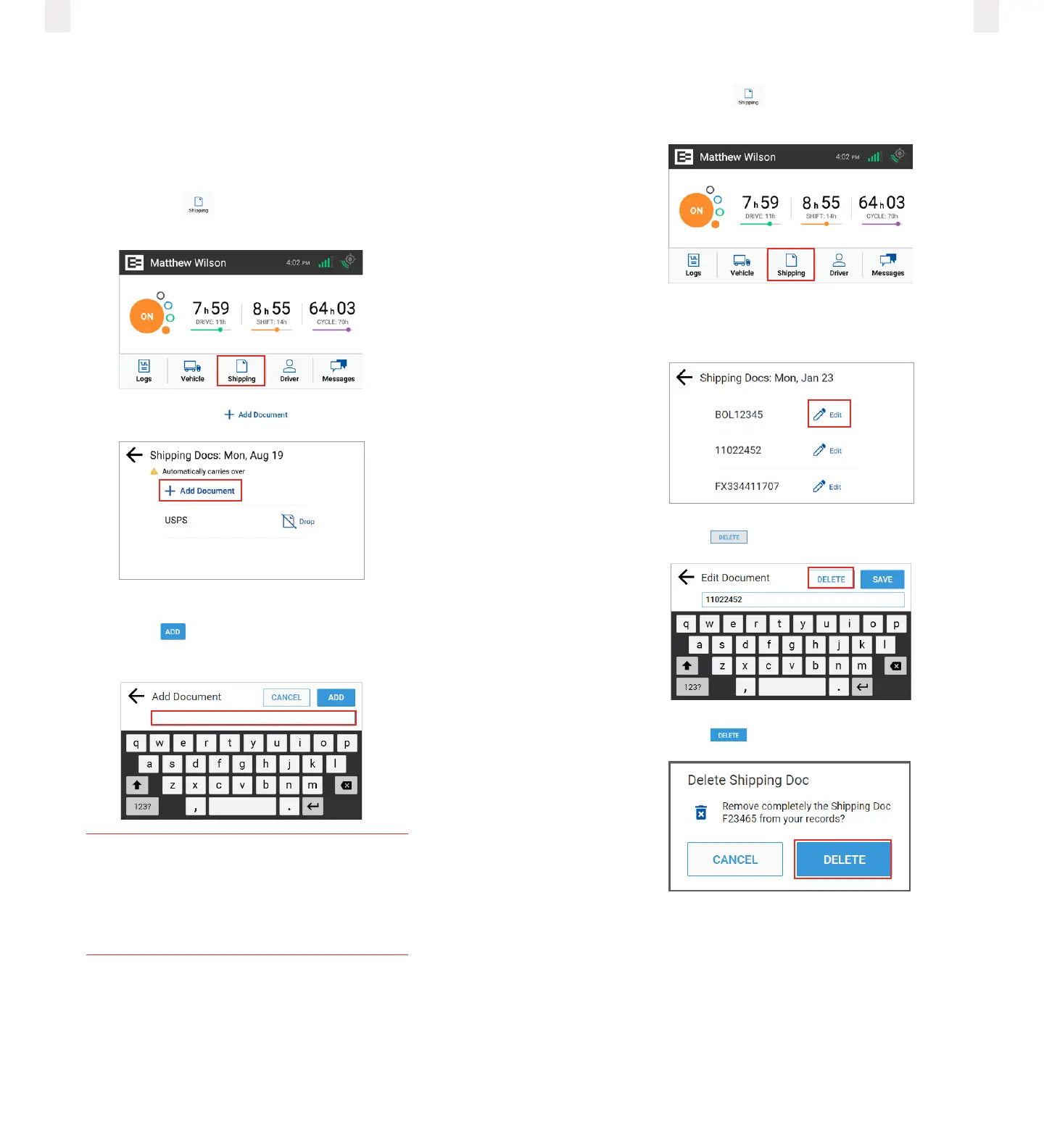
The EROAD ELD allows you to quickly enter a shipping
document (such as a bill of lading), entered through the
Shipping button.
2.13.1 Adding a shipping document
1 Tap the Shipping icon on the Home menu. The
Shipping Docs screen appears.
2 Tap the Add Document icon.
3 Enter the document ID in the Add Document field.
4 Tap the Add button. A confirmation message
appears to confirm the update.
Tip
Use the Remarks feature if you want to enter a
shipping document on a prior day. You can add
a remark to the first ON duty status to include
the shipping number.
2.13.2 Deleting a shipping document
1 Tap the Shipping icon on the Home menu. The
Shipping Docs screen appears.
2 Tap the Edit or Drop icon beside the document number that
you want to delete.
3 Tap the Delete button on the Edit Document screen.
4 Tap the Delete button in the confirmation prompt.



 To Next Page