1110
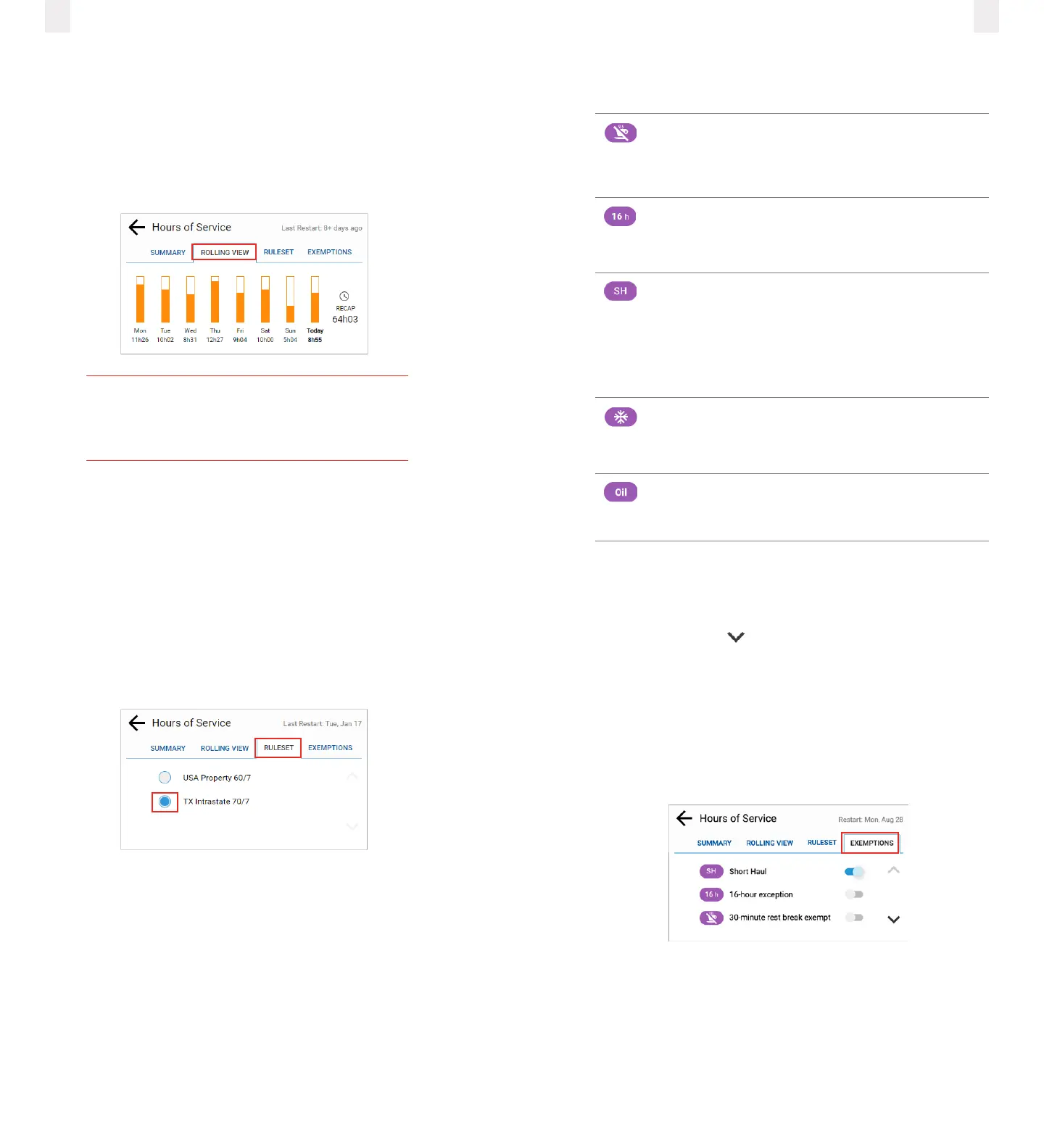
2.9 Rolling View
This tab section tracks your 7 or 8-day rolling period, lists
remaining hours today, and recaps total hours during that
period. The bar graph color changes to red if you exceed your
required hours of service.
● Tap the Rolling View tab to view your rolling cycle.
Tip
Tap at the top of the screen to go to the
previous screen.
2.10 Rulesets
More than one ruleset might be available depending on your
jurisdiction. Example: Drivers operating in Texas may select the
Texas Intrastate ruleset option on this screen.
Note: Rulesets are remotely enabled by your supervisor or
dispatcher before you can select them.
1 Click the Ruleset tab on the Hours of Service screen.
2 Click the applicable ruleset option button. The button turns
blue when a ruleset is enabled.
2.11 Exemptions
The Exemptions tab includes a list of exemptions or exceptions
that your supervisor has made available for you. These items
must be first enabled by the supervisor or dispatcher in the
Depot application before they are available to drivers on the in-
vehicle device. The list of exemptions may include one or more
of the following items:
Exemption
Type
Description
30-Minute
Rest Break
● Driver is not prompted to take a
30-minute rest break.
16-Hour
Exception
● Extends the 14-hr driving window to
16 hrs.
Short Haul
● Driver is not prompted to take a
30-minute rest break after eight hours
of accumulated drivetime.
● Change 12-hour shift to 14-hour shift
● Provides guidance on 150 air mile
radiuslimit.
Adverse
Conditions
● Extends the driving limit and the shift
time limit by two hours.
Oilfield
● Provides a 24-hr restart instead of a
34-hr restart for 70/8 day cycle reset
calculations.
Note: See your supervisor if you have questions about when to
use the exemptions.
1 Tap the Exemptions tab to view the available exemptions.
Note: Tap the Down arrow to see additional exemptions in
the list, if they are enabled by your supervisor.
2 Tap one of the exemptions to enable it. The toggle switch
turns blue when it is enabled and the applicable icon
appears on the Home screen.
Note: Tap an enabled (blue) toggle switch to disable the
exemption (shown as gray).



 To Next Page