3534
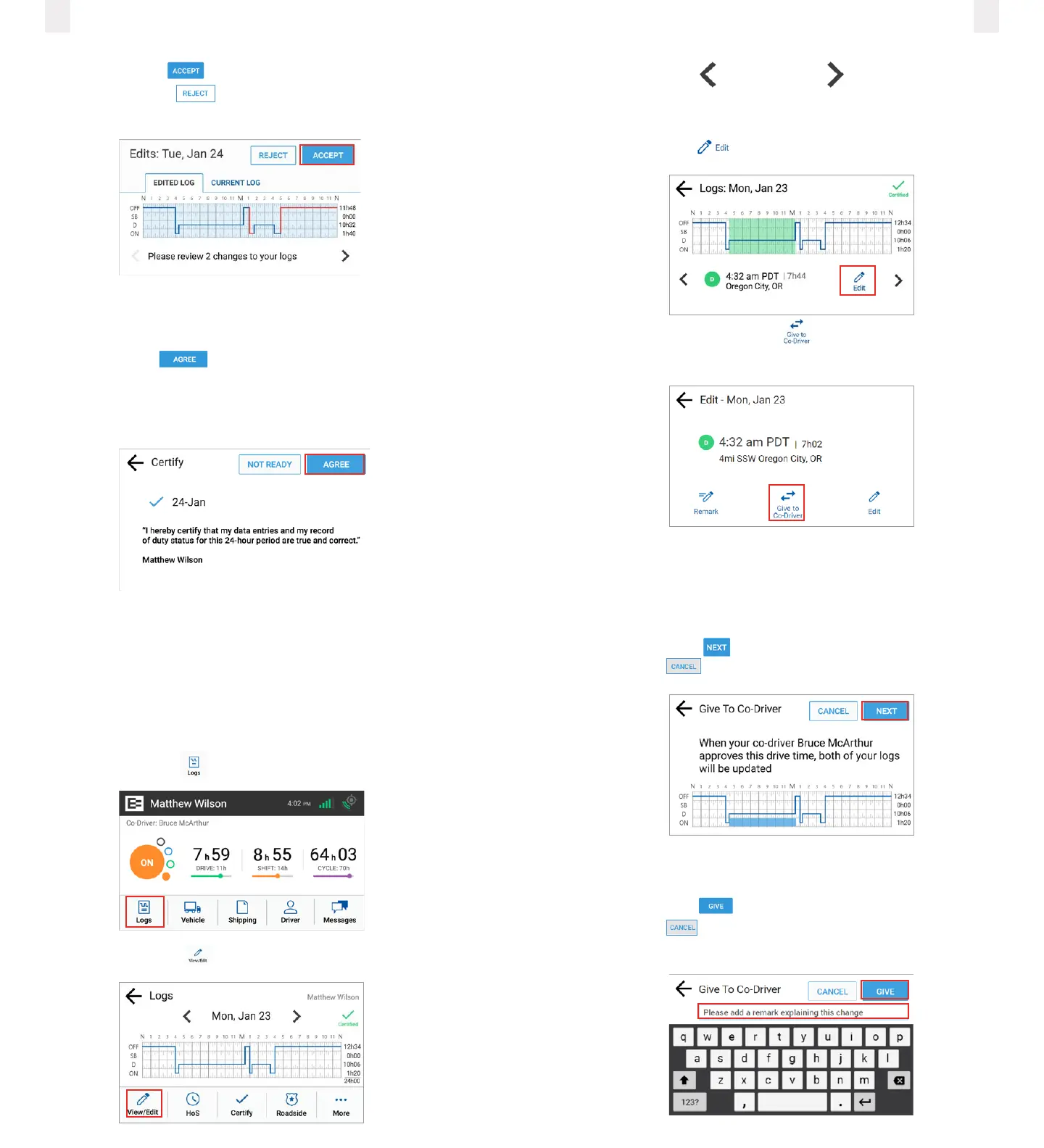
5 Tap the Accept button if you agree with the change
or tap the Reject button. A confirmation message
appears when completed.
The Certify screen appears, because you must re-certify the
day for the changes that you just accepted.
6 Tap the Agree button to re-certify the day. The
EROAD ELD then synchronizes with Depot. You are
prompted to review the next day, if there are other edited
days.
4.2 Swapping drive time
The driver and co-driver are responsible for setting status
changes. The EROAD ELD lets the co-driver swap driving time
on a portion of the log if the active driver forgot to change
driving status. The co-driver performs the following steps to
swap driving time.
1 Tap the Logs icon on the Home screen.
2 Tap the View/Edit icon on the Logs screen.
3 Tap the Left arrow or Right arrow on the bottom
of the screen until you locate the point in your logs where
you want to swap the driving time.
4 Tap the Edit icon. The Edit screen appears.
5 Tap the Give to Co-Driver icon. The Give to Co-Driver
screen appears.
The screen changes to display a graph of the aected area with
the future state highlighted in blue on the graph.
Note: The previous duty status is applied and replaces the
driving time when the co-driver accepts the swap.
6 Tap the Next button to initiate the swap or tap the
Cancel button.
7 Enter a description in the Give to Co-Driver field to explain
the change.
8 Tap the Give button to complete the swap or tap the
Cancel button. The swap is recorded as a pending
request until the co-driver accepts it.



 To Next Page