2726
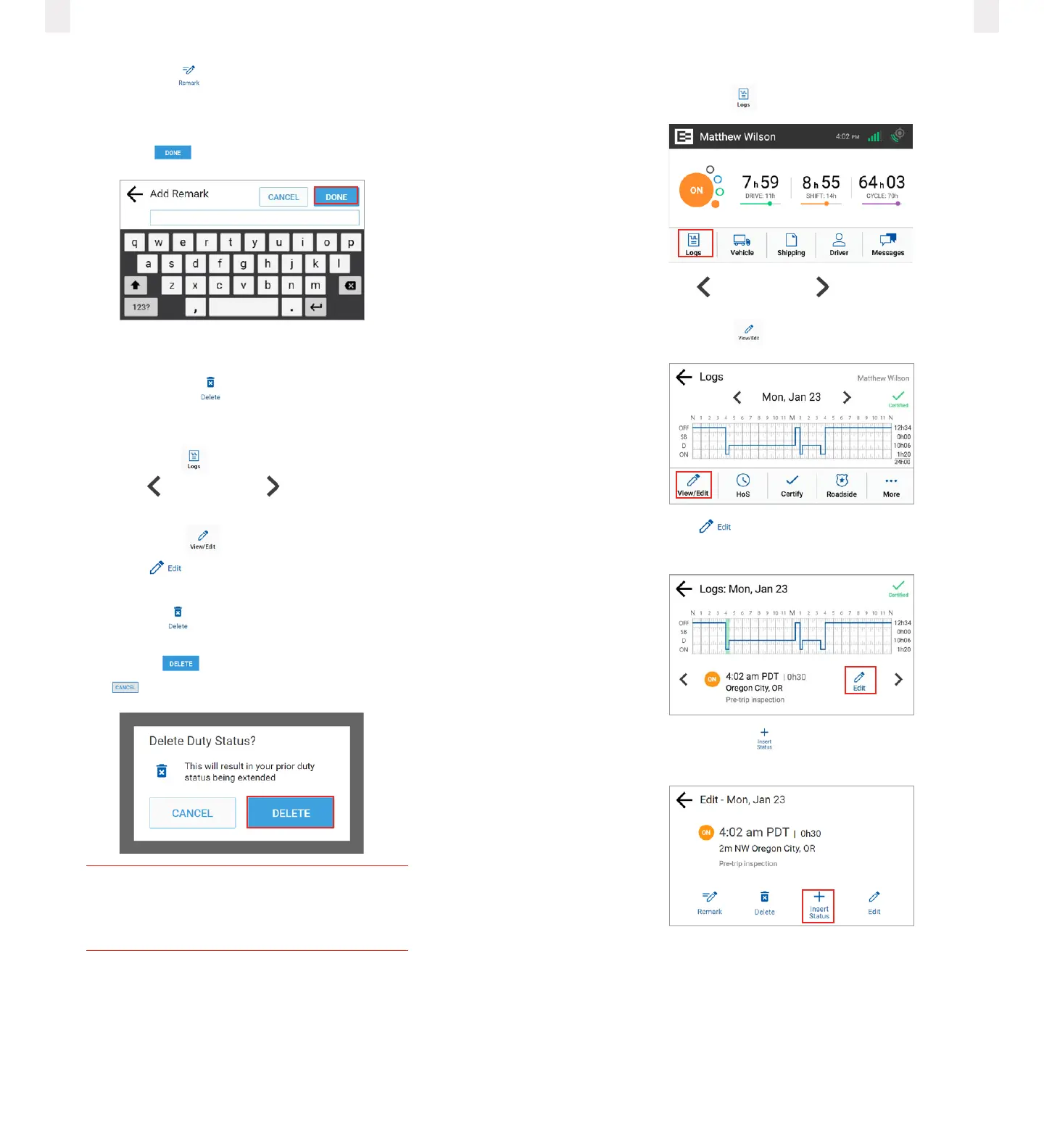
5 Tap the Remark icon. The Add a Remark screen
appears.^a
6 Enter your comments in the Add Remark field.
7 Tap the Done button.
3.7.2 Deleting a record
You can use the Delete icon to delete a record. Perform
the following steps to delete a record. (See 3.7Correcting logs
for illustrations of steps 1 – 4.)
1 Tap the Logs icon on the Home screen.
2 Tap the Left arrow or Right arrow until you locate the
point in your logs where you want to delete a record.
3 Tap the View/Edit icon on the Logs screen.
4 Tap the Edit icon on the View/Edit screen. The Edit
Summary screen appears.
5 Tap the Delete icon. The Delete Duty Status prompt
appears.
6 Tap the Delete button to confirm the action or tap the
Cancel button.
Caution
You cannot delete driving time that was not
manually entered.
3.7.3 Inserting a missing record
1 Tap the Logs icon on the Home screen.
2 Tap the Left arrow or Right arrow until you locate the
point in your logs where you want to insert a record.
3 Tap the View/Edit icon on the Logs screen.
4 Tap the Edit icon on the View/Edit screen. The Edit
Summary screen appears.
5 Tap the Insert Status icon. The Add Status screen
appears.
6 Tap the duty status that you want to insert.



 To Next Page