2524
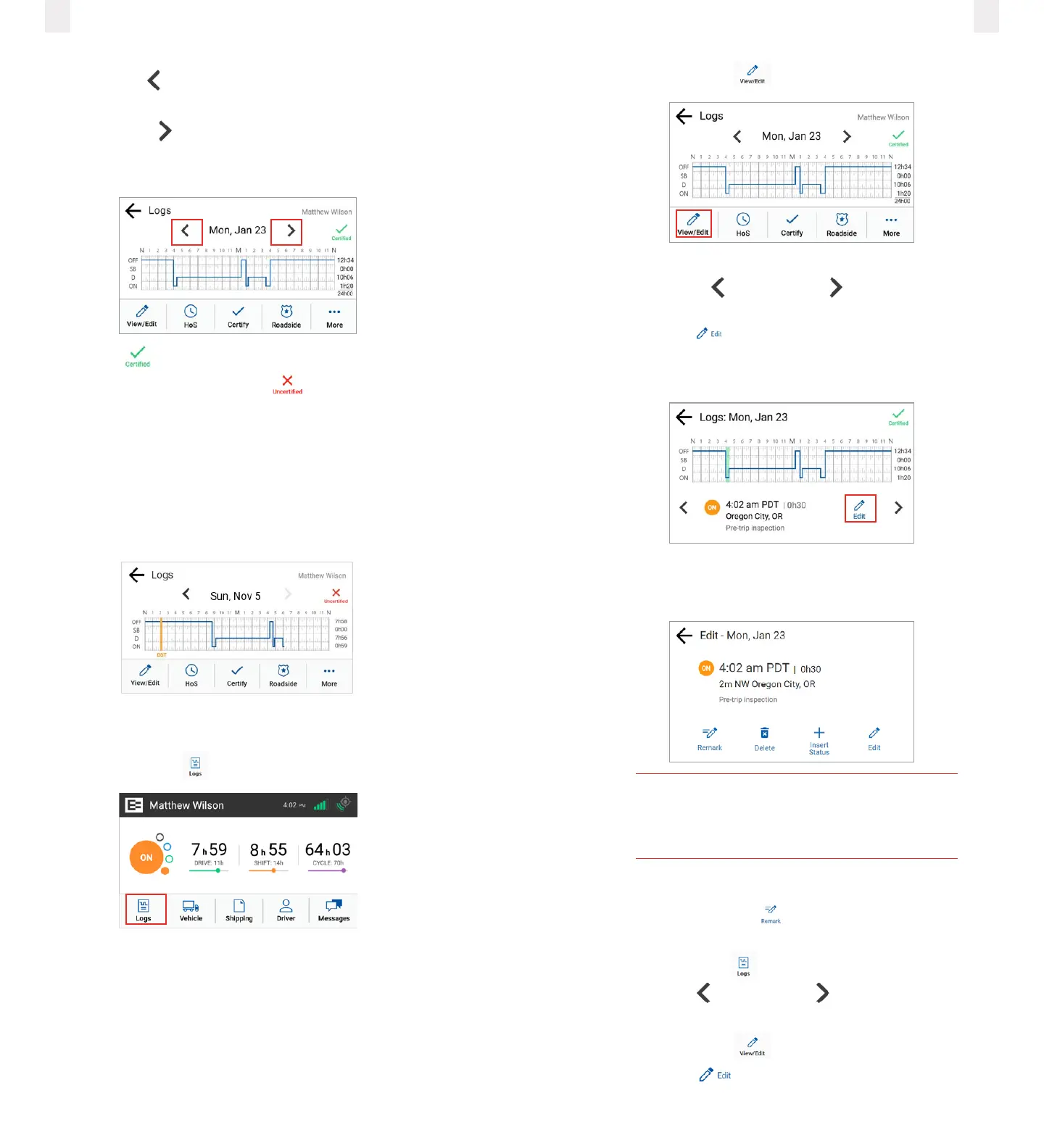
2 Tap the Left arrow by the date to view the previous day.
You can view up to seven days of prior activity.
3 Tap the Right arrow by the date to return to the current
date. Your total hours for each duty status are listed on the
right side of the graph.
A Certified icon displays under your name, if the logs
have been certified. An Uncertified icon appears if you
still need to certify your logs.
Note: See 3.8Certifying your logs.
3.6.1 Daylight Savings Time
Daylight savings time is automatically applied to the log graph
as a vertical orange line with an abbreviation of DST. It is also
noted in the events list.
3.7 Correcting logs
1 Tap the Logs icon on the Home menu.
2 Tap the View/Edit icon on the Logs screen.
3 Tap the Duty Status on the graph that you want to correct,
or tap the Left arrow or Right arrow below the graph
to locate the duty status that needs correction.
4 Tap the Edit icon on the lower right side of the screen.
The selected log entry for that day appears on screen
highlighted in green.
There are several menu options on the Edit screen that can be
used to modify your logs.
Caution
You cannot shorten or edit driving time that
was automatically recorded.
3.7.1 Adding a remark
You can use the Remark icon to annotate a duty status.
(See 3.7Correcting logs.)
1 Tap the Logs icon on the Home screen.
2 Tap the Left arrow or Right arrow until you locate the
point in your logs where you want to annotate a record.
3 Tap the View/Edit icon on the Logs screen.
4 Tap the Edit icon on the View/Edit screen. The Edit
Summary screen appears.



 To Next Page