4746
6 Issues
The EROAD ELD is fully compliant with the Federal Motor
Carrier Safety Administration (FMCSA) requirements. It
generates data diagnostic events and malfunctions, if there is
missing data or a fault that aects the completeness of the logs
or accuracy of the device.
6.1 Managing malfunctions
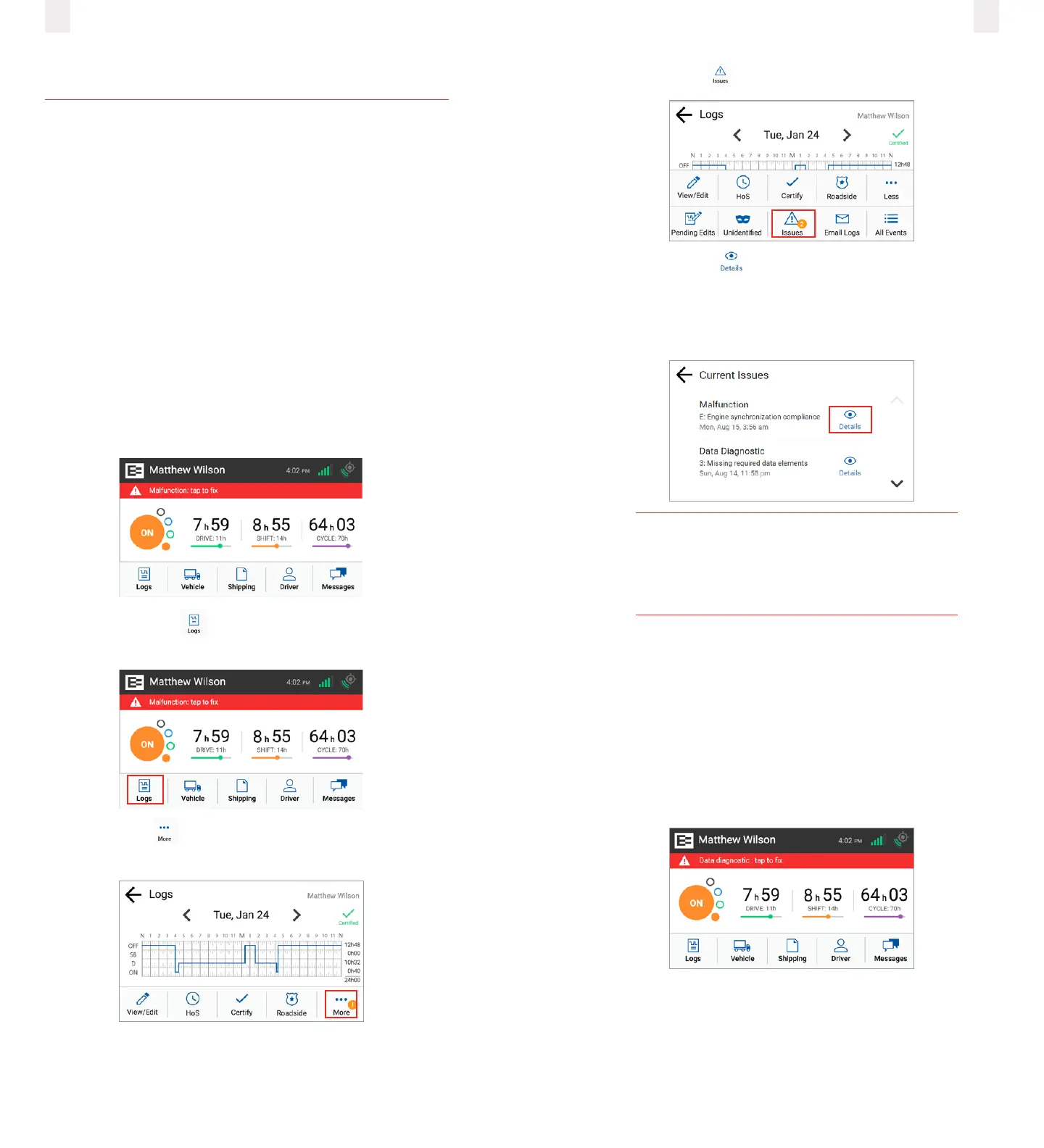
A red banner appears across the Home screen under
the driver’s name if a malfunction occurs, and a red LED
illuminates at the top of the display. You must immediately
view malfunction details and work through the faults using the
malfunctions visor card.
Note: Refer to back side of the EROAD Resolving Data
Diagnostics visor card that describes malfunctions and
recommended actions to remedy specific fault(s).
1 Tap the Logs icon on the Home screen. The Logs screen
appears.
2 Tap the More icon on the Logs screen. The Logs menu
expands to reveal additional menu.
3 Tap the Issues icon. The Current Issues screen appears.
4 Tap the Details button to view more information
about the malfunction.
5 Note: Tapping the red banner on the Home screen jumps to
the Current Issues screen.
Note
Refer to the malfunction information on the
visor card or contact your supervisor if a
malfunction is not resolved.
6.2 Resolving data diagnostics
A red banner appears across the Home screen under the
driver’s name if a data diagnostic issue is present. You must
examine your logs and enter the required information to resolve
the issue.
1 Tap the red banner on the Home screen. Follow the steps in
6.1Managing malfunctions to view more information about
data diagnostic issues.



 To Next Page