4 5
Menu Description
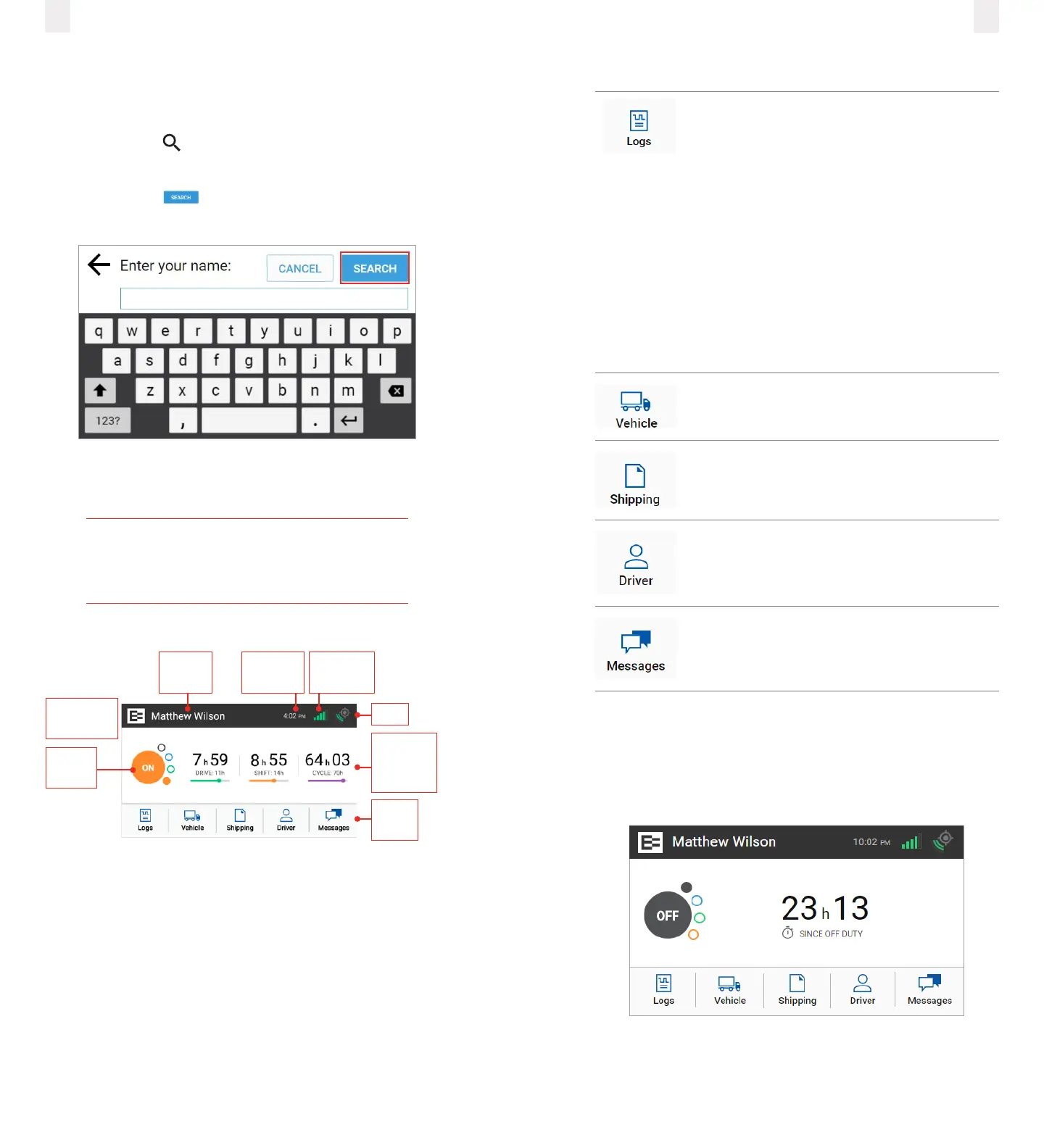
Allows you to see a graphical representation
of your duty status for a 24-hour period. You
can cycle through previous days to check log
history. Additional options include:
● View/Edit
● Hours of Service (HoS)
● Certify
● Inspection (display or export log data)
● Pending Edits
● Unidentified (driver)
● Issues
● Email Logs
● All Events
Allows you to enter fuel quantity, connect
or drop trailers, and set the Weight Mile Tax
(WMT) configuration (Oregon only).
Allows you to add a shipping document (such
as a bill of lading).
Allows you to view the active driver. You can
view the driver’s name, email address and time
zone. The ELD lets you add a co-driver or logout
using this sub menu.
Allows you to scroll through the existing
messages, as well as send a new message.
2.3 O Duty counter
The O Duty counter shows time spent o duty and helps you
monitor rest periods. It switches to the OFF DUTY SINCE (date)
display on the Home screen after 99 hours.
2.1.1 Login name search
If your name appears on the Login screen, tap it and enter your
PIN. If not:
1 Tap the Search icon on the Login screen.
2 Enter your name in the Name field.
3 Tap the Search button, and then tap on your name
when the list displays.
4 Enter your PIN. Contact your supervisor or dispatcher if you
forgot your PIN or if your name is not on the list.
Tip
Driving time is applied to the active driver if the
co-driver does not login.
2.2 Reviewing the Home Screen
Driver
Name
Cellular
Strength
Current
Time
GPS
Hours of
Service
Counter
Main
Menu
Co-Driver
Name
Duty
Status
The Home screen is the first screen that appears. The menu
options are represented by the five icons on the bottom row of
the screen.
There are additional options available under each Main Menu
button. Tapping a button directs you to more features and
settings.



 To Next Page