3332
4 Advanced Log Edits
This chapter describes how to make corrections that are
suggested by your supervisor, swapping driving time, claiming
unidentified driving time, and exporting your logs.
4.1 Reviewing suggested corrections
Drivers have two ways to view and make corrections that are
suggested by the supervisor. A prompt appears when you log
into or out of the EROAD ELD or you can review the suggested
changes later through the Logs menu.
Tip
An orange LED illuminates on the top of the
ELD when a pending edit is ready to review.
4.1.1 Reviewing suggested edits at login and logout
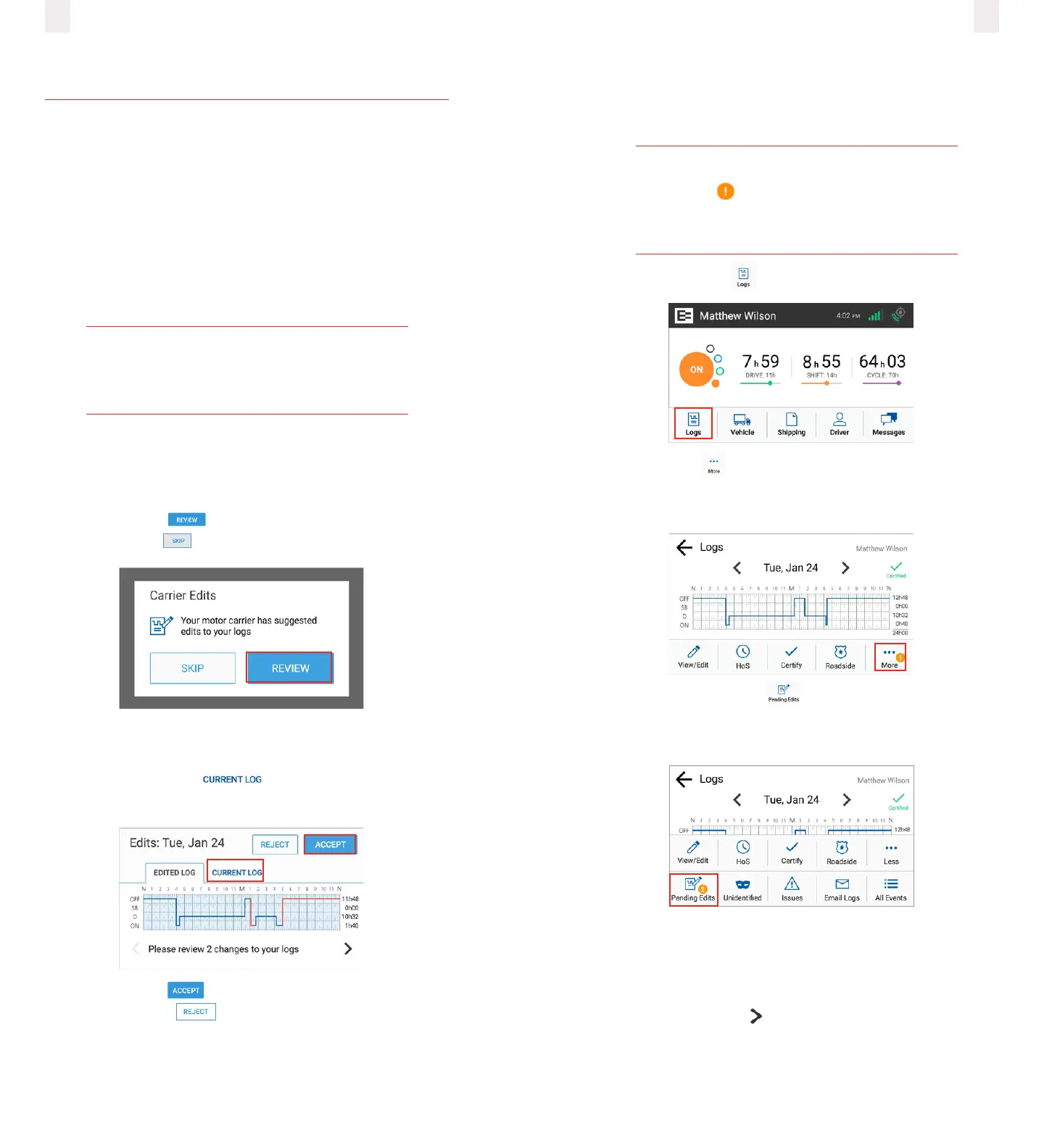
The Carrier Edits screen might appear at login or logout if the
supervisor has suggested edits to your logs.
1 Tap the Review button to examine the edited record
or tap the Skip button to look at them later.
The Carrier Edits graph screen appears. The edited log is shown
on the graph so you can examine the changes.
2 Tap the Current Log tab to view the previously
certified day.
3 Tap the Accept button if you agree with the change
or tap the Reject button. The Carrier Edits screen
displays a confirmation message when completed. An
accepted change updates your log, and you have to re-
certify any aected days.
4.1.2 Reviewing suggested edits from the Home Page
Do this to review supervisor suggestions if any new edits are
made after you logged into the EROAD ELD.
Tip
An alert appears on the Logs icon on the
Home screen when there are new edits to
review.
1 Tap the Logs icon on the Home screen.
2 Tap the More icon on the Logs screen. Notice the alert
icon in the following illustration. The Logs menu expands to
reveal a second row of menu options.
3 Tap the Pending/Edits icon on the Logs screen. The
EROAD ELD contacts Depot to display any pending log
edits.
A summary of the changes for the edited day are shown under
the Edited Tab when there are pending edits to review. Changes
on multiple days are arranged in order from the least recent to
the most recently edited day.
4 Tap the Right Arrow to see additional changes in the
logs.



 To Next Page