12
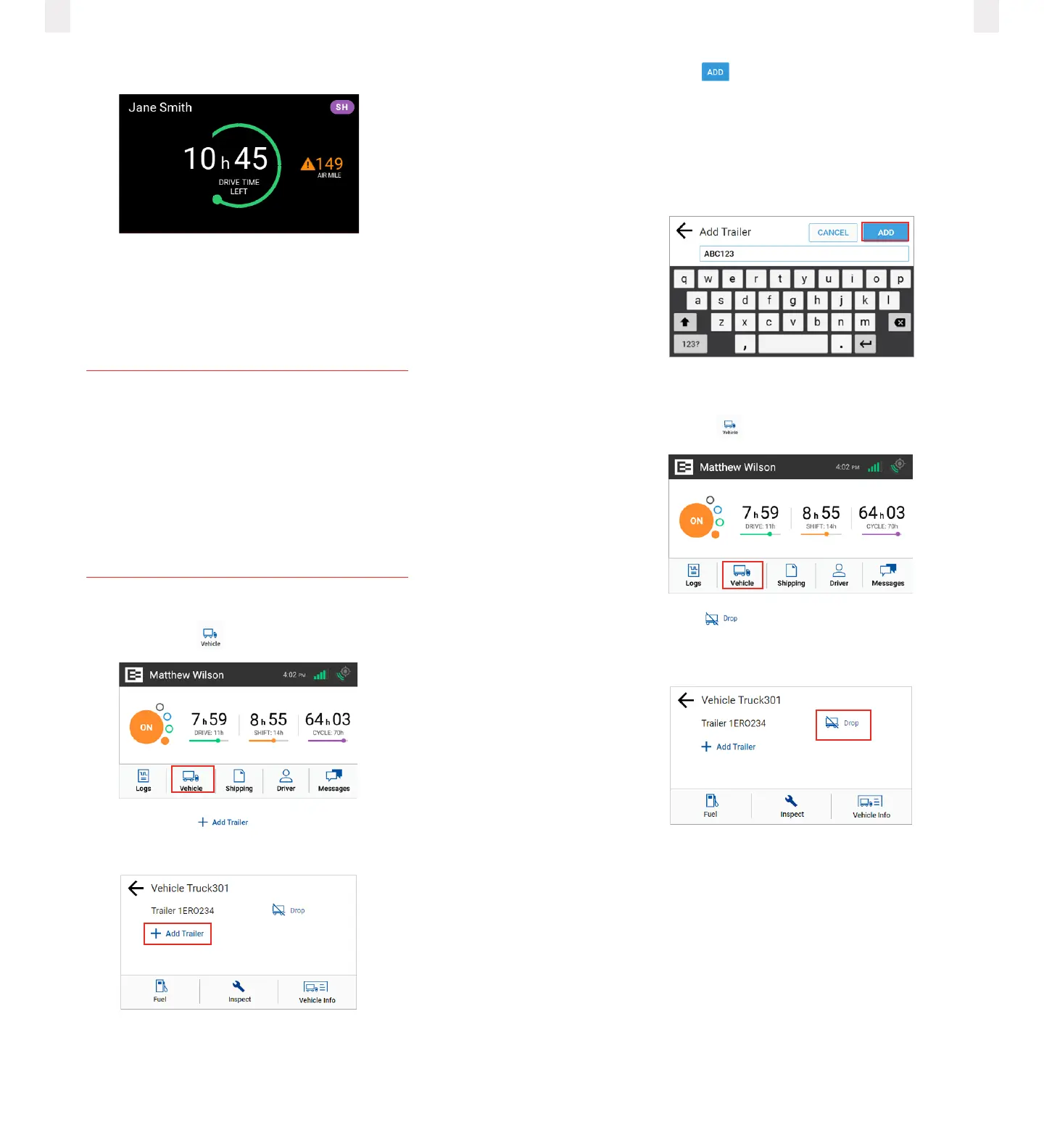
Short Haul Exemption Air Mile warning.
2.12 Adding or dropping trailers
The EROAD ELD lets you easily add or drop trailers. You need
to enter the trailer number in the EROAD ELD each time you
connect a trailer to your vehicle.
Note
Performing Pre and Post-trip Driver Vehicle
Inspection Reports (DVIR) for both trucks and
trailers is possible if your company has DVIR
Inspect enabled for your vehicle.
Operation of DVIR Inspect is covered in
a separate document – DVIR Addendum
to the ELD User Manual – available from
EROAD’shelpsite.
2.12.1 Adding Trailers
1 Tap the Vehicle icon on the Home menu.
2 Tap the Add Trailer link on the Vehicle screen. The
Trailers screen displays a list of trailers previously entered.
The Connect Trailer screen appears if no trailers are found.
3 Enter the trailer ID in the Add Trailer field.
13
4 Tap the Add button. The Connected Trailers screen
displays a confirmation message.
Note: You can connect from one up to three trailers.
Note: Please consult the separate document ‘DVIR Addendum
to the ELD User Manual’ if DVIR Inspect is enabled and no
trailers are showing.
2.12.2 Dropping trailers
1 Tap the Vehicle icon on the Home menu.
2 Tap the Drop icon beside the trailer ID that you want
to drop. A confirmation message displays that the trailer
number was removed.



 To Next Page