4140
5 Hand the device to the inspector along with the visor cards
and follow instructions. The inspector might request that
you either transfer (export) your records or display the
records.
Tip
Your personal privacy is important. You must
enter your PIN to exit the Inspection mode after
the inspection is completed.
This is a security feature ensuring the safety
ocial cannot access the rest of your data.
5.1 Transferring your records
1 Ensure that you have completed the steps described in
5Roadside inspection.
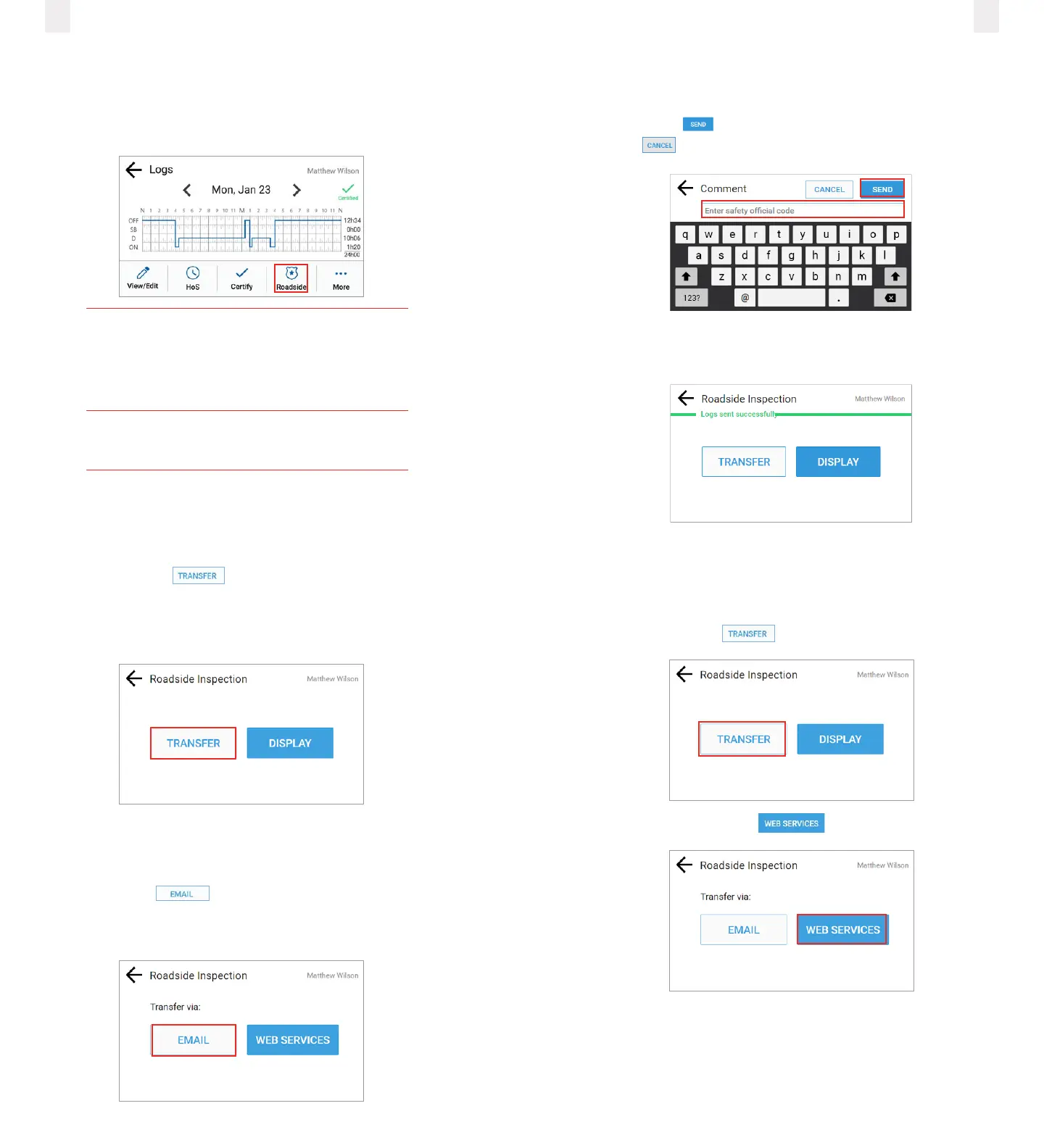
2 Tap the Transfer button on the Roadside Inspection
screen. The Roadside Inspection screen changes to oer
two transfer options: Transfer and Display, which are
described in the following sections.
5.1.1 Transfer via email
1 Perform the steps in section 5.1Transferring your records.
2 Tap the Email button. The Comment screen
appears. The FMCSA destination email address is
preprogrammed in the ELD.
3 Enter the safety ocial’s code in the Comment field.
Note: Never enter an email address or the transfer will not work.
Tap the Send button to complete the email or tap the
Cancel button.
A confirmation message appears (shown in green) indicating
the file was transferred successfully.
5.1.2 Transfer via web services
1 Ensure that you have completed the steps described in
5Roadside inspection.
2 Tap the Transfer button.
3 Tap the Web Services button.



 To Next Page