1918
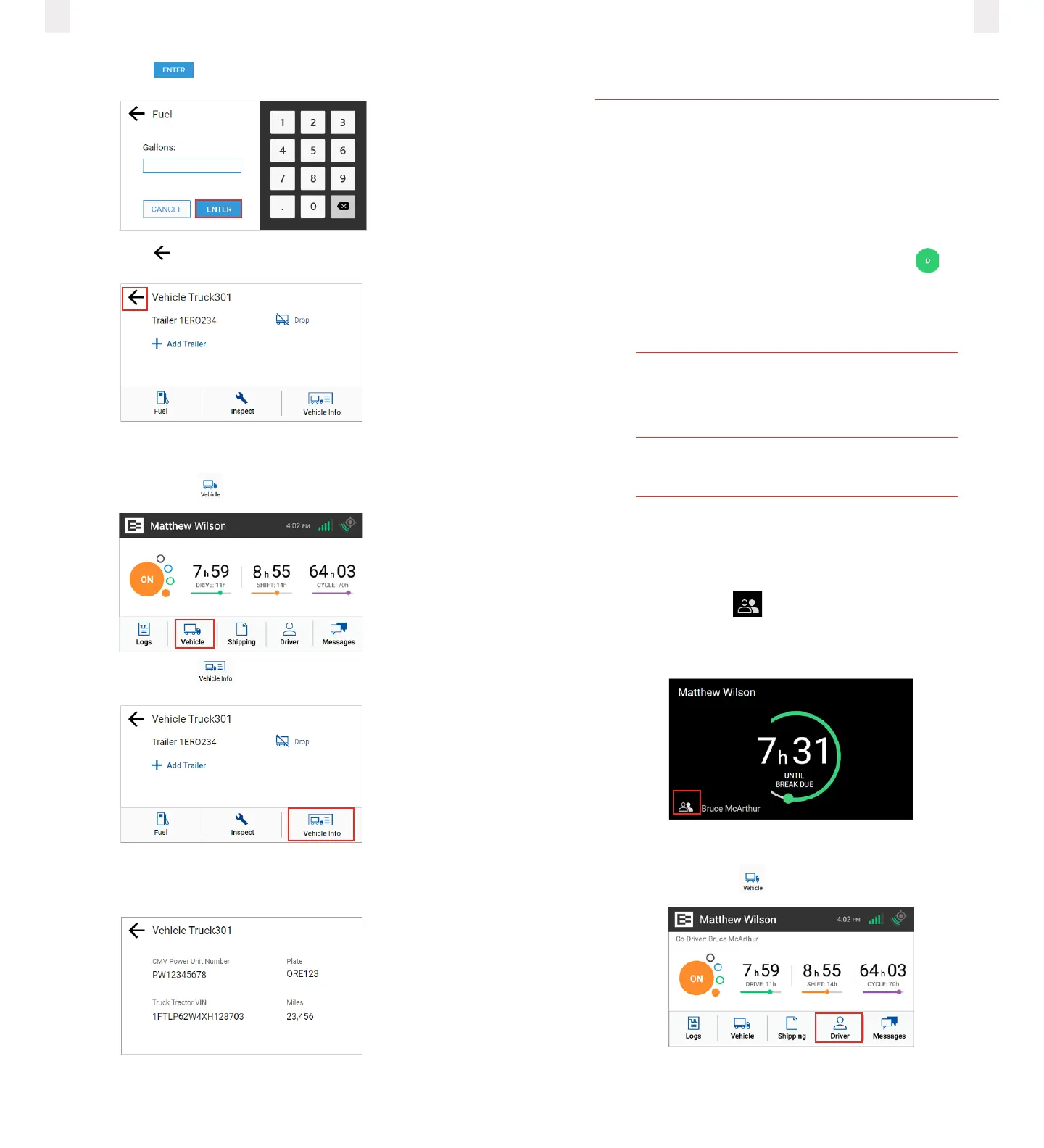
4 Tap the Enter button.
5 Tap the Back arrow to return to the Home screen.
2.16 Viewing vehicle information
1 Tap the Vehicle icon on the Home menu.
2 Tap the Vehicle Info icon on the Vehicle screen.
3 This screen includes the CMV Power Unit Number, Plate
number, Truck Tractor VIN, and number of miles.
Note: Contact your supervisor if the power unit number, VIN, or
license number does not match your vehicle.
3 Everyday Use
Certain tasks are performed daily. This chapter describes how
to add a co-driver, change drivers, review and correct logs,
insert missing records, add remarks, delete records, certify your
logs, and log out of the EROAD ELD.
3.1 Driving mode
Your duty status automatically changes to Driving as soon
as your vehicle reaches five miles per hour. The ELD driving
mode only displays a minimal amount of information, for safety
reasons.
Caution
Safety is essential. A driver cannot access any
other screen whiledriving.
A co-driver can view logs while the vehicle is
inmotion.
3.1.1 Changing views between drivers
A co-driver can review his/her logs while the vehicle is in
motion by changing views between drivers.
1 Tap the Co-Driver icon.
2 Co-Driver: enter your PIN at the prompt. The Home screen
displays, where you can view and certify your logs.
3.1.2 Changing Views - Alternative Process
1 Tap the Driver icon on the Home menu.



 To Next Page