76
2.4.1 Personal Conveyance status
This is a special driving category that might be provided by
your supervisor. This duty status counts as O Duty in your
hours of service. You must add a remark in your logs when you
use this duty status. 3.7.1Adding a remark.
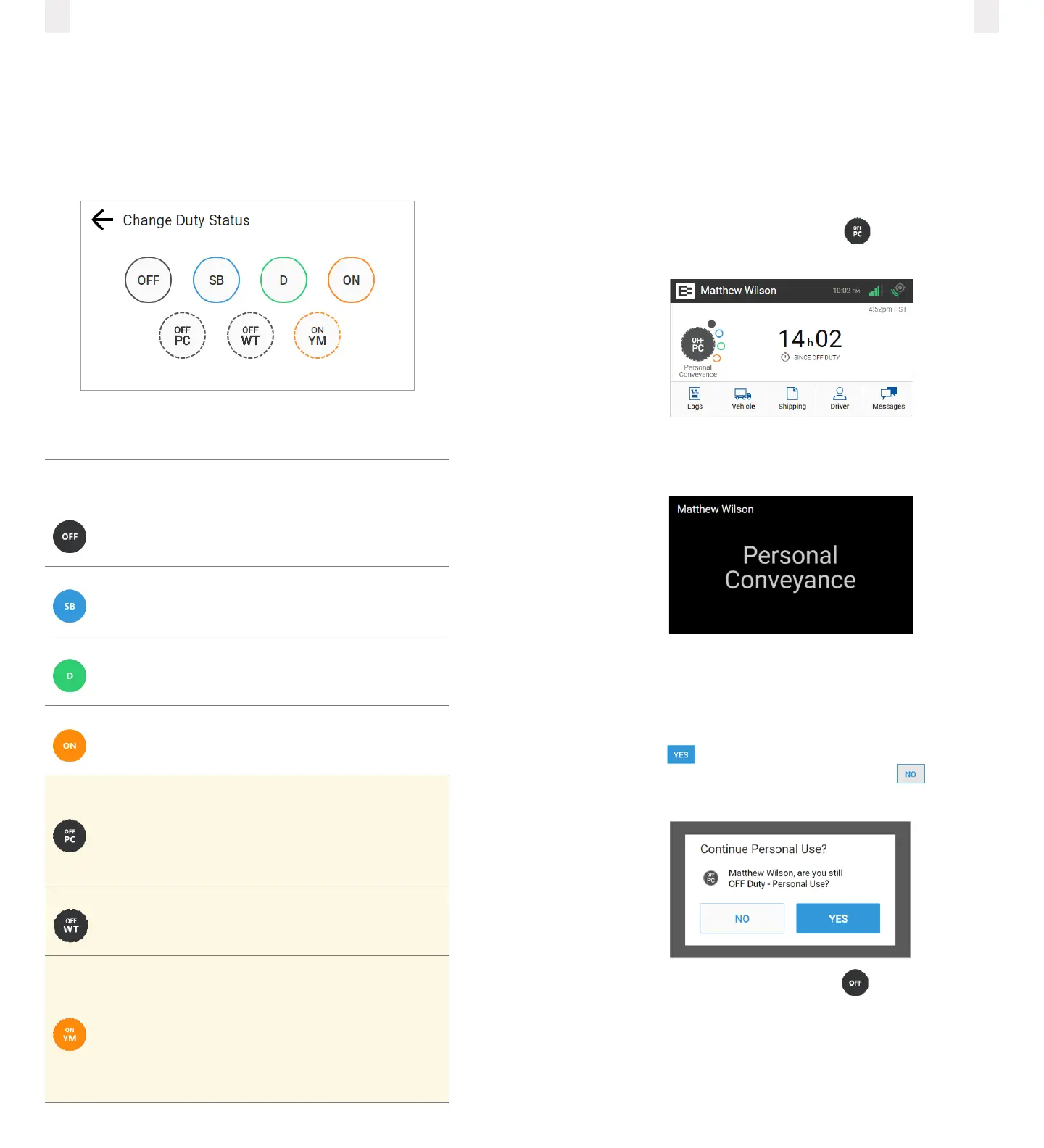
1 On the Home screen, tap the Duty Status circle. The Duty
Status menu appears. (See 2.4Changing your duty status.)
2 Tap the OFF - Personal Conveyance status. The Home
screen appears with the changed status.
The Home screen changes to a dark background while you are
driving the vehicle.
The EROAD ELD is designed to prompt the driver about the
O–Personal Conveyance duty status, if the vehicle is shut o
while in this status. The Continue Personal Use screen displays
when the ignition is activated in the vehicle.
3 Tap the button to continue the
OFF–Personal Conveyance status or tap the button to
end this duty status.
Note: Your duty status changes to OFF duty, if this prompt
is ignored.
2.4 Changing your duty status
There are four standard duty status options on the EROAD ELD.
1 Tap the Duty Status circle. The Duty Status menu appears.
2 Tap the duty status that you want. The Home screen
appears with the duty status that you select.
Your carrier might allow you to use the optional statuses
(yellow highlight below).
Duty Status Description
OFF
O duty. You are not working.
SB
Sleeper berth. Time spent in the berth.
D
Driving. Your status changes to Driving as
soon as the vehicle is in motion
(at least 5 miles per hour).
ON
On duty, but you are not driving.
OFF PC
O duty/personal conveyance; you are
using the truck for personal conveyance.
This time counts as O Duty in your hours
of service (optional per your supervisor or
dispatcher).
OFF WT
O duty/wait time; may be used in oil field
operations (optional per your supervisor
or dispatcher).
ON YM
On duty/yard move; you are moving
around the yard or o public roads. Your
time counts as On Duty in your hours of
service (optional per your supervisor or
dispatcher).



 To Next Page