16
In order to be able to fully use the Android ™ operating system, such as Google Maps, it is useful
to connect the device to the Internet via Wi-Fi. All you need is a smartphone with a mobile internet
connection and the so-called hotspot function.
> First, enable the Wi-Fi / Hotspot feature on your smartphone
> Then open “Settings” in the main menu.
> Click on Network & Internet
> Click on Wi-Fi and be sure, this function is activated.
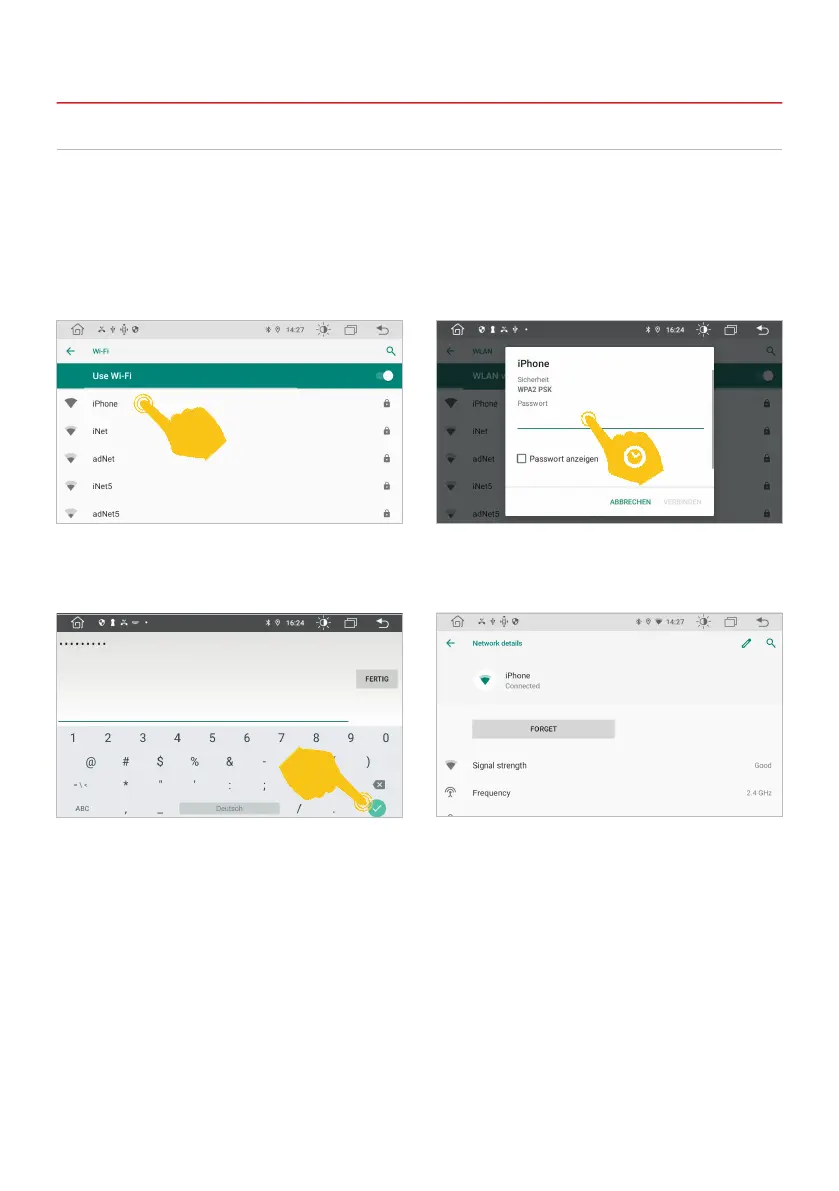
Click on your smartphone network in the list. To display the keyboard for entering the password,
tap the eld above the green line.
Then enter the password of your smartphone
network and press the green tick to connect.
After a successful entry, the device should
be connected to your smartphone after a few
seconds.
If you click on the network name again in the
„Connected“ status, you will receive some
information about the currently active Internet
connection. If you want to interrupt the connection
to your smartphone, click on „Remove“. However,
you must then enter the password again when
you reconnect.
2.5 INTERNET CONNECTION VIA WIFI / HOTSPOT
Note: Depending on the operating system and type of smartphone, you may need to restart the
Wi-Fi / Hotspot feature if the connection with the device has been lost. It is therefore advisable to
have the Wi-Fi / Hotspot function permanently activated on your smartphone.
2. BASIC SETTINGS


 To Next Page