22
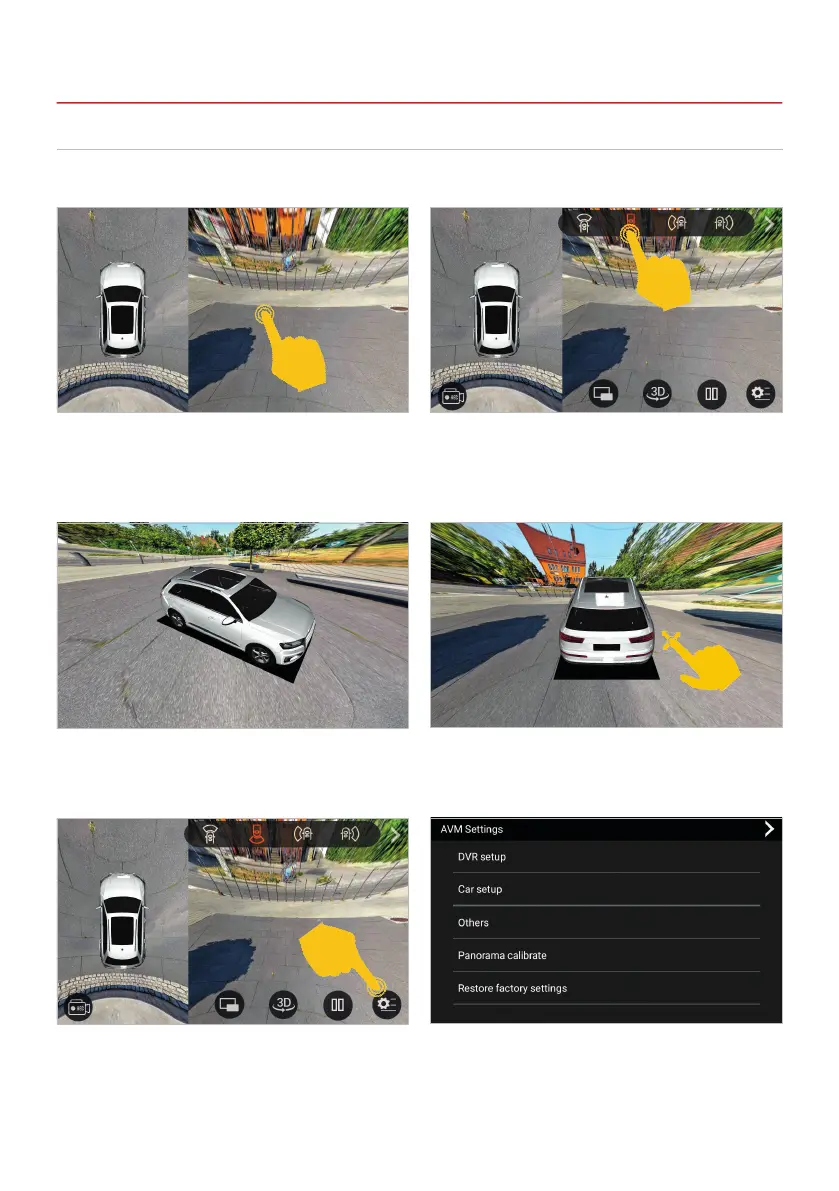
If you have connected four compatible HD cameras to the camera inputs of the device, you can operate
the all-round cameras accordingly using the 360° View app in the app menu.
2.11 360° VIEW (DEPENDING ON EQUIPMENT)
2. BASIC SETTINGS
Tap the screen to reveal the control buttons for
that menu.
The four connected cameras can be selected with
the control buttons above. The selected camera
is then shown on the right. On the left you always
see the all-round view of all four cameras.
The lower control button 3D activates the
interactive all-round view. This starts to rotate
automatically.
The lower control buttons offer further functions,
such as a PiP camera display, the parking mode
and other settings.
However, you can also move the depicted vehicle
in the middle to swipe to the desired view.
Here you can make further settings for the
connected cameras.


 To Next Page