7
1. BRIEF OVERVIEW
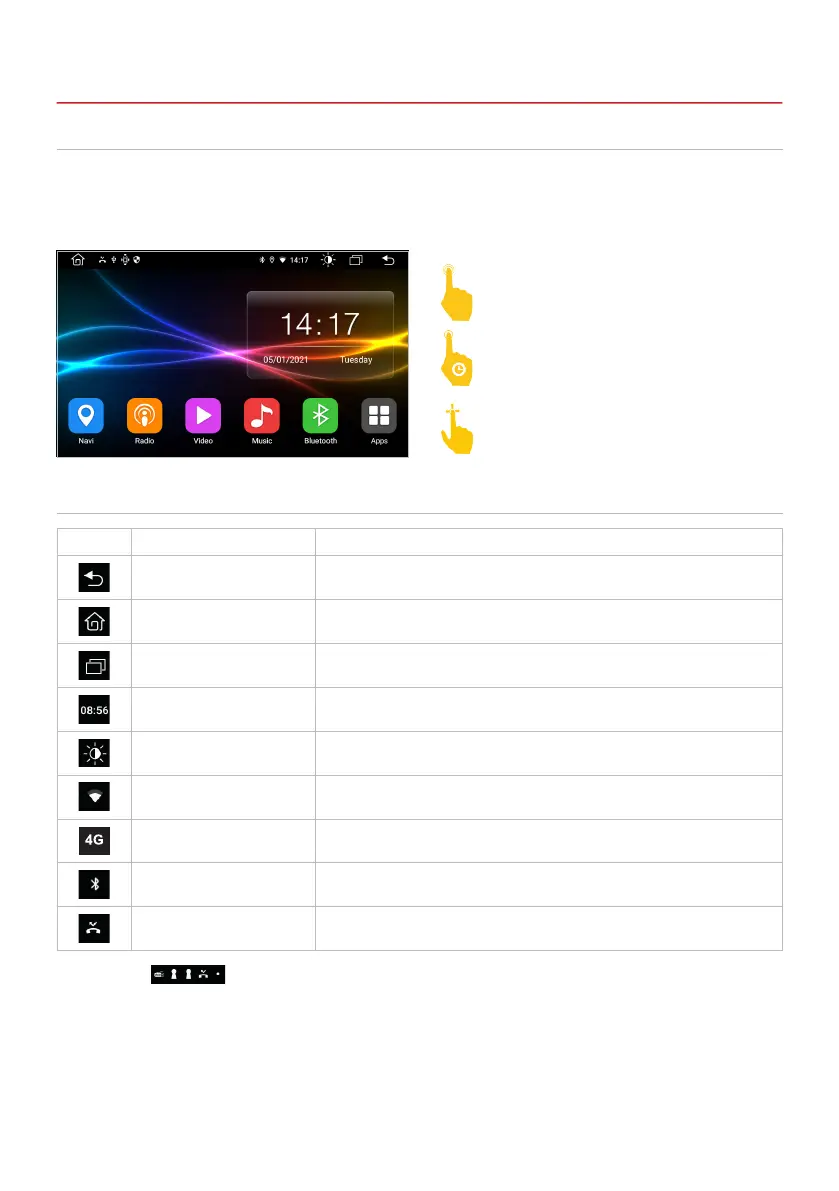
Important note: Depending on the apps or optional accessories used, the status bar may vary
as shown here!
The symbols
on the left side of the status bar are used for menu navigation or show the apps
or notications and events used. If there is a new message, it will be displayed in the status bar. Slowly
slide your nger down from the top to see all of the messages. Then you could click on the message and
see its contents. The icons on the right side of the status bar are the device status indicators.
1.3 STATUS BAR
This device has ve freely assignable main menus that you can access with a swipe to the right or left
to the edge of the screen. You can recognize the main menus by their colored background. You can
start any app or widget by briey tapping the respective icon. If you hold down an icon, it can be moved.
1.2 OPERATION
Symbol Function Description
Back Press here to go to the previous open menu.
Main menu Press here to open the main menu.
Split screen Screen split by 2 apps.
Time Current time display.
Switch off the monitor Press to turn off the monitor but not the device.
To turn the monitor back on, tap on the screen.
WiFi WiFi signal detected, the device is connected to the wireless network.
4G / LTE 4G / LTE signal detected, the device is connected to the mobile internet.
Bluetooth
®
Bluetooth
®
signal detected, the device is connected to another device via
Bluetooth
®
.
USB A USB storage medium is connected.
Touch the screen (briey)
Touch the screen (long)
Press down and move


 To Next Page