TR-4800E
Tally Router
Page - 24 Revision 1.1
4.2.2 Applying a JAR update VistaLINK® Pro
To update the VistaLINK® Pro software with a new JAR file, activate the “Help” menu then select the
“Apply Update…” menu item. In the next pop-up menu, choose the “Product…” menu item. Browse to
the folder containing the JAR update and select the “VLProProd_TR4800E.jar” file.
Once the file JAR file has been opened, a message will appear stating that the VistaLINK® Pro
software must be restarted before the update can be applied. The restart can be performed at any
convenient time by closing and re-opening the application. Note that when the server is restarted it will
force any clients that are currently connected to terminate.
4.2.3 Opening the Configuration View for the TR-4800E in VistaLINK® Pro
When the VistaLINK® Pro software has been updated with the latest JAR, the client should
automatically detect any TR-4800E units connected to the network during the next discovery. Open the
“Tree” menu and select “Refresh” to perform a network discovery immediately. Discovered devices are
displayed on the left side of the screen in the Navigation Tree under the Hardware node. If the
navigation tree is not visible, make sure it has not been hidden by opening the “Tree” menu and
selecting “Hide/Show Tree”. If the hardware node is not visible, check that it is enabled in the “Tree”
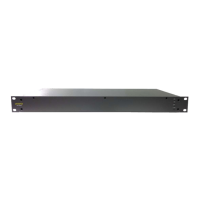
menu under “Properties…”. The TR-4800E should show up as a 1RU network graphic, listed by its IP
address: . The network tree entry for the TR-4800E can be renamed to any helpful description by
choosing the “Update Description…” menu item.
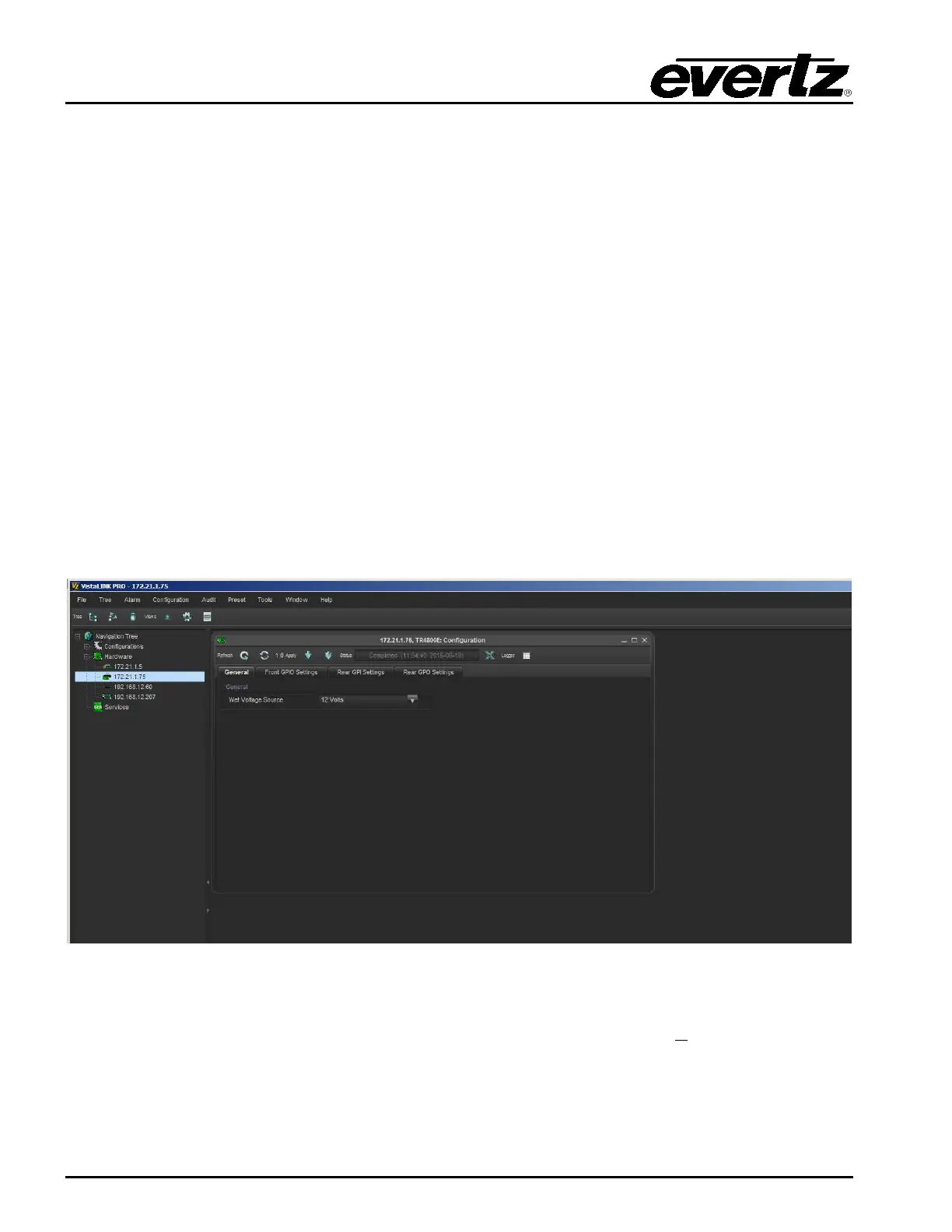
Figure 3-2: VistaLINK® Pro Configuration View
The configuration view is used to graphically configure and monitor the TR-4800E. It can be accessed
by right-clicking on the device in the navigation tree and selecting “View C
onfiguration…”. The
configuration view will appear and automatically load all settings from the tally router. The refresh
operation may take a few seconds, depending on network traffic conditions.


 To Next Page