TR-4800E
Tally Router
Page - 30 Revision 1.1
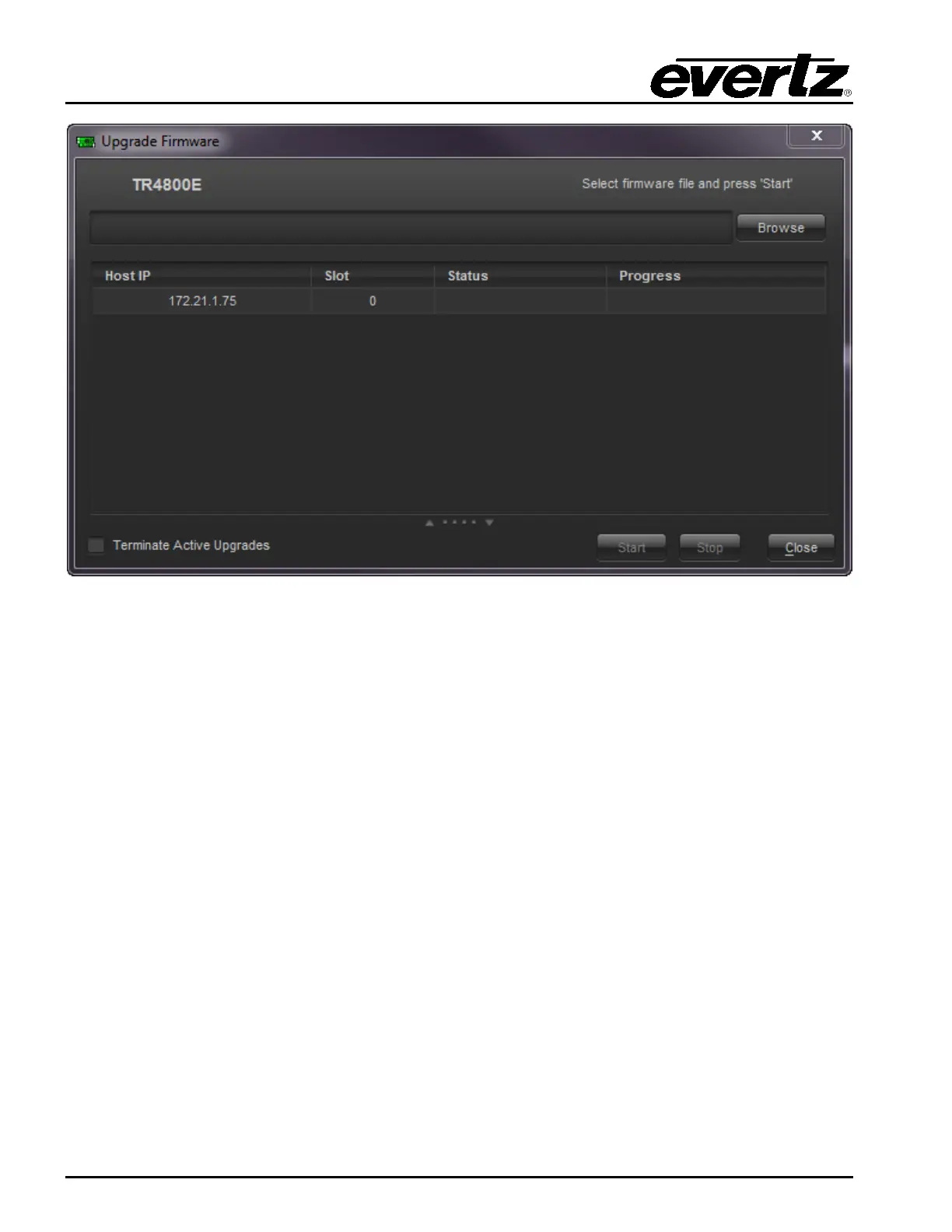
Figure 4-1: VistaLINK® Pro Upgrade Firmware Dialog
Click the Browse button and select the new firmware BIN file that was downloaded from the Evertz
website (Image file). Then click the Start button. Answer “Yes” if you are sure you want to upgrade.
The firmware upgrade process should take around 20 seconds then the tally router will reboot itself.
5.3.2 Performing a Firmware Upgrade Through the Serial Port
A firmware upgrade can also be performed through the Serial 1 port. This takes much longer than
through Ethernet, and will require the unit to be out of action for the duration of the upgrade. Connect
the serial port to a PC and press ENTER to get to the “CLI>” Command Line Interface prompt.
Type in the command “RESET” and press ENTER. The tally router will reboot. Immediately press
CTRL+X several times to stop the unit from booting again. This should break into the “PPCBOOT>”
prompt. Type the command “upgrade” and press ENTER. You should see the message “upload
product firmware now”. The firmware can now be sent to the tally router using the XMODEM
protocol (checksum mode). This should take about 4 minutes to complete.
When the firmware is finished sending, you should see the message “upload okay”. At this point
enter the command “boot” and press ENTER. The tally router will boot using the newly upgraded
firmware.


 To Previous Page