Raptor User Manual
2017 EverySight Ltd. Proprietary Page 12 of 46 Rev 1.0
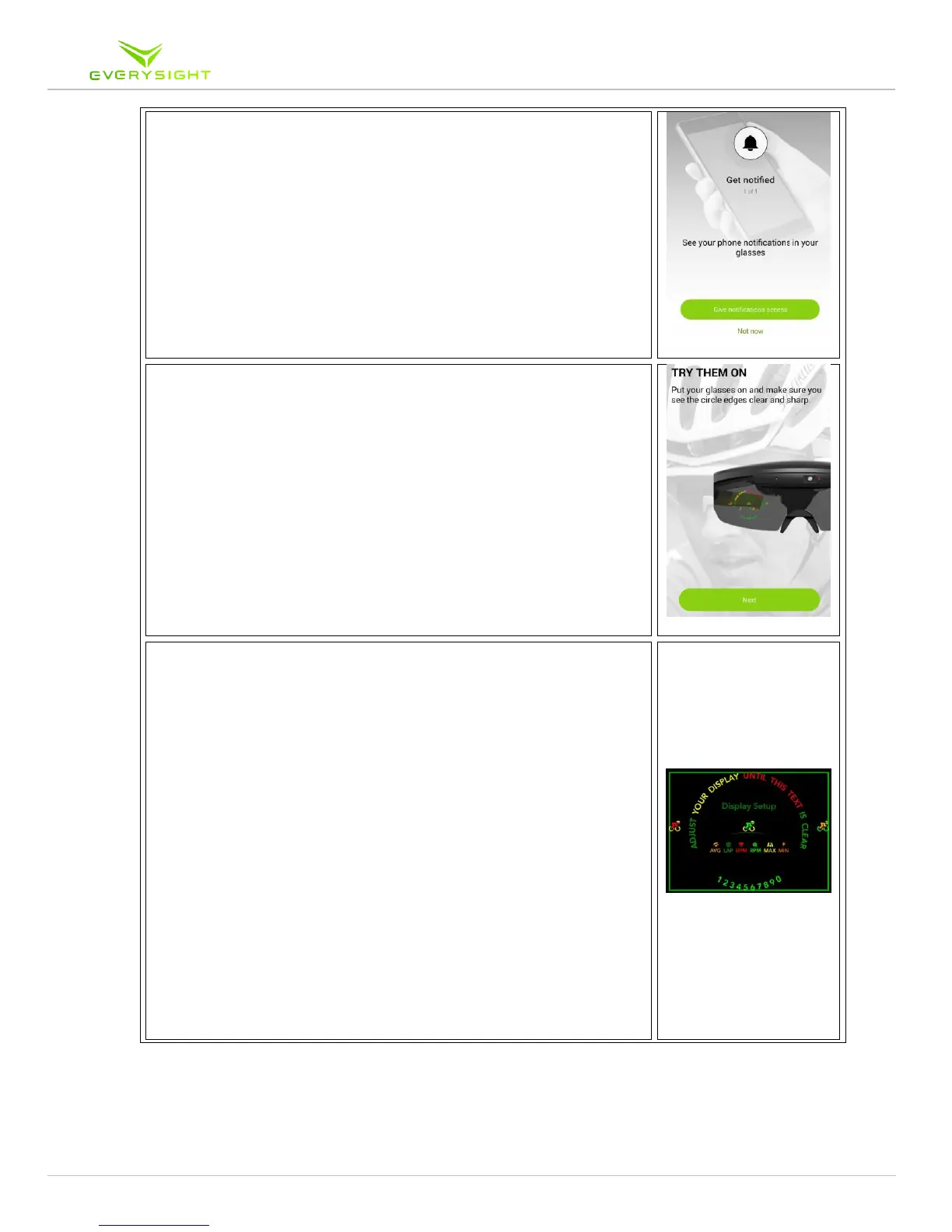
8. The following page is requesting permissions for
notifications such as SMS and Phone Calls. Once you select
‘Give notifications access’, simply put a checkmark next to
the Everysight Application. If you do not wish this feature
to be active immediately, you can click ‘Not now’ and edit
the permissions later in your Settings and selecting
Enable/Disable Notifications.
9. The Raptor's innovative BEAM
tm
technology display needs
to be adjusted to your unique facial structure. The
following two steps will ensure a clear and tailored display
while using your Raptor smartglasses.
Please note! Adjustments may need to be made in cases
where the Raptor's display is moved (i.e. using a different
helmet, shifting of the nosepiece etc.),
9.1 Adjusting the Raptor's nosepiece for your comfort and the
security of your smartglasses. (PUT YOUR HELMET ON!!)
The goal of this step is to adjust the Raptor for your comfort;
make sure that the nosepiece is comfortable, that the Raptor is
secured in place and resting flush against your forehead.
The helmet affects the Raptor's position on your face
and the display's location accordingly. Therefore,
MAKE SURE YOU ARE WEARING YOUR HELMET with
the straps sitting underneath the glasses.
The nosepiece was designed to be adjusted; you can open,
close or tilt the nosepiece forward or back for your
comfort and security so the Raptor doesn't move while
riding.



 To Next Page