DXP HD 4K PLUS Series • Operation 24
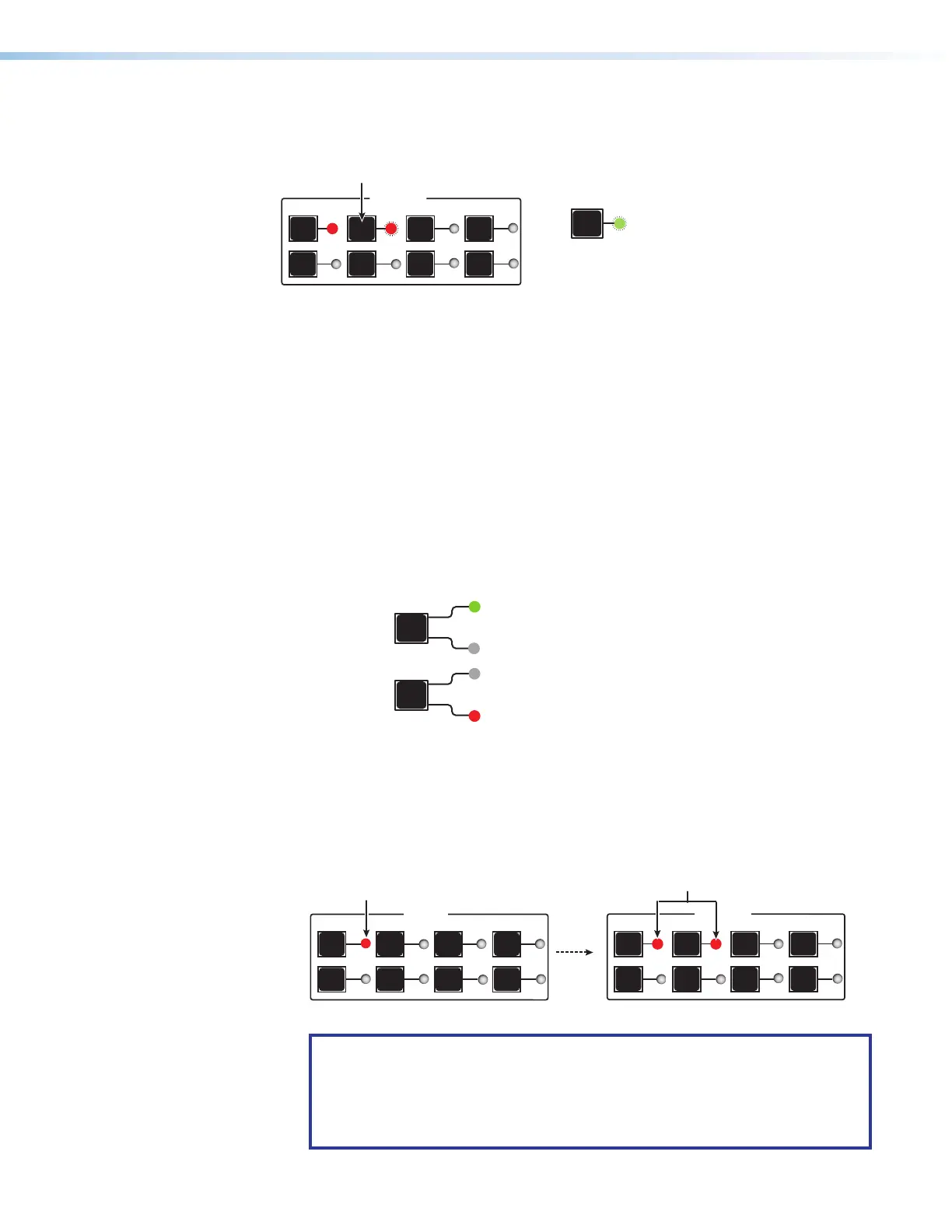
4. Press the desired output button whose LED is lit. The selected output button LED and
the Enter button LED start to blink, indicating a change is pending.
Press the Output button for the tie to be
broken.
The
Enter button LED blinks
green, indicating the need to
confirm the change.
ENTER
OUTPUTS
1
5
2
6
3
7
4
8
Figure 19. Selecting the Output to Untie
5. Press the Enter button. The selected input and output LEDs and the Enter button
become unlit, and the tie is broken.
Viewing a Configuration — DXP 44, 84, and 88
The mode lets you view the current set of video and audio ties using the front panel buttons.
This mode prevents inadvertent changes to the current configuration and also provides
a way to mute outputs (see Muting and Unmuting Outputs from the Front Panel on
page87).
View the current configuration for the DXP 44, 84, or 88 as follows:
1. Press the Esc button to clear any remaining input, output, or control button selections.
2. Select video or audio by pressing the I/O button until the desired LED lights (green for
video or red for audio).
I/O
VIDEO
ess I/O button to
Lights green
I/O
AUDIO
Lights red when audio is selected.
Figure 20. Selecting the Type of Ties to View
3. Select the desired input or outputs whose ties you wish to view by pressing the input
and output buttons.
• View ties by selecting an input — Press an input button. All button LEDs light for
the outputs that are tied to the selected input.
INPUTS
1
5
2
6
3
7
4
8
OUTPUTS
1
5
2
6
3
7
4
8
Press and release an Input b
utton.
The LED lights to indicate whether audio or
video w
as selected for the input.
The LEDs for any outputs already tied to the selected input
light to indicate the existing video ties (audio in this example).
Figure 21. Viewing Audio Ties
NOTES:
• Only outputs 1 and 2 can have audio ties.
• If you press an output button while an input is selected for viewing, the
output LED blinks to indicate a pending tie. Press Esc to cancel the tie or
Enter to add the tie to the selected input.
19
20
21













 To Next Page