SSP200 • Product Configuration Software 38
Accessing a non-factory default EDID into the EDID library
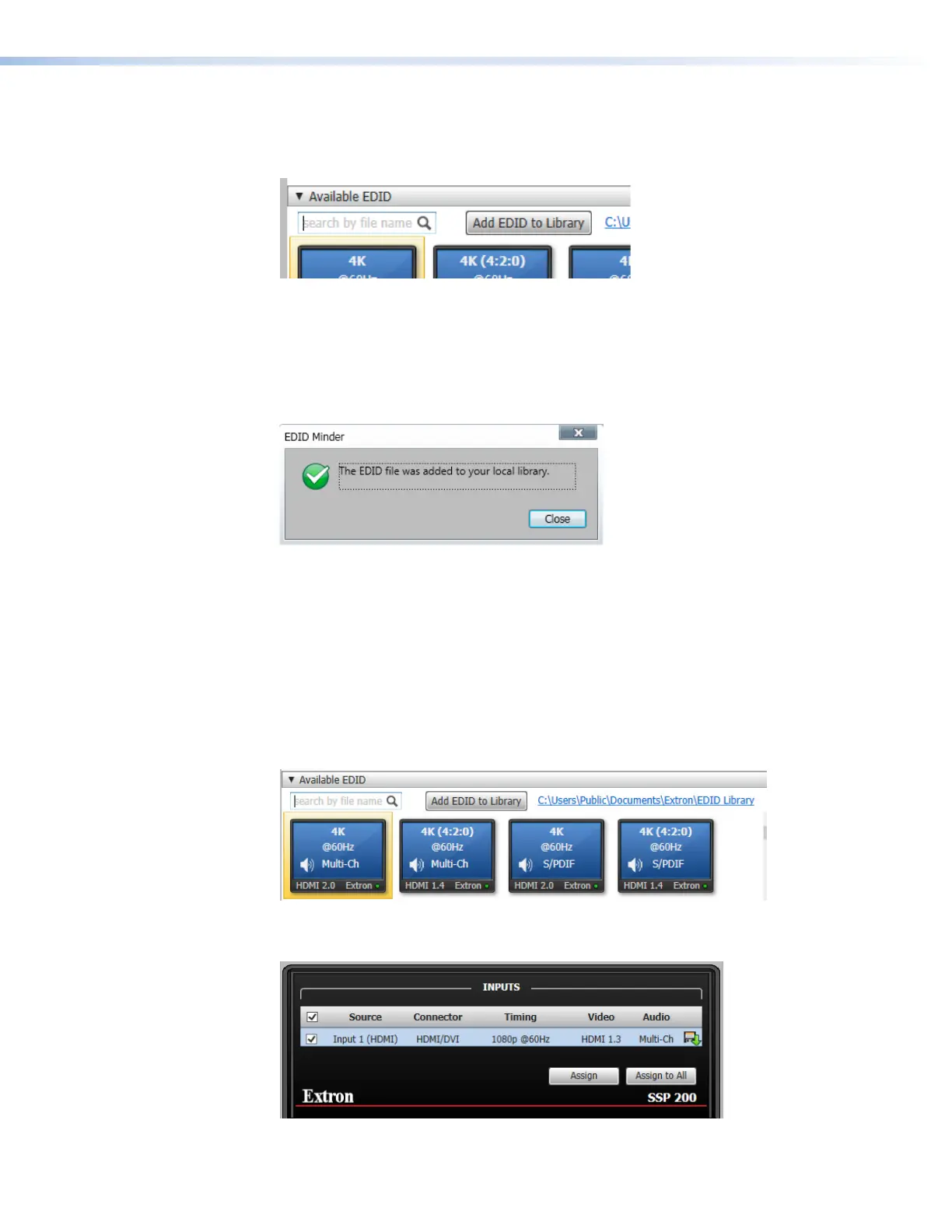
1. On the EDID Minder screen, navigate to the Add EDID to Library button to the
right of the Available EDID search box.
2. Click Add EDID to Library. The Browse Add EDID to the Library pop‑up
window opens.
3. Locate the previously saved EDID file (EDID files have .BIN extensions) to be added to
the EDID library and click Open.
4. The following pop‑up window displays, indicating that the EDID file was added to your
EDID library. Click Close to continue using the software.
EDID Assignment
The following can be assigned to the inputs of the connected SSP 200:
• Extron factory‑default EDID
• EDID from the display connected to the SSP 200 output port
• Non‑factory default EDID that have been imported or saved to the PCS EDID library
Assigning a Factory-Default Extron EDID
1. Navigate to the Available EDID panel on the EDID Minder screen.
2. Select the desired EDID (represented by a blue display icon).
3. Select the check box for Input 1 on the INPUTS panel.



 To Next Page