19
10.1 Method of measurement
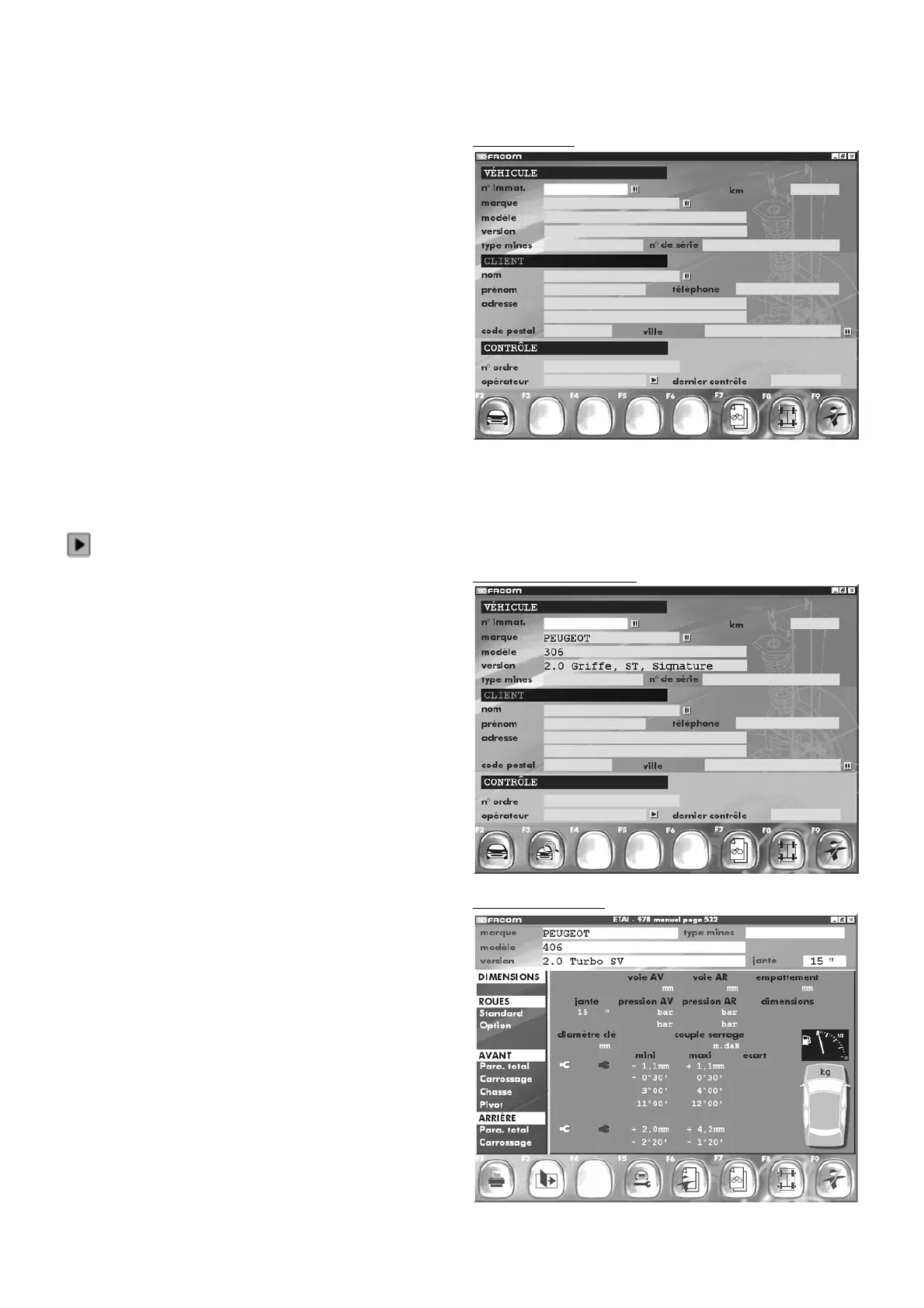
In the welcome screen, use F2 to access to the “
New Customer
”
screen.
"F2" "
Vehicle choice
"
"F7" "
Visual check
"
"F8" "
Measurement
"
"F9" "
End checking
"
This screen must be filled in with the various items of informa-
tion concerning: 1. the vehicle, 2 the customer, and 3 the
inspection.
Items 2 and 3 can be entered later. Only item 1 must be entered
at this point.
Press F2 to select the vehicle you wish to inspect in the database
(see section on choosing a vehicle in the manufacturer database).
Use the information on the vehicle registration document to
choose
the vehicle.
Enter the address and telephone number of the customer using
the keyboard.
Enter the inspection data; select an operator in the list using
the
icon on the right of the data entry box or enter the name
of
a new operator (see section on the “
Other functions
” menu in
“
Entering the operator list
”)
When you have chosen your vehicle and confirmed your choice
by pressing Enter, you return to the “New Customer” screen.
You can read the manufacturer data for the vehicle selected by
pressing F3.
Press this key.
New customer
Return to new customer
Manufacturer data
10 - Example
10.2 Manufacturer data
Remark:
To access the data in the UB.11 CD graphic data base, the CD-
ROM must be present in the drive when the equipment is
initalized.
According to the vehicle selected, a number of different screens
are available.
Use the keys F3 “
next page
” and F2 “
previous page
” to view
any of these screens.
"F2" "
Print manufacturer data
"
"F3" "
Read next data
"
"F5" "
Read adjustment points
"
"F6" "
Customer identification
"
"F7" "
Visual check
"
"F8" "
Measurement
"
"F9" "
End checking
"
Press F7 to access “
Visual Inspection
”.



 To Next Page