33
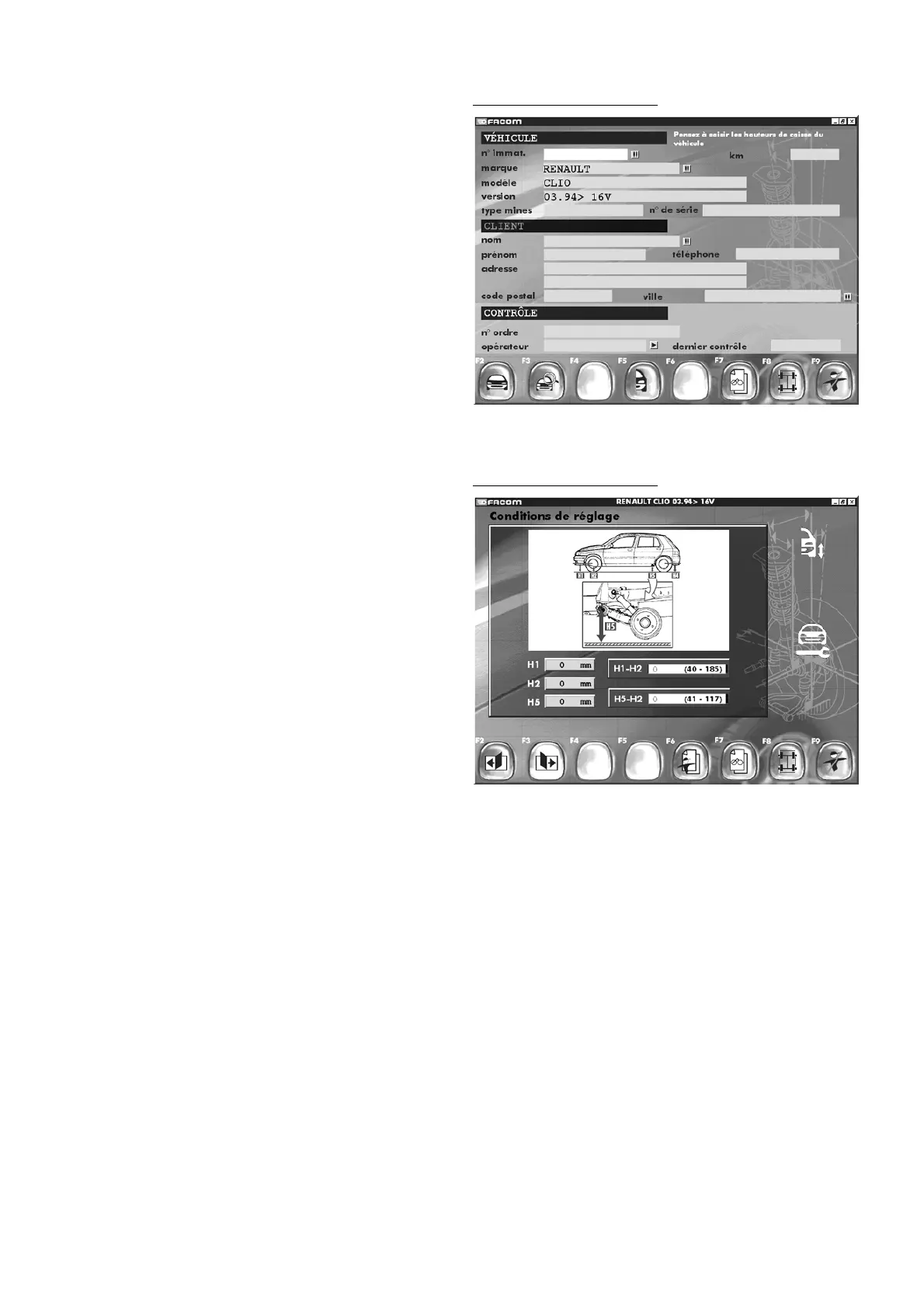
12 - Vehicle body height data entry
Select a vehicle in the manufacturer database (specific entry
requiring entry of body height).
You will then see the next screen.
The message blinking in yellow will indicate the need to enter
body height data for the vehicle in order to obtain the benchmark
values for camber, castor and pivot angles.
Press F5 for “
Enter vehicle body height
”.
Body heights vehicle input
Body heights vehicle inputBody heights vehicle input
"F2" "
Previous manufacturer data page
"
"F3" "
Next manufacturer data page
"
"F6" "
Customer identification
"
"F7" "
Visual check
"
"F8" "
Measurement
"
"F9" "
End inspection
"
Enter heights H1, H2 and H5 using the keyboard.
Move to each of the three data entry boxes using the keyboard
arrow keys.
Enter the vehicle body heights using the keyboard number pad.
Continue data entry procedure by pressing F6.
13 - Context retrieval
After an operator error or power outage, you can retrieve measurement data and details of procedures performed by pressing F7
when the equipment is powered up again.
Example:
You have performed rim runout compensation and a power cut has stopped you from going on to perform a centre steering
sequence. When the equipment is powered again, press F7 and you will return to the rim runout screen (the four wheels will be
framed in green on the display). You can then continue your inspection procedure where you left off.



 To Next Page