22
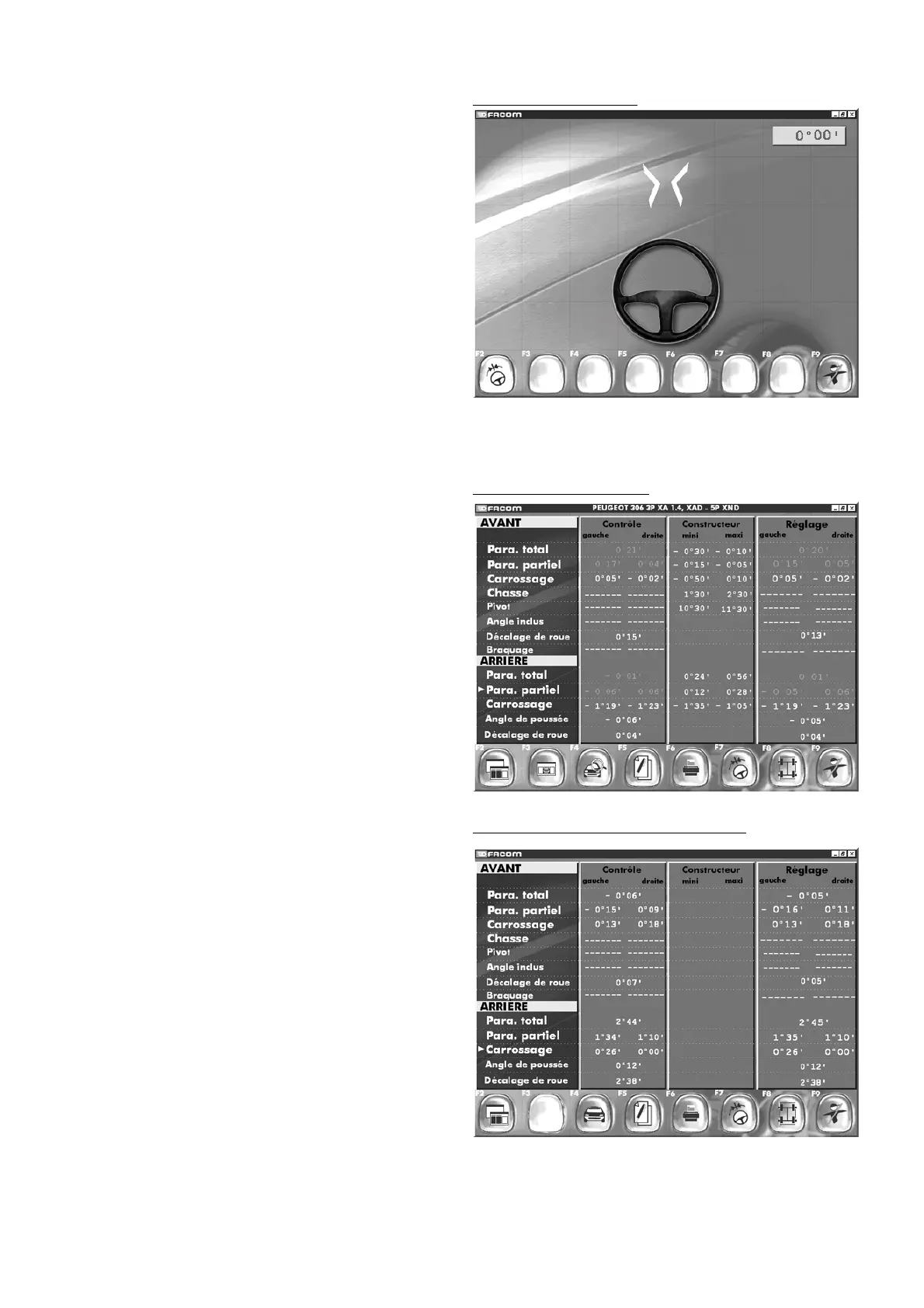
Results (wheel alignment)
End of centre sequence
Screen results whitout vehicle selection
When the two green targets light, the displays switches
automatically to the screen showing the wheel alignment and
camber results.
Results
Note:
A yellow index may be placed in front of the options
“
Rear
camber
”, “
Rear wheel alignment
” or “
Camber and castor
”, “
Front
camber
”, “
Front wheel alignment
”. This index can be configured
in the menu “
Configuration of working mode
” in the “
Other
functions
” screen.
Where the index is configured for a choice between “
Front
”
and “
Rear
”, priority is given to the rear.
Option choice is confirmed by pressing Enter for access to the
adjustment screens.
Readouts displayed in green are correct.
Readouts displayed in red are out of manufacturer tolerance
In this screen, displayed readouts change in real time and you
can adjust front and rear alignment and camber.
"F2" "
Modify page presentation
"
"F3" "
Manufacturer data
" (nominal or min./max.)
"F4" "
Read manufacturer data
"
"F5" "
Personalized report
"
"F6" "
Print out inspection report
"
"F7" "
Steering sequence
"
"F8" "
Compensation
"
"F9" "
End checking
"
Note:
If no vehicle has been selected before carrying out rim runout
procedures, you will see the screen shown opposite (“Manufac-
turer” column empty) after completing the centre steering
procedure.
F4 allows access to the manufacturer database.
Select the vehicle, and you will return to the results screen,
which will now be displaying all necessary information in the
Manufacturer column.
Press F7 to access the steering sequence.



 To Next Page