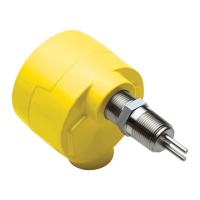
FS10 Series
Fluid Components International LLC 37
Using the K Factors Calculation Window
The K Factors Calculation window provides the means to automatically linearize the FS10’s output signal by entering a reference meter
normalized readings corresponding to the same flow rate as the FS10. The interface software computes three sets (1
st
, 2
nd
and 3
rd
order) of K
Factors (linearization coefficients). Choose the set that provides the smallest error and send it to the instrument. This provides the most ideal
FS10 output signal linearization for optimum flow measurement accuracy.
1. After establishing a zero and span using the Customer Flow Range
Setup window, click Calculate K FACTORS.
3. Enter normalized data in order. Enter 0 and 100% into 1
st
and 5
th
blocks
respectively. Values are always in percent of flow.
• FS10 (%) data are recorded values from HOME window.
• Actual (%) data are entered values from reference meter at same
flow rate.
Click Calculate after all percentage data is entered.
2. Heed the cautions in the next screen. Click NEXT when ready.
Note:
The FS10 must have the default K Factors loaded before K
Factor calculation can be carried out successfully. An error
dialog will display (K Factors are not set to their default
values.) when a calculation is attempted with existing cal-
culated K Factors in place. After dismissing the error dialog
(twice) the program asks, Do you want to set the Kfactors
to their default values now? Click Yes to set the defaults.
Alternatively, go to the K Factors screen (Utilities) and click
RESET DEFAULTS.
Tip: Creating a zero offset during initial setup (Customer Flow
Range Setup window or through use of buttons) can
significantly improve the linearization of the output range.
For example, instead of scaling between 0 and 10 SCFH (0
to 5000 cc/min), establish the zero at 1 or 1.5 SCFH (500 or
750 cc/min). This removes the steepest portion of the output
curve thus improving linearization over the usable range.


 To Next Page